
How to Close Open Applications: A Comprehensive Guide
Are you tired of dealing with open applications that won’t close? Do you want to free up memory on your device, but don’t know how to do it? Look no further! In this article, we’ll show you how to close open applications on various devices, including Android, iPhone, Windows, and Mac.
What Happens When an Application Won’t Close?
When an application won’t close, it can cause a range of problems, from slowing down your device to consuming large amounts of memory. In some cases, an application may become stuck in the background, making it difficult to access other programs or features on your device.
Closing Open Applications on Android
If you’re using an Android device and want to close open applications, there are several methods you can try:
- Method 1: Using Gestures
- To use gestures, swipe down from the top of the screen with two fingers.
- This will open the task manager, where you can see a list of all currently running applications.
- Swipe left or right to scroll through the list and find the application you want to close.
- Tap on the application’s icon to close it.
- Method 2: Using Tastos
- Press and hold the Home button until the task manager opens.
- Find the application you want to close in the list of running applications.
- Swipe up or down on the application’s icon to close it.
- Method 3: Forcing an Application to Close
- Open the Settings app and go to Apps & notifications > See all apps.
- Find the application you want to close and tap on it.
- Tap on Force Stop.
Closing Open Applications on Iphone
If you’re using an iPhone, closing open applications is a relatively straightforward process:
- Method 1: Using Gestures
- Swipe up from the bottom of the screen with one finger.
- This will open the task manager, where you can see a list of all currently running applications.
- Swipe left or right to scroll through the list and find the application you want to close.
- Tap on the application’s icon to close it.
- Method 2: Using Home Button
- Press and hold the Home button until the task manager opens.
- Find the application you want to close in the list of running applications.
- Swipe up or down on the application’s icon to close it.
Closing Open Applications on Windows
If you’re using a Windows device, closing open applications is easy:
- Method 1: Using Task Manager
- Press Ctrl + Shift + Esc to open the Task Manager.
- Find the application you want to close in the list of running processes.
- Click on the application’s icon and select End Process.
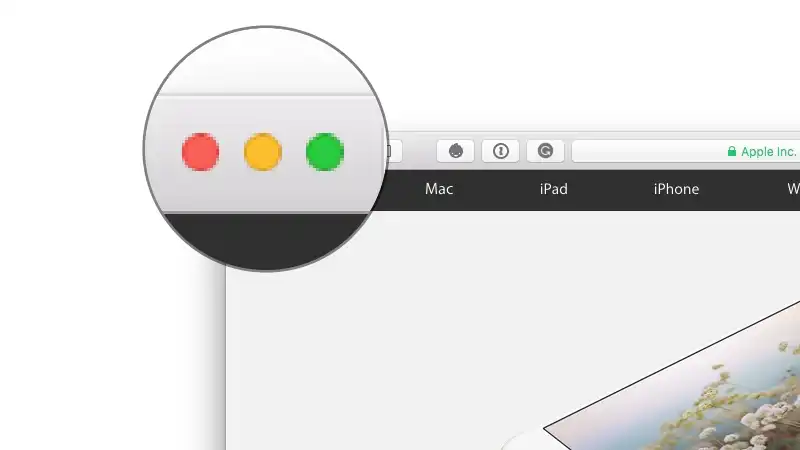
Closing Open Applications on Mac
If you’re using a Mac, closing open applications is also relatively easy:
- Method 1: Using Gesture
- Swipe left or right with four fingers to open the task manager.
- Find the application you want to close in the list of running processes.
- Click on the application’s icon and select Quit.
Closing Open Applications: Tips And Tricks
Here are some additional tips and tricks for closing open applications:
- Method 1: Using Keyboard Shortcuts
- On Windows, press Win + D to minimize all windows and show the desktop.
- On Mac, press Command + Shift + H to hide all windows and show the desktop.
Conclusion
Closing open applications is an essential skill for any device user. Whether you’re using Android, iPhone, Windows, or Mac, there are several methods you can use to close open applications and free up memory on your device. Remember to always be cautious when closing applications, as some may become stuck in the background.
Frequently Asked Questions
Here are some frequently asked questions about closing open applications:
Q: How do I close an application that won’t close?
A: If an application won’t close, try forcing it to stop using the methods outlined above. If this doesn’t work, you can try restarting your device or seeking help from a professional.
Q: Will closing open applications affect my device’s performance?
A: Closing open applications will generally improve your device’s performance by freeing up memory and resources. However, if an application is stuck in the background, it may continue to consume resources even after you close its window.
Q: Can I close all open applications at once?
A: Yes, on Windows, you can use the Task Manager to close all running processes with a single click. On Mac, you can use the Command + Shift + H keyboard shortcut to hide all windows and show the desktop.
Q: How do I prevent applications from becoming stuck in the background?
A: To prevent applications from becoming stuck in the background, make sure to close them properly when you’re finished using them. You can also try restarting your device regularly to clear out memory and resources.
Q: What should I do if an application is causing problems on my device?
A: If an application is causing problems on your device, such as crashing or freezing, try uninstalling it and reinstalling the latest version. If this doesn’t work, you may need to seek help from a professional.
Q: Can I close open applications remotely?
A: Yes, on some devices, you can use remote access tools to close open applications remotely. However, this should only be done with caution and under specific circumstances.
Q: Will closing open applications affect my device’s battery life?
A: Closing open applications will generally help extend your device’s battery life by freeing up resources and conserving energy. However, the impact on battery life will depend on various factors, such as usage patterns and device specifications.


