
How Close Open Programs? A Step-by-step Guide
Are you tired of having multiple programs open on your computer, taking up valuable space and resources? Do you want to know how to close them quickly and easily? Look no further! In this article, we will guide you through the process of closing open programs on Windows, Mac, Android, and iPhone.
Understanding The Problem
Have you ever found yourself in a situation where your computer is running slow because of too many programs open at once? Or perhaps you want to free up some space on your desktop by closing unnecessary applications. Whatever your reason, closing open programs is an essential skill that anyone can learn.
Closing Open Programs on Windows
On Windows, there are several ways to close open programs. Here’s a step-by-step guide:
Method 1: Closing Individual Programs
- Click on the window of the program you want to close
- Click on the X in the top-right corner
- If prompted, click “OK” or “Confirm” to close the program
Method 2: Closing Multiple Programs at Once
- Press Alt+Tab to switch between open programs
- Select the program you want to close and press Ctrl+F4
- Repeat this process for each program you want to close
Method 3: Using The Task Manager
- Press Ctrl+Shift+Esc to open the Task Manager
- Select the program you want to close and click “End task”
- Confirm that you want to close the program by clicking “OK”
Closing Open Programs on Mac
On a Mac, closing programs is just as easy. Here’s how:
Method 1: Closing Individual Programs
- Click on the Apple menu and select “Force Quit”
- Select the program you want to close and click “Relaunch”
- If prompted, confirm that you want to force quit the program
Method 2: Using The Activity Monitor
- Press Command+Option+Esc to open the Activity Monitor
- Select the program you want to close and click “Quit”
- Confirm that you want to quit the program by clicking “OK”
Closing Open Programs on Android
On an Android device, closing programs is a bit more involved. Here’s how:
Method 1: Closing Individual Apps
- Swipe up or down from the top of the screen to open the notification shade
- Select the app you want to close and swipe it away
Method 2: Using The Settings App
- Go to Settings > Apps > All apps
- Select the app you want to close and click “Uninstall”
- Confirm that you want to uninstall the app by clicking “OK”
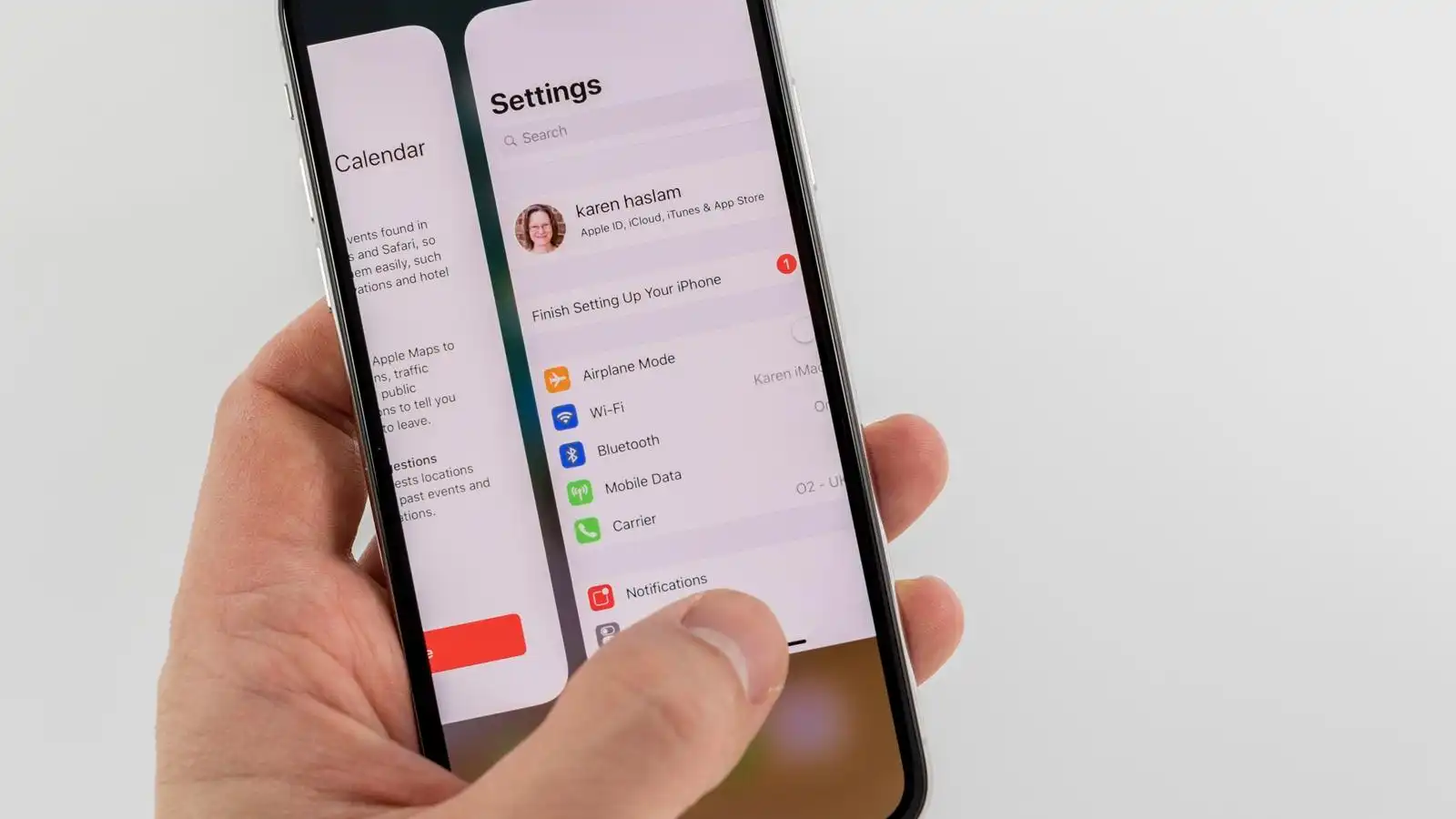
Closing Open Programs on Iphone
On an iPhone, closing programs is a bit more streamlined. Here’s how:
Method 1: Closing Individual Apps
- Double-click the Home button to open the multitasking menu
- Swipe up or down on the app you want to close
- Click “X” to confirm that you want to close the app
Conclusion
Closing open programs is an essential skill that anyone can learn. By following these step-by-step guides, you should be able to close open programs on Windows, Mac, Android, and iPhone with ease.
If you have any further questions or need more clarification, feel free to ask!
Faqs
Here are some additional FAQs related to closing open programs:
-
Q: Why do I need to close open programs?
A: Closing open programs can help improve your computer’s performance, free up space on your desktop, and prevent conflicts between programs. -
Q: Can I close all my open programs at once?
A: Yes, you can use the Task Manager or Activity Monitor to close multiple programs simultaneously. -
Q: What happens if a program is stuck or frozen?
A: You can try using the Force Quit feature on Mac or the Task Manager on Windows to close the program. If that doesn’t work, you may need to restart your computer. -
Q: How do I prevent programs from opening automatically at startup?
A: This depends on your operating system and the specific program. However, you can usually find options in the Settings app or Program Files folder to disable automatic startups.
If you have any more questions, feel free to ask!


