
How to Close Spotify: A Step-by-step Guide
Are you tired of Spotify running in the background, consuming your battery life and data? Or perhaps you want to cancel your premium subscription or delete your account altogether? Look no further! In this article, we’ll guide you through the process of closing Spotify on various devices, including Android, iPhone, PC, Apple Watch, and more.
Why Close Spotify?
Before we dive into the steps, let’s quickly discuss why you might want to close Spotify. Here are a few reasons:
- To conserve battery life: If you’ve noticed your device’s battery draining faster than usual while using Spotify, closing the app can help.
- To free up storage space: Closing Spotify can help clear up storage space on your device, especially if you have a limited capacity.
- To cancel subscription or delete account: If you’re no longer interested in using Spotify Premium or want to delete your account entirely, we’ll show you how.
Closing Spotify on Android
To close Spotify on an Android device:
- Update The App: Make sure Spotify is updated to the latest version.
- Go to Settings: Open the Settings app on your device.
- Find And Select Apps: Look for the “Apps” or “Applications” section.
- Select Spotify: Find Spotify in the list of installed apps.
- Force Stop: Tap the three dots next to Spotify’s icon, then tap “Force stop.”
- Confirm: Confirm that you want to force stop the app.
Alternative Method
If the above method doesn’t work, try this:
- Go to Settings: Open the Settings app on your device.
- Find And Select Apps: Look for the “Apps” or “Applications” section.
- Select Spotify: Find Spotify in the list of installed apps.
- Tap Battery: Tap the battery icon next to Spotify’s icon.
- Limit Background Data: Select “Limit background data” to restrict Spotify’s access to background data.
Closing Spotify on Iphone
To close Spotify on an iPhone:
- Double-click Home Button: Double-click the Home button to open the multitasking view.
- Find And Swipe up: Find Spotify in the list of open apps, then swipe it up to close.
- Confirm: Confirm that you want to close Spotify.
Alternative Method
If the above method doesn’t work:
- Hold Sleep/wake Button: Hold the Sleep/Wake button on your iPhone until the “Slide to Power Off” slider appears.
- Force Close: Swipe left on Spotify’s icon to force close the app.
- Confirm: Confirm that you want to force close Spotify.
Closing Spotify on PC
To close Spotify on a Windows PC:
- Press Ctrl+alt+del: Press Ctrl+Alt+Del to open the Task Manager.
- Find And Select Spotify: Find Spotify in the list of running processes, then click “End process.”
- Confirm: Confirm that you want to end the process.
Alternative Method
If the above method doesn’t work:
- Right-click Spotify Icon: Right-click the Spotify icon in your system tray.
- Select Quit: Select “Quit” to close the app.
- Confirm: Confirm that you want to quit Spotify.
Closing Spotify on Apple Watch
To close Spotify on an Apple Watch:
- Open Spotify App: Open the Spotify app on your Apple Watch.
- Hold Side Button: Hold the Side button until the “Turn Off” slider appears.
- Swipe up: Swipe up to confirm that you want to turn off the app.
Closing Spotify Premium
To cancel Spotify Premium:
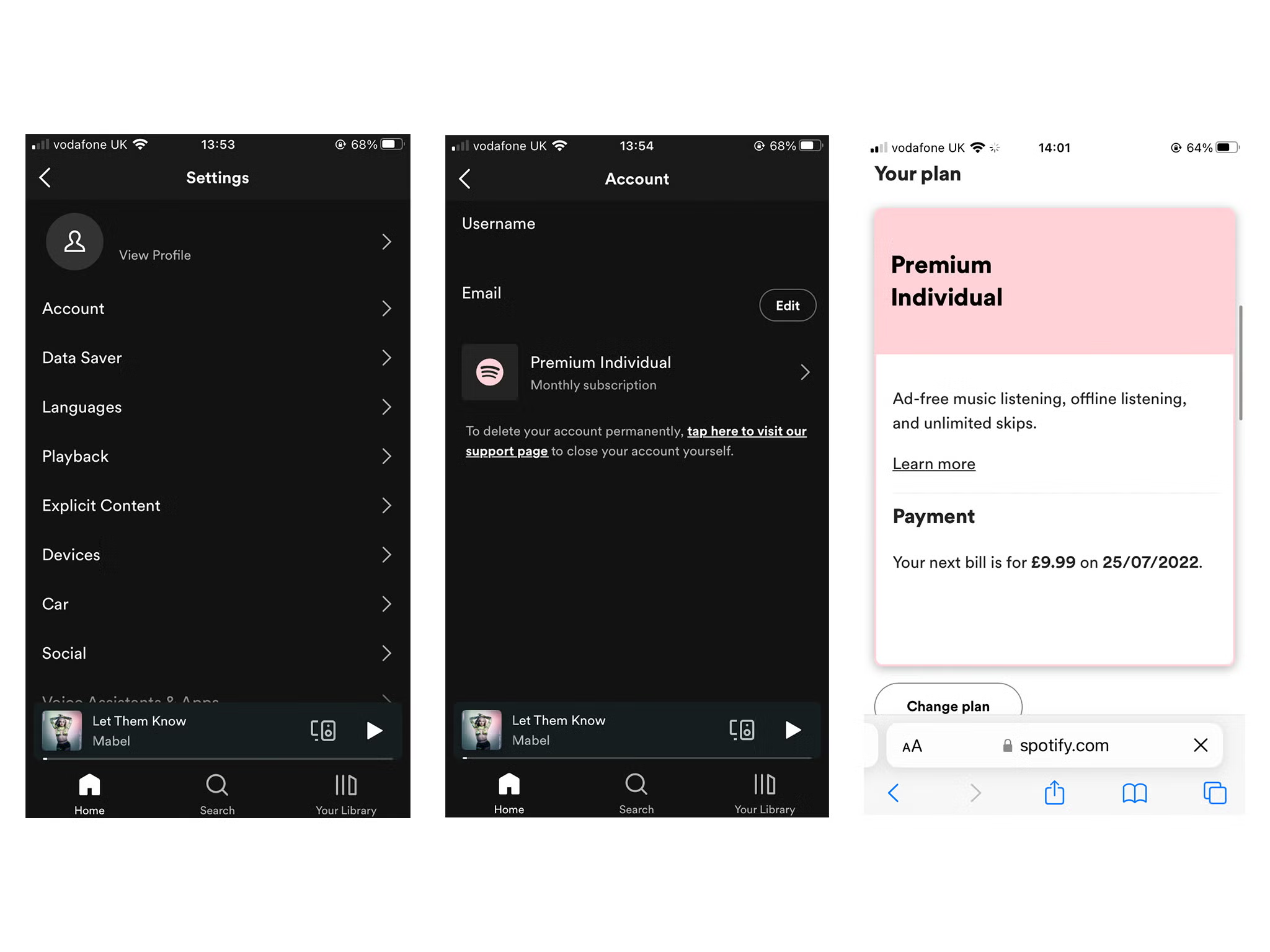
- Go to Account Settings: Open the Spotify app and go to your account settings.
- Select Subscription: Select your subscription plan.
- Cancel Subscription: Cancel your subscription by selecting “Turn Off Auto-Renewal.”
Deleting Spotify Account
To delete your Spotify account:
- Go to Account Settings: Open the Spotify app and go to your account settings.
- Select Delete Account: Select the option to delete your account.
- Confirm: Confirm that you want to delete your account.
And there you have it! Closing Spotify on various devices is a relatively straightforward process. Remember to always update your app and device software before attempting to close or cancel services. If you have any further questions, feel free to ask in the comments section below.
Frequently Asked Questions (FAQs)
- Q: How do I Close Spotify if It’s Not Responding?
A: Try restarting your device or closing the app using a third-party task manager. - Q: Can I Cancel my Spotify Premium Subscription at Any Time?
A: Yes, you can cancel your subscription at any time by going to your account settings and selecting “Turn Off Auto-Renewal.” - Q: How do I Delete my Spotify Account?
A: Go to your account settings and select the option to delete your account. - Q: Will Closing Spotify Affect my Music Library or Playlists?
A: No, closing Spotify will not affect your music library or playlists. - Q: Can I Use a Different Streaming Service if I Close Spotify?
A: Yes, you can switch to a different streaming service, such as Apple Music, Google Play Music, or Amazon Music.
We hope this article has been helpful in answering your questions about closing Spotify. If you have any further concerns, don’t hesitate to reach out!


