
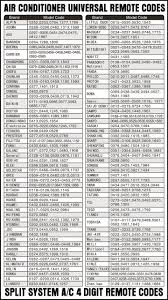
How to Encode a Universal Remote Control
Are you tired of using multiple remote controls for your TV, decoder, and other devices? Do you want to simplify your viewing experience with a single universal remote control? Look no further! In this article, we will guide you through the process of encoding a universal remote control, making it compatible with your TV, decoder, and other devices.
Understanding Universal Remote Controls
A universal remote control is a device that can be programmed to work with multiple electronic devices, such as TVs, decoders, DVD players, and more. It uses a specific code or frequency to communicate with each device, allowing you to control them with a single remote.
Why Encode a Universal Remote Control?
Encoding a universal remote control allows you to:
- Simplify your viewing experience by using a single remote for multiple devices
- Save space and reduce clutter in your living room
- Improve the overall user experience with a more intuitive and user-friendly interface
How to Encode a Universal Remote Control
There are three ways to encode a universal remote control: Through a code, automatic recognition, or computer configuration.
Method 1: Encoding Through a Code
To encode a universal remote control using a code, follow these steps:
- Consult the instruction manual for your TV or decoder to find the code associated with it.
- Enter the code into the universal remote control using the SET + TV button (or the corresponding button on your device).
- Save the settings by pressing the Power button.
Tips And Variations
- Some universal remote controls may have multiple codes or frequencies available for use.
- You can also try pressing the combination of buttons Power + Mute to see if it resolves any issues with the encoding process.
- If you’re still having trouble, consult the manual or manufacturer’s website for further assistance.
Method 2: Encoding Through Automatic Recognition
To encode a universal remote control using automatic recognition, follow these steps:
- Press and hold the Power button on your TV or decoder until it turns off.
- Repeat this process every five seconds until the device turns back on (this indicates that the recognition process has been completed).
- Once recognized, you can use the universal remote control to control your device.
Tips And Variations
- Some universal remote controls may have specific combinations of buttons for automatic recognition.
- Consult the manual or manufacturer’s website if you’re unsure about the correct sequence of buttons to press.
Method 3: Encoding Through Computer Configuration
To encode a universal remote control using computer configuration, follow these steps:
- Connect your universal remote control to your PC using a USB cable.
- Download and install any necessary drivers or software for the device.
- Configure the universal remote control using the manufacturer’s website or software.
Tips And Variations
- Some universal remote controls may have specific requirements for computer configuration, such as specific software or drivers.
- Consult the manual or manufacturer’s website if you’re unsure about the correct sequence of steps to follow.
Conclusion
Encoding a universal remote control is a straightforward process that can greatly simplify your viewing experience. By following these three methods – through a code, automatic recognition, or computer configuration – you can easily encode a universal remote control and start enjoying a more convenient and streamlined TV-watching experience.
Frequently Asked Questions (FAQs)
- What is The Best Method For Encoding a Universal Remote Control?
The best method depends on your specific situation and device. If you’re unsure, try using automatic recognition or computer configuration first.
- Can I Use a Universal Remote Control With Multiple Devices?
Yes! A universal remote control can be programmed to work with multiple electronic devices, such as TVs, decoders, DVD players, and more.
- How do I Know if my Universal Remote Control is Compatible With my Device?
Check the manual or manufacturer’s website for compatibility information. You can also consult with a professional or manufacturer’s support team for further assistance.
- Can I Encode Multiple Codes on a Single Universal Remote Control?
Yes! Some universal remote controls allow you to store and use multiple codes, making it easy to switch between devices.
- What if my Universal Remote Control is Not Responding?
Try resetting the device or consulting the manual for troubleshooting steps. If you’re still having trouble, contact manufacturer’s support team for further assistance.
- Can I Encode a Universal Remote Control With an Existing Remote Control?
Yes! You can duplicate the code from an existing remote control using automatic recognition or computer configuration.
- How do I Know if my Universal Remote Control is Working Correctly?
Test the device with your TV, decoder, and other devices to ensure that it’s functioning properly.


