
How to Comment on Youtube: A Step-by-step Guide
As you scroll through your Facebook feed, your attention is captured by a video on YouTube. Out of curiosity, you click on it directly from the famous sharing platform owned by Google. By the time the video finishes playing, you’re left captivated and want to express your thoughts in the comments section. Unfortunately, all your attempts fail, and you’d like some help understanding why.
Don’t worry; you’ve come to the right place! In this guide, we’ll walk you through how to comment on YouTube using a computer, smartphone, or tablet. We’ll also cover how to create an account and open a channel on YouTube to facilitate commenting. Plus, learn how to modify or delete comments if you change your mind.
What You Need to Know Before Commenting
Before diving into the tutorial, there are some preliminary operations that need to be done for everything to go smoothly. First, it’s essential to log in to YouTube with a Google account. If you don’t have one already, follow our guide on creating an account. For computer users, open your browser (e.G., Chrome), navigate to the YouTube website, and click on the “Sign In” button at the top right corner. Log in using your Google credentials.
If you’re using a smartphone or tablet, access the YouTube app for Android or iOS/iPadOS, go to the “You” section at the bottom right, tap on the “Sign In” button, agree to any requests from the browser, and log in with your Google account details.
Commenting on Youtube: A Computer User’s Guide
Now that you’re logged in, it’s time to comment on a video. Here’s how:
- Navigate to the YouTube website or open the app.
- Find the video you want to comment on by scrolling through the homepage or searching for it using the search bar at the top right corner.
- Click on the video’s trailer to access its page.
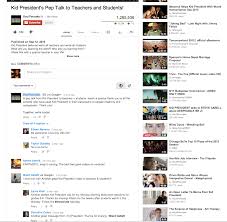
- Look for the “Comments” section below the player.
- Type your message in the “Add a comment” box and click on the “Comment” button.
If you want to respond to another user’s comment, click on the “Reply” button next to their comment, type your response in the “Add an answer” box, and click on the “Answer” button.
Commenting on Youtube: A Smartphone or Tablet User’s Guide
The process is similar for smartphone and tablet users:
- Open the YouTube app.
- Find the video you want to comment on by scrolling through the homepage or searching for it using the search bar at the top right corner.
- Click on the video’s trailer to access its page.
- Look for the “Comments” section below the player.
- Type your message in the “Add a comment” box and tap on the “Comment” button.
If you want to respond to another user’s comment, tap on the reply icon next to their comment, type your response in the “Add an answer” box, and tap on the “Answer” button.
How to Comment on Youtube Shorts
Want to know how to comment on a YouTube Short? It’s easy! For computer users:
- Find the Short you want to comment on.
- Click on its icon with the comic strip next to it.
- Type your message in the “Add a comment” box and click on the “Comment” button.
For smartphone and tablet users:
- Find the video you want to comment on.
- Tap on the icon with the comic strip next to it.
- Type your message in the “Add a comment” box and tap on the “Comment” button.
How to Comment on Youtube Live
Can I comment on a live stream on YouTube? Yes, but only if the author hasn’t disabled comments for that video! To do so:
- Access the live stream you want to comment on.
- Look for the “Chat” or “Live Chat” section below the player.
- Type your message in the “Chat” box and click on the “Send” button.
If you’re using a smartphone or tablet, access the live stream, look for the “Chat” section at the bottom of the screen, type your message in the “Chat” box, and tap on the “Send” button.
Commenting on Youtube Channels
Did you know that it’s possible to comment on a YouTube channel? To do so:
- Access the channel page.
- Look for the “Community” tab under the cover image.
- Find the content shared by the channel owner that you want to comment on.
- Click on the icon with the comic strip next to the video or text post.
- Type your message in the “Add a comment” box and click on the “Comment” button.
If you want to respond to another user’s comment, click on the “Reply” button next to their comment, type your response in the “Add an answer” box, and click on the “Answer” button.
Why Can’t I Comment on Youtube?
Don’t worry; we’ve got answers! If you’re having trouble commenting on YouTube, try these steps:
- Check if comments are disabled for that video.
- Ensure you have a Google account and are logged in to YouTube.
- Try commenting from a different device or browser.
- Contact YouTube’s official support team for further assistance.
Conclusion
Commenting on YouTube is easier than ever! With this guide, you should be able to leave comments on videos, Shorts, live streams, and channels without any issues. Remember to create an account and log in before commenting, and don’t hesitate to reach out if you need help resolving any problems.
Frequently Asked Questions (FAQs)
-
How do I Comment on Youtube?
To comment on YouTube, navigate to the video page, click on the “Comments” section below the player, type your message in the “Add a comment” box, and click on the “Comment” button. -
Why Can’t I Comment on Some Videos?
Comments might be disabled for certain videos by their authors. Check if this is the case before trying to comment. -
Can I Comment on Youtube Live Streams?
Yes, but only if comments haven’t been disabled for that specific stream. -
How do I Respond to Another User’s Comment?
Click on the “Reply” button next to their comment, type your response in the “Add an answer” box, and click on the “Answer” button. -
Why Can’t I See The Comments Section on Some Videos?
It might be due to comments being disabled for that video or your device not supporting it. -
How do I Delete a Comment?
Find the comment you want to delete in the list, click on the three vertical dots next to it, and choose the “Delete” option from the menu. -
Can I Modify a Comment After Posting It?
Unfortunately, YouTube doesn’t allow editing comments once they’ve been posted. -
Why am I Having Trouble Commenting on Youtube?
Check if you have a Google account and are logged in to YouTube. Try commenting from a different device or browser if issues persist. -
How do I Report a Comment That’s Not Suitable For Youtube’s Community Guidelines?
Click on the three vertical dots next to the offending comment, select the “Flag as inappropriate” option, and follow the instructions provided by YouTube. -
Can I See Comments From Other Users in my Channel’s Discussion Section?
Yes! When you enable the “Discussion” feature for your channel, you’ll be able to view and engage with comments from viewers.
By following this guide and understanding these FAQs, you should be well-equipped to navigate commenting on YouTube without any issues. Happy commenting!


