
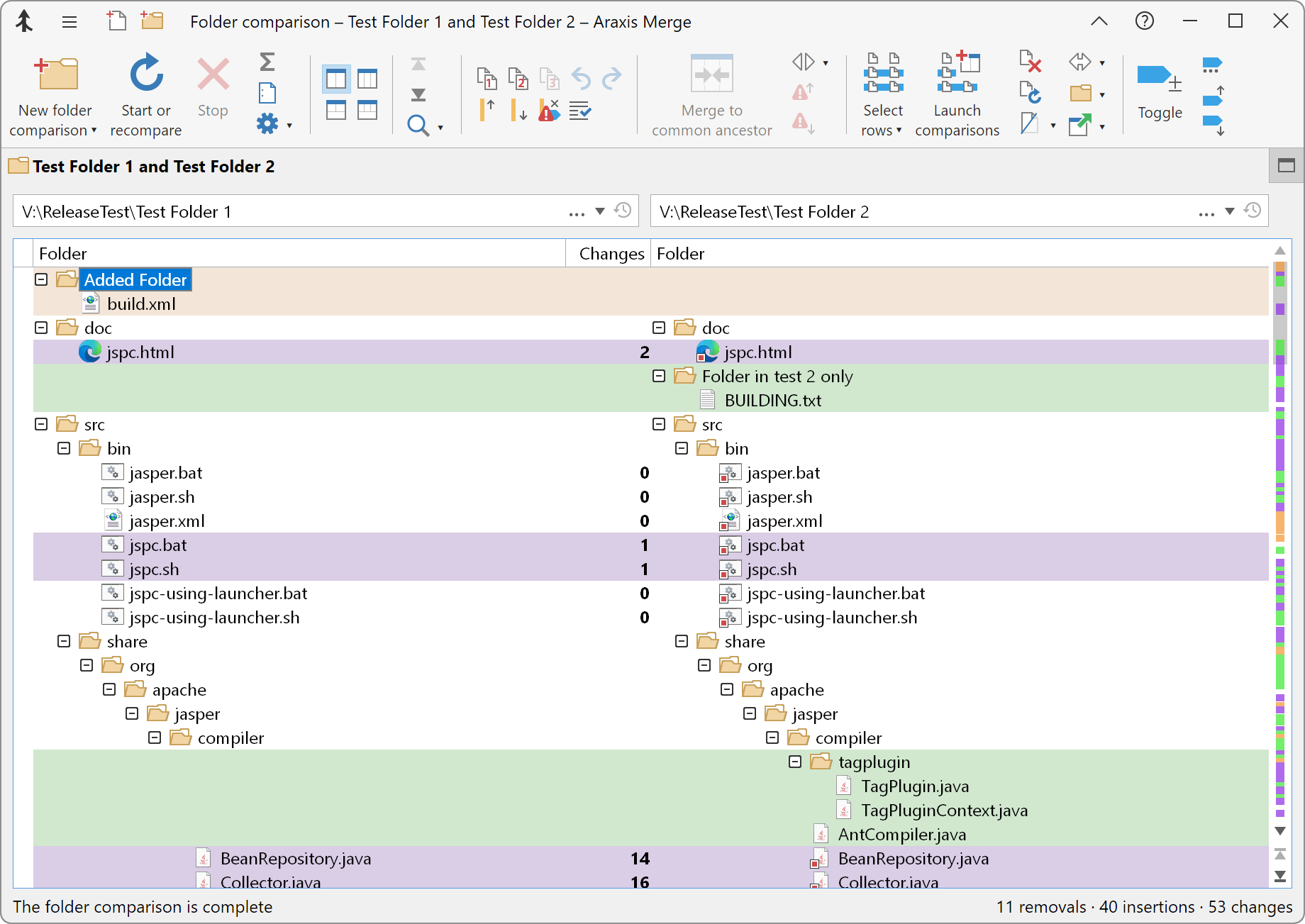
How to Compare Rows And Folders on Windows: A Step-by-step Guide
Are you tired of navigating through a cluttered file system on your Windows PC? Do you struggle to find the right files among numerous duplicates or similar-looking folders? Look no further! In this article, we’ll explore various tools that can help you compare rows and folders on Windows with ease.
The Problem With Cluttered File Systems
We’ve all been there – staring at a messy file system, trying to find a specific file or folder. The chaos can be overwhelming, especially when dealing with numerous duplicates or similar-looking files. This is where comparing rows and folders comes in handy.
What Are Rows And Folders?
For the uninitiated, rows refer to individual files within a folder, while folders themselves are containers holding multiple files or subfolders. Comparing these entities can help you identify similarities, differences, and potential duplicates.
Winmerge: A Powerful Tool For Comparing Files And Folders
Our first stop is WinMerge, a free and open-source tool that excels at comparing rows and folders on Windows. With its intuitive interface and robust features, WinMerge has become a go-to solution for many users.
To get started with WinMerge:
- Download the program from the official website.
- Install it by following the prompts.
- Launch WinMerge and click on “Rows” in the toolbar.
- Select two rows (files or folders) to compare.
- Click on “Compare” to initiate the analysis.
Winmerge Features:
- Compare files and folders with ease
- Identify duplicates, similarities, and differences
- Filter results using regular expressions
- Save comparison reports for future reference
Kdiff3: An Alternative Comparison Tool
If WinMerge didn’t quite convince you, KDiff3 is another excellent option. This free software offers a similar feature set to WinMerge, with some additional benefits.
To use KDiff3:
- Download the program from SourceForge.
- Install it by following the prompts.
- Launch KDiff3 and select two rows (files or folders) to compare.
- Click on “Compare” to initiate the analysis.
Kdiff3 Features:
- Compare files and folders with ease
- Identify duplicates, similarities, and differences
- Filter results using regular expressions
- Save comparison reports for future reference
Mobzync: A Synchronization Tool
While primarily a synchronization tool, MOBZync can also help you compare rows and folders on Windows. Its user-friendly interface makes it easy to use.
To get started with MOBZync:
- Download the program from its official website.
- Install it by following the prompts.
- Launch MOBZync and select two folders to compare.
- Click on “Compare” to initiate the analysis.
Mobzync Features:
- Synchronize rows and folders across different locations
- Compare files and folders with ease
- Filter results using various options
Freefilesync: A Robust Comparison Tool
Last but not least, we have FreeFileSync, a powerful tool that can compare rows and folders on Windows. Its feature-rich interface makes it easy to use.
To get started with FreeFileSync:
- Download the program from its official website.
- Install it by following the prompts.
- Launch FreeFileSync and select two rows (files or folders) to compare.
- Click on “Compare” to initiate the analysis.
Freefilesync Features:
- Compare files and folders with ease
- Identify duplicates, similarities, and differences
- Filter results using various options
- Synchronize rows and folders across different locations
Other Tools For Comparing Rows And Folders on Windows
While not as well-known as our top recommendations, Beyond Compare, WinDiff, and others are worth mentioning. These tools offer unique features and benefits that may suit your specific needs.
Conclusion:
Comparing rows and folders on Windows can be a daunting task, but with the right tools, it becomes much more manageable. From WinMerge to FreeFileSync, these programs have been designed to help you identify similarities, differences, and duplicates in your file system. Take a step back, breathe, and let one of these powerful tools do the heavy lifting for you!
Frequently Asked Questions:
- What Are Rows And Folders?
Rows refer to individual files within a folder, while folders themselves are containers holding multiple files or subfolders. - Why Compare Rows And Folders on Windows?
Comparing these entities can help you identify similarities, differences, and potential duplicates, making it easier to manage your file system. - What is Winmerge?
WinMerge is a free and open-source tool that excels at comparing rows and folders on Windows. - How do I Use Kdiff3?
To use KDiff3, download the program from SourceForge, install it by following the prompts, launch KDiff3, select two rows (files or folders) to compare, and click on “Compare” to initiate the analysis. - What is Mobzync?
MOBZync is a synchronization tool that can also help you compare rows and folders on Windows. - How do I Use Freefilesync?
To get started with FreeFileSync, download the program from its official website, install it by following the prompts, launch FreeFileSync, select two rows (files or folders) to compare, and click on “Compare” to initiate the analysis. - What Are Some Other Tools For Comparing Rows And Folders on Windows?
Beyond Compare, WinDiff, and others are worth mentioning as they offer unique features and benefits that may suit your specific needs. - Can I Use These Tools to Synchronize Rows And Folders Across Different Locations?
Yes, some of the mentioned tools, such as MOBZync and FreeFileSync, allow you to synchronize rows and folders across different locations.


