
Comparing Two Columns in Excel: A Step-by-step Guide
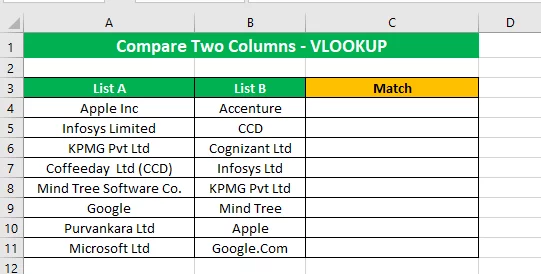
Are you tired of manually comparing two columns in Excel? Do you want to automate this process and save time? Look no further! In this article, we will show you how to compare two columns in Excel using various methods, including conditional formatting and VBA.
Understanding The Problem
Comparing two columns in Excel can be a tedious task, especially when dealing with large datasets. You may need to check for differences, duplicates, or similar values between the two columns. This process can be time-consuming and prone to errors if done manually.
Method 1: Using Conditional Formatting
Conditional formatting is a powerful tool in Excel that allows you to highlight cells based on specific conditions. In this method, we will use conditional formatting to compare two columns and highlight differences or duplicates.
Step-by-step Instructions
- Select the cells containing the data for both columns.
- Go to the Home tab > Conditional Formatting > New Rule.
- Choose “Use a formula to determine which cells to format” and enter the following formula:
=A2=B2 - Click on the dropdown arrow next to “Format” and select “Highlight Cells”.
- Choose the desired formatting (e.G., Red fill or green text).
- Click OK.
Method 2: Using Vba
VBA (Visual Basic for Applications) is a programming language used in Excel to automate tasks. In this method, we will use VBA to compare two columns and highlight differences or duplicates.
Step-by-step Instructions
- Open the Visual Basic Editor by pressing Alt+F11 or navigating to Developer > Visual Basic.
- Create a new module by clicking on Insert > Module.
-
Paste the following code into the module:
“`Vb
Sub CompareColumns()
Dim xRg1 As Range
Dim xRg2 As Range
Dim xTxt As StringSet xRg1 = Application.InputBox(“Range to:”, “Kutools for Excel”, , , , , , 8)
If xRg1 Is Nothing Then Exit SubSet xRg2 = Application.InputBox(“Range B:”, “Kutools for Excel”, , , , , , 8)
If xRg2 Is Nothing Then Exit SubIf xRg1.CountLarge <> xRg2.CountLarge Then
MsgBox “Two ranges must have the same number of cells”, vbInformation, “Kutools for Excel”
Exit Sub
End IfXDiffs = (MsgBox(“Click Yes to highlight matched date, click No to highlight unmatched date “, vbYesNo + vbQuestion, “Kutools for Excel”) = vbNo)
Application.ScreenUpdating = False
XRg2.Interior.ColorIndex = xlNo
XRg1.Interior.ColorIndex = xlNoFor I = 1 To xRg1.Count
Set xCell1 = xRg1.Cells(I)
Set xCell2 = xRg2.Cells(I)If xCell1.Value = xCell2.Value Then If Not xDiffs Then XCell1.Interior.Color = vbRed XCell2.Interior.Color = vbRed End If Else If xDiffs Then XCell1.Interior.Color = vbRed XCell2.Interior.Color = vbRed End If End IfNext
Application.ScreenUpdating = True
End Sub
Sub ExecuteCode()
‘ Copy the code and paste it into the module
Dim x As Range
Set x = Selection
For Each cell In x
    Call CompareColumns
Next cell
End Sub
“`
4. Run the macro by clicking on Developer > Macros and selecting “CompareColumns”.
5. Select the cells containing the data for both columns.
Method 3: Using a Formula
You can also use a formula to compare two columns and highlight differences or duplicates. In this method, we will use an array formula to achieve this.
Step-by-step Instructions
- Enter the following array formula in a new column:
Excel

=IF(A2=B2,"Matched",IF(A2<>B2,"Unmatched","")) - Press Ctrl+Shift+Enter to enter the formula as an array.
- Drag the formula down to the rest of the cells.
Conclusion
Comparing two columns in Excel can be a tedious task, but with these methods, you can automate this process and save time. Whether you use conditional formatting, VBA, or a formula, you’ll be able to easily highlight differences or duplicates between two columns. Try out these methods today and see how they can improve your productivity!
Additional Resources


