
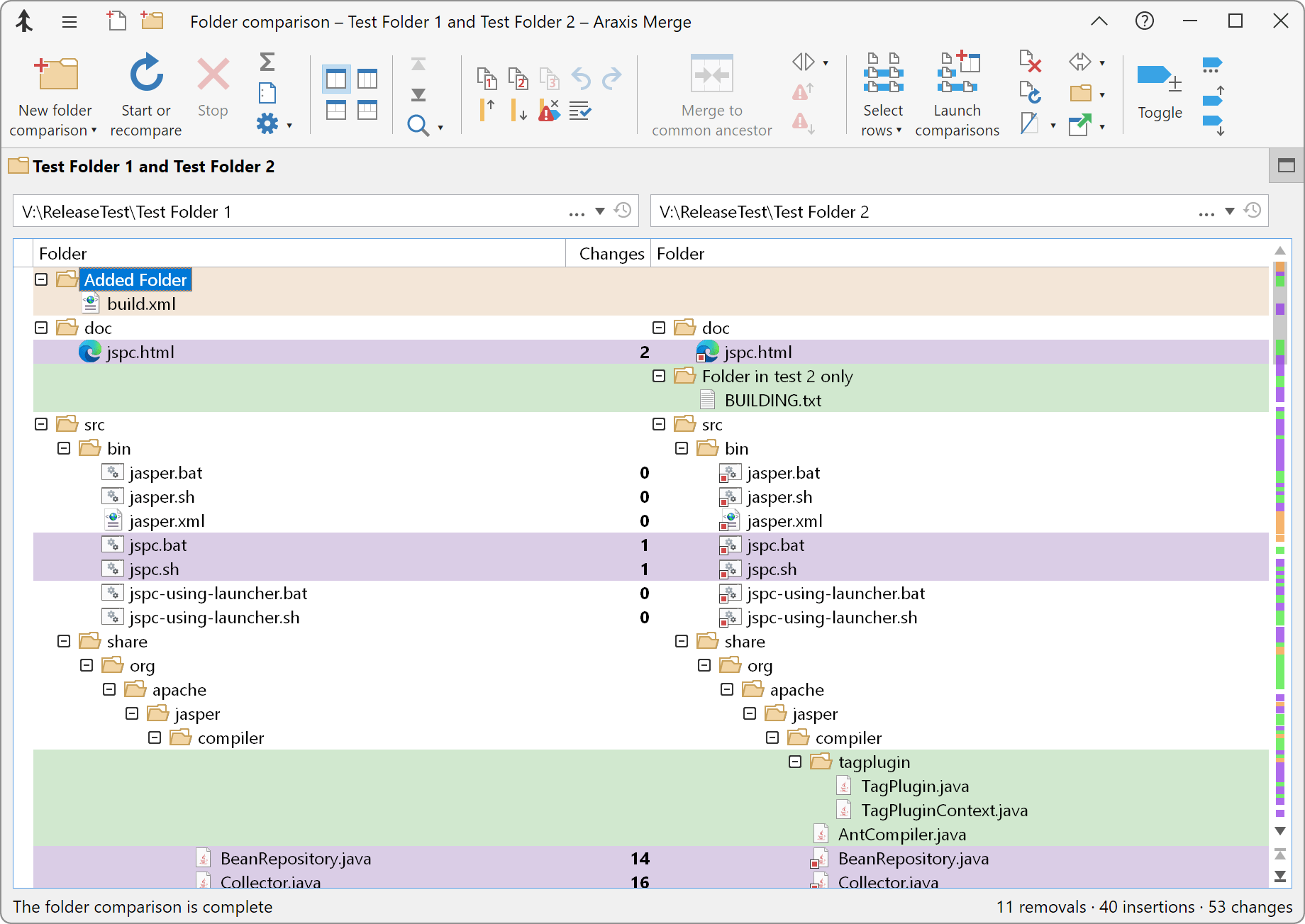
Comparing Two Folders on Windows: A Step-by-step Guide
Are you tired of manually comparing two folders on your Windows computer? Do you want to find the differences between them without wasting precious time? Look no further! In this article, we’ll explore the best ways to compare two folders on Windows using various software programs.
Why Compare Two Folders?
Comparing two folders is an essential task in many situations. For instance:
- You might need to merge two different versions of a project or a website.
- You could be trying to identify which files are duplicated between two folders.
- Perhaps you’re looking for a way to synchronize two folders across multiple devices.
Software Options
Fortunately, there are several excellent software programs that can help you compare two folders on Windows. Here are some of the most popular options:
1. Winmerge
WinMerge is a free and open-source program that allows you to compare two folders and delete duplicate files. It’s also capable of merging two folders into one.
How to Use Winmerge:
- Download and install WinMerge from its official website.
- Launch the program and select the first folder you want to compare.
- Choose the second folder and click on “Compare.”
- Review the results, which will show you the differences between the two folders.
- If needed, use the “Join” option to merge the two folders.
2. Kdiff3
KDiff3 is another powerful tool for comparing two folders on Windows. It’s free and open-source, just like WinMerge.
How to Use Kdiff3:
- Download and install KDiff3 from its official website.
- Launch the program and select the first folder you want to compare (Base).
- Choose the second folder (B) and click on “Compare.”
- Select any additional files or folders you’d like to include in the comparison.
- Review the results, which will show you the differences between the two folders.
3. Freefilesync
FreeFileSync is a free program that not only compares two folders but also synchronizes them. It’s an excellent choice for those who need to keep multiple folders up-to-date.
How to Use Freefilesync:
- Download and install FreeFileSync from its official website.
- Launch the program and select the first folder you want to compare (left).
- Choose the second folder (right) and click on “Compare.”
- Review the results, which will show you the differences between the two folders.
- If needed, use the “Synchronize” option to merge the two folders.
Other Programs
If you’re still not satisfied with these options, there are more programs available that can help you compare two folders on Windows:
- Mobzync: A free program for comparing and synchronizing two folders.
- Beyond Godfather: A powerful tool for comparing and merging files and folders.
- Windiff: An instrument for visualizing the differences between folders containing ASCII text.
Conclusion
Comparing two folders on Windows doesn’t have to be a tedious task. With the right software programs, you can quickly identify the differences between them and even synchronize them if needed. Try out WinMerge, KDiff3, FreeFileSync, or one of the other options mentioned above to make your life easier!
Frequently Asked Questions (FAQs)
- Q: What is The Best Program For Comparing Two Folders on Windows?
A: The best program depends on your specific needs. If you need to merge two folders, WinMerge might be the best choice. For synchronizing folders, FreeFileSync could be the way to go. - Q: How do I Compare Two Folders on Windows Without Using Any Software?
A: You can manually compare the folders by listing all files and subfolders in both directories and then comparing them one by one. However, this method is time-consuming and prone to errors. - Q: Can I Use These Programs For Comparing Folders Across Multiple Devices?
A: Yes, some of these programs (like FreeFileSync) allow you to compare and synchronize folders across different devices and platforms. - Q: Are There Any Free Alternatives to Paid Software For Comparing Folders on Windows?
A: Absolutely! Most of the programs mentioned in this article are free and open-source.
I hope this comprehensive guide has helped you find the perfect solution for comparing two folders on Windows. Happy computing!


