
Compressing a Folder: A Step-by-step Guide
Are you struggling to compress a folder on your computer? Look no further! In this article, we will guide you through the process of compressing a folder using various methods.
Understanding Compression
Before we dive into the nitty-gritty, let’s understand what compression is. Compression is the process of reducing the size of a file or folder by removing unnecessary data. This makes it easier to store and transfer files over the internet.
Method 1: Compressing a Folder on Windows
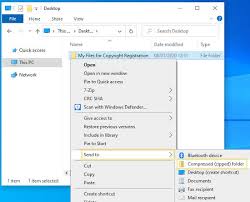
On Windows, compressing a folder is a straightforward process. Here are the steps:
- Select The Folder: Right-click on the folder you want to compress.
- Choose “Send To” > “Compressed (zipped) Folder”: This will create a new compressed folder with the same name as the original folder.
- Save The Compressed Folder: Save the compressed folder in the same location as the original folder.
Method 2: Compressing a Folder on Mac
On Mac, compressing a folder is equally easy:
- Select The Folder: Click on the folder you want to compress.
- Choose “Compress” From The Contextual Menu: This will create a new compressed folder with the same name as the original folder.
- Save The Compressed Folder: Save the compressed folder in the same location as the original folder.
Method 3: Compressing a Folder Using Winrar
WinRAR is a popular software for compressing and extracting files. Here’s how to use it:
- Download And Install Winrar: Get the latest version of WinRAR from their official website.
- Select The Folder: Right-click on the folder you want to compress.
- Choose “Add to Archive”: This will open the WinRAR interface, where you can choose the compression settings.
Method 4: Compressing a Folder Using Winzip
WinZip is another popular software for compressing and extracting files. Here’s how to use it:
- Download And Install Winzip: Get the latest version of WinZip from their official website.
- Select The Folder: Right-click on the folder you want to compress.
- Choose “Add”: This will open the WinZip interface, where you can choose the compression settings.
Method 5: Compressing a Folder Using 7-Zip
7-Zip is a free and open-source software for compressing and extracting files. Here’s how to use it:
- Download And Install 7-Zip: Get the latest version of 7-Zip from their official website.
- Select The Folder: Right-click on the folder you want to compress.
- Choose “Add to Archive”: This will open the 7-Zip interface, where you can choose the compression settings.
Method 6: Compressing a Folder Online
If you don’t want to install any software on your computer, you can use online tools like ezyZip to compress a folder. Here’s how:
- Go to Ezyzip: Visit the ezyZip website and select the folder you want to compress.
- Choose The Compression Settings: Select the format and other settings for the compressed folder.
- Save The Compressed Folder: Save the compressed folder on your device.
Method 7: Compressing a Folder on Smartphone And Tablet
If you’re using an Android or iOS device, you can compress a folder directly from your smartphone or tablet. Here’s how:
- Open The File Manager App: Open the file manager app on your device.
- Select The Folder: Choose the folder you want to compress.
- Choose “Compress”: Select the format and other settings for the compressed folder.
Method 8: Compressing a Folder And Sending it Via Email
Once you’ve compressed a folder, you can easily send it via email using your preferred email client.
- Attach The Compressed Folder to an Email: Attach the compressed folder to an email.
- Choose The Recipient: Select the recipient(s) for the email.
- Send The Email: Send the email with the attached compressed folder.
Conclusion
Compressing a folder is a straightforward process that can be achieved using various methods, including built-in features on Windows and Mac, as well as software like WinRAR, WinZip, 7-Zip, and online tools like ezyZip. By following these steps, you’ll be able to compress your folders easily and efficiently.
Faqs
- Q: What is Compression?
A: Compression is the process of reducing the size of a file or folder by removing unnecessary data. - Q: How do I Compress a Folder on Windows?
A: Right-click on the folder, choose “Send to” > “Compressed (zipped) folder”, and save the compressed folder. - Q: How do I Compress a Folder on Mac?
A: Click on the folder, choose “Compress” from the contextual menu, and save the compressed folder. - Q: What Are Some Popular Software For Compressing Files?
A: WinRAR, WinZip, 7-Zip, and ezyZip are some popular software for compressing files. - Q: Can I Compress a Folder Online?
A: Yes, you can use online tools like ezyZip to compress a folder. - Q: How do I Send a Compressed Folder Via Email?
A: Attach the compressed folder to an email and select the recipient(s) for the email.
Bonus Tips
- Always compress folders in a format that is widely supported, such as ZIP or 7-Zip.
- Use strong passwords to protect your compressed folders from unauthorized access.
- Keep your compressed folders organized by creating separate folders for different types of files.


