
Compress a File Pdf With Mac: A Step-by-step Guide
Are you tired of dealing with large file sizes when it comes to sharing documents or uploading them online? Look no further! In this article, we will show you how to compress a file PDF with Mac using various tools and services. Whether you’re a student, professional, or simply someone who wants to save space on your computer, these methods are sure to help.
Why Compress a File Pdf?
Compressing a file PDF is essential in today’s digital age. With the rise of online sharing and cloud storage, it’s becoming increasingly common to deal with large files. By compressing a file PDF, you can:
- Reduce its size without compromising quality
- Save space on your computer or device
- Make it easier to share and upload online
- Improve loading times and reduce latency
Method 1: Using Mac’s Built-in Tool – Trailer
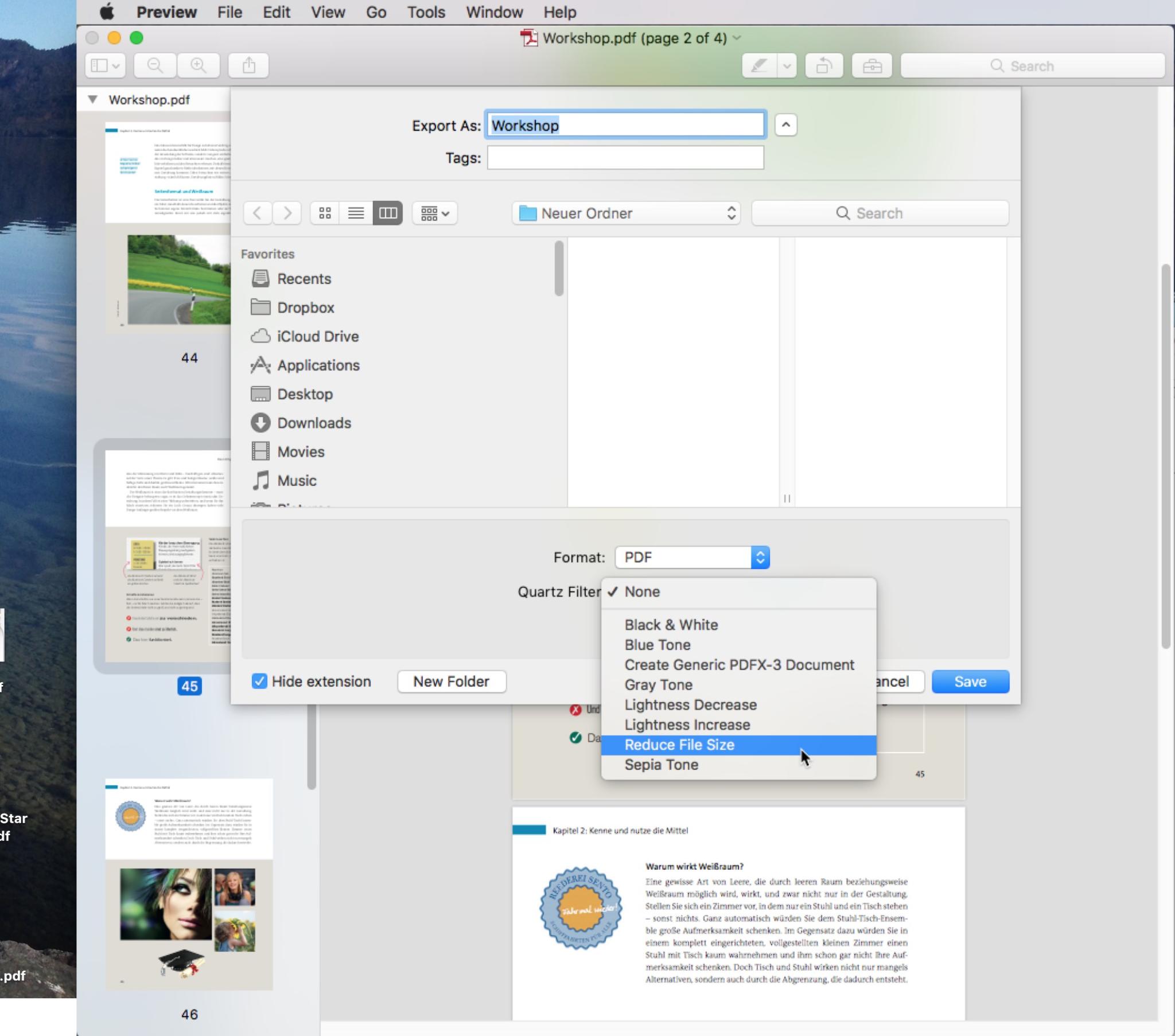
Before diving into third-party solutions, let’s explore the built-in tool that comes with every Mac: Trailer. Yes, you read that right! Trailer can be used to compress a file PDF without any additional downloads.
To use Trailer:
- Open the document you want to compress.
- Click on “Rows” in the top-right corner and select “Export.”
- Choose “PDF” from the dropdown menu and select “Reduce dimensions” in the Quartz Filter menu.
- Choose the folder where you want to save the compressed file.
- Click “Save” and wait for the process to complete.
Method 2: Using Shrinkit
If Trailer doesn’t quite meet your needs, there’s another excellent option available: ShrinkIt. This free application is designed specifically for compressing files PDF on Mac.
To use ShrinkIt:
- Download and install ShrinkIt from their official website.
- Drag the file PDF you want to compress onto the ShrinkIt icon.
- Wait for the process to complete, and a new compressed file will be generated in the same folder as the original.
Method 3: Using Lightweight Pdf
Lightweight PDF is another fantastic tool that can help you compress files PDF on Mac. This free application is incredibly easy to use and can reduce file sizes up to 90% without compromising quality.
To use Lightweight PDF:
- Download and install Lightweight PDF from the Mac App Store.
- Drag the file PDF you want to compress onto the Lightweight PDF icon.
- Wait for the process to complete, and a new compressed file will be generated in the same folder as the original.
Other Programs to Compress a File Pdf With Mac
If you’re still not satisfied with these methods, there are other programs available that can help you compress files PDF on Mac. Some popular options include:
- Pdfelement: A software that allows you to edit and compress files PDF.
- Adobe Acrobat Pro DC: A professional-grade tool for editing and compressing files PDF.
- Pdf Toolkit+: A lightweight tool specifically designed for compressing files PDF.
Online Services to Compress a File Pdf With Mac
If you prefer not to download any additional software, there are several online services that can help you compress files PDF on Mac. Some popular options include:
- Pdf Candy: A web-based tool that allows you to compress files PDF without any additional downloads.
- Ilovepdf: A free online service that can compress files PDF and perform various other tasks such as editing and converting.
- Online2pdf: A free online service that can compress files PDF and handle a maximum of 20 documents with a total weight of 150 MB.
Conclusion
Compressing a file PDF on Mac is easier than ever, thanks to the numerous tools and services available. Whether you prefer using built-in tools like Trailer or third-party applications such as ShrinkIt, Lightweight PDF, or online services like PDF Candy, iLovePDF, or Online2PDF, there’s something for everyone.
By following these methods, you can reduce file sizes without compromising quality, save space on your computer or device, and make it easier to share and upload files online. Happy compressing!
Frequently Asked Questions
Q: What is the best tool for compressing a file PDF with Mac?
A: The best tool depends on individual preferences and needs. Trailer (built-in), ShrinkIt, Lightweight PDF, and online services like PDF Candy or iLovePDF are all excellent options.
Q: Can I compress multiple files at once?
A: Yes, many of the tools mentioned above can handle multiple files simultaneously.
Q: Will compressing a file PDF compromise its quality?
A: No, most tools will not compromise the quality of your file. However, it’s essential to choose a tool that suits your specific needs and preferences.
Q: Are there any limitations on using these tools?
A: Yes, some tools have limitations on file size or weight. Be sure to check each tool’s specifications before use.
Q: Can I compress files PDF on other devices besides Mac?
A: Some online services can be used across multiple platforms, including Windows and mobile devices. However, specific tools may only work with Mac or other operating systems.
Q: How long does the compression process take?
A: The time it takes to compress a file PDF depends on several factors, including the tool used, the size of the file, and the specifications of your device.
Q: Are there any costs associated with using these tools?
A: Some tools are free, while others may require payment or subscription. Be sure to check each tool’s pricing before use.


