
How to Compress a File Pdf: A Step-by-step Guide
Are you tired of dealing with large, heavy PDF files that are difficult to share or store? Look no further! In this article, we will explore the various ways to compress a file PDF, using both free software and online services. Whether you’re on a Windows or macOS computer, or using an Android or iOS device, we’ve got you covered.
Why Compress a File Pdf?
Compressing a file PDF can be beneficial in several ways:
- Reduce the file size, making it easier to share via email or cloud storage
- Save storage space on your computer or mobile device
- Improve page loading times when viewing online
- Make it more convenient to access and view large documents
Free Software For Compressing a File Pdf
There are several free software options available for compressing file PDFs. Here are a few:
Acrobat Pro DC (Windows/macOS)
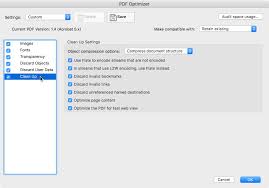
The first software we recommend is Adobe Acrobat Pro DC, which is available on both Windows and macOS platforms. This program allows you to compress file PDFs without losing any of their original quality.
To use Acrobat Pro DC, follow these steps:
- Download the trial version from the Adobe website
- Activate your account or create a new one
- Open the software and select the “Open” option
- Choose the PDF file you want to compress
- Click on the menu bar and select “Save As”
- Choose the compression settings (e.G., Screen, eBook, Printer)
- Click “Save” to compress the file
Free Pdf Compressor (Windows)
If you’re using Windows, another option is Free PDF Compressor, which is a free software that can reduce the size of your PDF files.
To use Free PDF Compressor, follow these steps:
- Download the software from the developer’s website
- Install and launch the program
- Select the PDF file you want to compress
- Choose the compression settings (e.G., Screen, eBook, Printer)
- Click “Compress” to reduce the file size
Shrinkit (macOS)
For macOS users, ShrinkIt is a free application that can compress file PDFs.
To use ShrinkIt, follow these steps:
- Download and install the software from the developer’s website
- Launch the program and select the PDF file you want to compress
- Choose the compression settings (e.G., Screen, eBook, Printer)
- Click “Compress” to reduce the file size
Online Services For Compressing a File Pdf
If you don’t have access to free software or prefer to use online services, there are several options available:
Online2pdf
One of the most popular online services is Online2PDF, which can compress file PDFs and also convert them to other formats (e.G., Word, Excel).
To use Online2PDF, follow these steps:
- Go to the Online2PDF website
- Select the PDF file you want to compress
- Choose the compression settings (e.G., Quality, Resolution)
- Click “Convert” to reduce the file size
Pdf Candy
Another online service is PDF Candy, which can compress file PDFs and also perform other operations (e.G., Merge, split).
To use PDF Candy, follow these steps:
- Go to the PDF Candy website
- Select the PDF file you want to compress
- Choose the compression settings (e.G., Quality, Resolution)
- Click “Compress” to reduce the file size
Mobile Apps For Compressing a File Pdf
If you’re using an Android or iOS device, there are several mobile apps that can help you compress file PDFs:
Ilovepdf (Android/iOS/iPadOS)
One of the most popular mobile apps is iLovePDF, which allows you to compress file PDFs and also perform other operations (e.G., Merge, split).
To use iLovePDF, follow these steps:
- Download and install the app from the Google Play Store or Apple App Store
- Launch the program and select the PDF file you want to compress
- Choose the compression settings (e.G., Quality, Resolution)
- Click “Compress” to reduce the file size
Compress Pdf (Android/iOS/iPadOS)
Another mobile app is Compress PDF, which can compress file PDFs and also convert them to other formats.
To use Compress PDF, follow these steps:
- Download and install the app from the Google Play Store or Apple App Store
- Launch the program and select the PDF file you want to compress
- Choose the compression settings (e.G., Quality, Resolution)
- Click “Compress” to reduce the file size
Conclusion
In this article, we’ve explored various ways to compress a file PDF using free software, online services, and mobile apps. Whether you’re on a Windows or macOS computer, or using an Android or iOS device, there are many options available to help you reduce the file size and make it easier to share.
Frequently Asked Questions
- What is The Best Way to Compress a File Pdf?
The best method depends on your specific needs and preferences. If you’re looking for free software, Adobe Acrobat Pro DC or Free PDF Compressor are good options. For online services, Online2PDF or PDF Candy might be more suitable. - Can I Use Mobile Apps to Compress File Pdfs?
Yes, there are several mobile apps available that can help you compress file PDFs, such as iLovePDF or Compress PDF. - How Long Does it Take to Compress a File Pdf?
The time it takes to compress a file PDF varies depending on the software or service used and the size of the file. However, most online services can process files in just a few seconds. - Will Compressing a File Pdf Affect Its Quality?
In general, compressing a file PDF will reduce its size but may also affect its quality, especially if you’re using lower compression settings. - Can I Use These Methods to Convert Pdfs to Other Formats?
Yes, some of the software and services mentioned can also convert PDFs to other formats (e.G., Word, Excel). - Are There Any Limits on How Many Files I Can Compress at Once?
Some online services may have limitations on how many files you can compress at once or per day. - Can I Use These Methods to Merge or Split Pdfs?
Yes, some of the software and services mentioned can also perform other operations (e.G., Merge, split) besides compression.
We hope this article has been helpful!


