
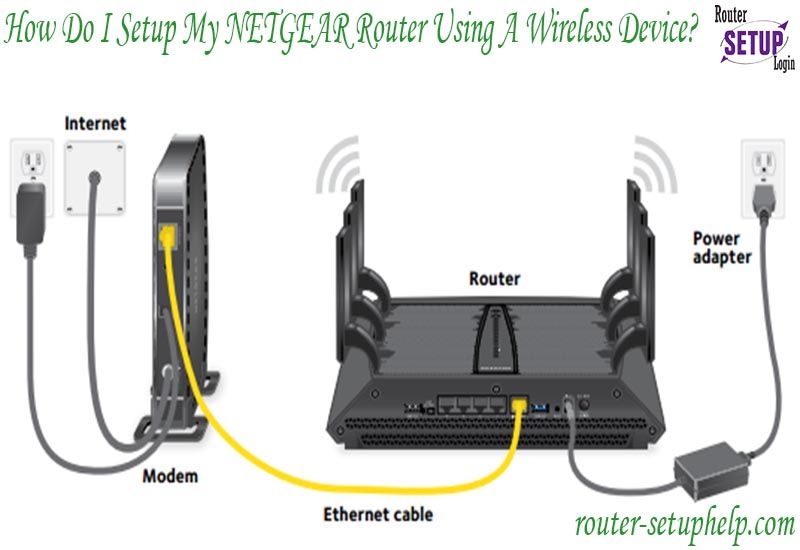
How to Configure Your Router: A Step-by-step Guide
Are you tired of dealing with a slow and unreliable internet connection? Do you want to unlock the full potential of your online experience? Look no further! In this comprehensive guide, we will walk you through the process of configuring your router, ensuring that you get the best possible performance from your internet connection.
What is a Router?
Before we dive into the nitty-gritty of configuration, let’s quickly define what a router is. A router is a device that connects multiple devices to the internet and manages data traffic between them. It acts as an intermediary between your computer or other devices and the internet service provider (ISP).
Accessing Your Router
To configure your router, you need to access its web interface. This can be done by typing the router’s IP address in a web browser. The IP address is usually printed on the underside of the router or in the documentation that came with it.
If you’re using a Windows PC, follow these steps:
- Click on the Start button and select “Network and Sharing Center”.
- Click on “Change adapter settings” on the left side of the window.
- Right-click on your active internet connection (usually labeled as “Ethernet”) and select “Status”.
- Look for the “IPv4 address” section and note down the IP address.
If you’re using a Mac, follow these steps:
- Click on the Apple menu and select “System Preferences”.
- Click on “Network” and select your active internet connection (usually labeled as “Ethernet”).
- Click on the “Advanced” button at the bottom of the window.
- Look for the “TCP/IP” tab and note down the IP address.
Accessing Your Router’s Web Interface
Once you have the IP address, type it into a web browser to access your router’s web interface. The default username and password are usually printed on the underside of the router or in the documentation that came with it.
If you’re using a Windows PC, try the following combinations:
- Username: Admin
- Password: Admin
- Username: Admin
- Password: Password
If these combinations don’t work, try resetting your router to its factory settings by pressing and holding the reset button for 10-15 seconds.
Changing Your Router’s Wi-fi Settings
To change your router’s Wi-Fi settings, follow these steps:
- Log in to your router’s web interface using the username and password you found earlier.
- Look for the “Wireless” or “Wi-Fi” section and click on it.
- Change the network name (SSID) and password as desired.
- Click on the “Save” button to apply the changes.
Changing Your Router’s Channel
To change your router’s channel, follow these steps:
- Log in to your router’s web interface using the username and password you found earlier.
- Look for the “Wireless” or “Wi-Fi” section and click on it.
- Click on the “Channel” button and select a new channel (usually 1, 6, or 11).
- Click on the “Save” button to apply the changes.
Opening Ports For P2p Applications
To open ports for P2P applications like uTorrent and eMule, follow these steps:
- If you’re using a router that supports port mapping (usually found in the “Internet” or “Control Access” section), create a new rule or virtual server.
- Assign a name to the rule and choose the protocol (TCP or UDP).
- Enter the local IP address of your computer and click on the “Save” button.
Common Router Models
Here are some common router models and their respective configuration procedures:
- Adsl2+ Wi-fi N – Da2210: Go to Settings Base > Wi-Fi and click on the Configure Net Wi-Fi button.
- Smart Modem Sercomm: Go to Settings > Password and choose the option to capsize the password.
- Smart Modem Technicolor: Click on the Administrator button and select the Settings profile section. Modify the password as desired.
Conclusion
Configuring your router is a straightforward process that can significantly improve your online experience. By following the steps outlined in this guide, you should be able to access your router’s web interface, change its Wi-Fi settings, open ports for P2P applications, and troubleshoot common issues. Remember to always refer to your router’s documentation or manufacturer’s website for specific instructions.
Frequently Asked Questions (FAQs)
- What is The Default Username And Password For my Router?
The default username and password are usually printed on the underside of the router or in the documentation that came with it.
- How do I Reset my Router to Its Factory Settings?
Press and hold the reset button for 10-15 seconds to restore your router to its factory settings.
- Why is my Internet Connection so Slow?
There could be several reasons for a slow internet connection, including a congested network, outdated router firmware, or interference from other devices.
- How do I Change my Wi-fi Channel to Improve Connectivity?
To change your Wi-Fi channel, log in to your router’s web interface and look for the “Wireless” or “Wi-Fi” section. Click on the Channel button and select a new channel (usually 1, 6, or 11).
- Why Are my P2p Applications Not Working Properly?
There could be several reasons why your P2P applications are not working properly, including closed ports, outdated firmware, or conflicting network settings.
- How do I Update my Router’s Firmware to The Latest Version?
To update your router’s firmware, log in to its web interface and look for the “Firmware Update” section. Follow the instructions provided to download and install the latest firmware version.
- Why am I Experiencing Interference From Other Devices on my Network?
There could be several reasons why you’re experiencing interference from other devices on your network, including neighboring networks, physical obstructions, or outdated router hardware.
- How do I Troubleshoot Common Issues With my Router?
To troubleshoot common issues with your router, refer to its documentation or manufacturer’s website for specific instructions. You can also try resetting the device to its factory settings or consulting with a professional for further assistance.


