
How to Configure Coopvoce on Your Device
Are you tired of dealing with connectivity issues while trying to access the internet or send MMS messages on your device? Look no further! In this article, we will guide you through the process of configuring CoopVoce on your smartphone, tablet, or other mobile devices.
What is Coopvoce?
CoopVoce is a service provider that offers internet and MMS connectivity to its customers. To configure CoopVoce on your device, you need to set up the necessary parameters in your device’s settings.
Configuring Coopvoce on Android Devices
To start configuring CoopVoce on your Android device, follow these steps:
- Access The Settings App: Go to your device’s home screen and select the Settings app (usually represented by a wheel icon).
- Select “Connections” or “Internet”: In the Settings app, select the option that says “Connections” or “Internet.”
- Choose “Mobile Networks” or “Network & Internet”: Select the option that says “Mobile Networks” or “Network & Internet.”
- Add a New Apn: Tap on the “+” icon to add a new APN (Access Point Name).
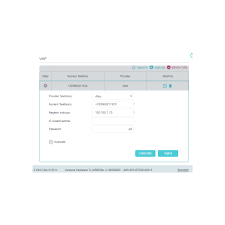
- Enter Coopvoce’s Apn Details: Enter the following details:
- Name: Web CoopVoce
- APN: Internet.Coopvoce.It
- Proxy: None
- Server: None
- MMSC: Http://Mms.Coop.It/servlets/mms
- MMS Proxy: None
- MMS Port: 80
- MMSC Port: 80
- MNC: 01
- Tipo of authentication: Default APN
- Save The Changes: Tap on the “Save” button to save the changes.
Configuring Coopvoce on Ios Devices (iPhone And Ipad)
To configure CoopVoce on your iOS device, follow these steps:
- Access The Settings App: Go to your device’s home screen and select the Settings app.
- Select “Cellular” or “Mobile Data”: In the Settings app, select the option that says “Cellular” or “Mobile Data.”
- Choose “Cellular Options” or “Mobile Data Options”: Select the option that says “Cellular Options” or “Mobile Data Options.”
- Add a New Apn: Tap on the “+” icon to add a new APN.
- Enter Coopvoce’s Apn Details: Enter the following details:
- Name: Web CoopVoce
- APN: Internet.Coopvoce.It
- MMS APN: Message.Coopvoce.It
- MMSC: Http://Mms.Coop.It/servlets/mms
- MMS Proxy: 213.230.130.89:80
- Save The Changes: Tap on the “Save” button to save the changes.
Troubleshooting Connectivity Issues
If you are experiencing connectivity issues while trying to access the internet or send MMS messages, try the following:
- Check Your Apn Settings: Ensure that your APN settings are correct and updated.
- Restart Your Device: Restarting your device can sometimes resolve connectivity issues.
- Contact Coopvoce’s Customer Service: If you are still experiencing issues, contact CoopVoce’s customer service for assistance.
Configuring a Portable Wi-fi Hotspot (CoopVoce Key)
If you have purchased a CoopVoce key, which is a portable Wi-Fi hotspot, follow these steps to configure it:
- Insert The Sim Card: Insert the CoopVoce SIM card into your device.
- Configure The Apn Settings: Configure the APN settings on your device as described earlier.
Conclusion
Configuring CoopVoce on your device is a straightforward process that can be completed in just a few steps. By following these instructions, you should be able to access the internet and send MMS messages without any issues. If you encounter any problems or have questions, feel free to contact CoopVoce’s customer service for assistance.
Frequently Asked Questions
- Q: What is CoopVoce?
A: CoopVoce is a service provider that offers internet and MMS connectivity to its customers. - Q: How do I configure CoopVoce on my Android device?
A: To configure CoopVoce on your Android device, follow the steps described earlier in this article. - Q: How do I troubleshoot connectivity issues?
A: Try restarting your device, checking your APN settings, and contacting CoopVoce’s customer service for assistance.


