
How to Configure a Home Network: A Step-by-step Guide
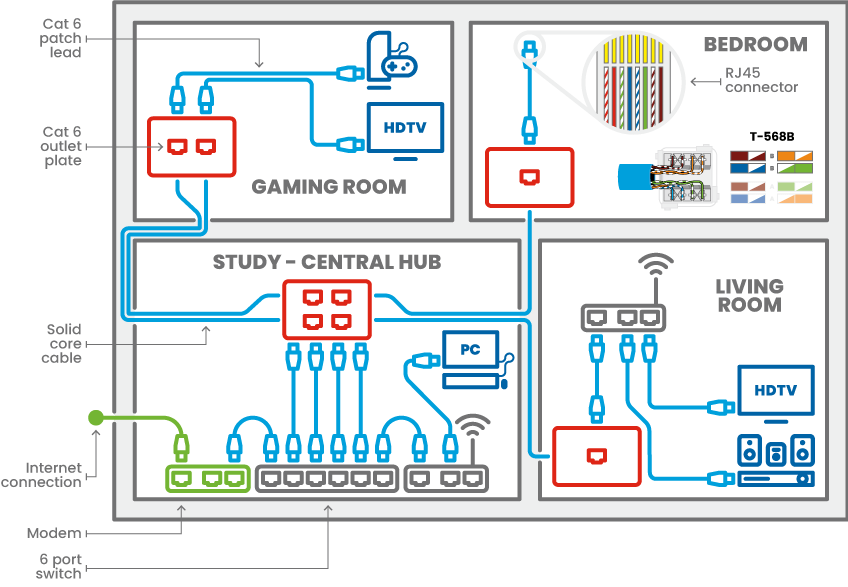
Configuring a home network can seem like a daunting task, but with the right guidance, it’s easier than you think. In this article, we’ll take you through the process of setting up a home network using Ethernet cables.
Why Choose Ethernet Over Wi-fi?
While Wi-Fi is convenient and widely used, Ethernet offers faster speeds and more reliable connections. If you have multiple devices that require high-bandwidth applications, such as online gaming or video streaming, Ethernet is the way to go.
Materials Needed For a Home Network
To set up your home network using Ethernet cables, you’ll need:
- A router
- An Ethernet cable (preferably with a Category 7 or higher rating)
- Two Ethernet connectors (RJ-45) for connecting devices
Step-by-step Guide to Configuring Your Home Network
Here’s how to configure your home network using Ethernet cables:
- Connect The Router: Connect the router to a power source and connect it to an Ethernet cable.
- Connect Devices: Connect each device (computer, printer, etc.) To the router using an Ethernet cable.
- Configure The Router: Configure the router according to the manufacturer’s instructions.
- Share Files And Folders: Share files and folders between devices by configuring the sharing settings on each device.
Configuring Your Home Network For Windows 11
If you’re using a Windows 11 computer, follow these steps:
- Check Internet Connection: Ensure your computer is connected to the internet.
- Configure Ethernet Settings: Go to Settings > Network & Internet and configure the Ethernet settings.
- Activate Sharing: Activate sharing in the Ethernet settings.
Configuring Your Home Network For Windows 10
If you’re using a Windows 10 computer, follow these steps:
- Check Internet Connection: Ensure your computer is connected to the internet.
- Configure Ethernet Settings: Go to Settings > Network & Internet and configure the Ethernet settings.
- Activate Sharing: Activate sharing in the Ethernet settings.
Configuring Your Home Network For Windows 7
If you’re using a Windows 7 computer, follow these steps:
- Check Internet Connection: Ensure your computer is connected to the internet.
- Configure Ethernet Settings: Go to Control Panel > Network and Sharing Center and configure the Ethernet settings.
- Activate Sharing: Activate sharing in the Ethernet settings.
Configuring Your Home Network For Mac
If you’re using a Mac, follow these steps:
- Check Internet Connection: Ensure your computer is connected to the internet.
- Configure Ethernet Settings: Go to System Preferences > Network and configure the Ethernet settings.
- Activate Sharing: Activate sharing in the Ethernet settings.
Troubleshooting Common Issues
If you’re experiencing issues with your home network, refer to our troubleshooting guide for common problems and solutions.
Conclusion
Configuring a home network using Ethernet cables is a straightforward process that requires minimal technical expertise. By following these steps and configuring your router and devices correctly, you’ll have a fast and reliable home network in no time.
Frequently Asked Questions (FAQs)
- What Are The Benefits of Using Ethernet Over Wi-fi?
Ethernet offers faster speeds and more reliable connections than Wi-Fi. - What Materials do I Need to Set up my Home Network?
You’ll need a router, an Ethernet cable, and two Ethernet connectors (RJ-45). - How do I Configure my Windows 11 Computer For Sharing Files And Folders?
Follow the steps outlined in our guide to configuring your Windows 11 computer for sharing files and folders. - What Are Some Common Issues With Home Networks?
Refer to our troubleshooting guide for common problems and solutions. - Can I Use Powerline Adapters Instead of Ethernet Cables?
Yes, you can use Powerline adapters as an alternative to Ethernet cables. - How do I Configure my Mac Computer For Sharing Files And Folders?
Follow the steps outlined in our guide to configuring your Mac computer for sharing files and folders. - What Are Some Best Practices For Maintaining a Healthy Home Network?
Regularly update your router’s firmware, use strong passwords, and monitor your network for security threats. - Can I Share Files And Folders Between Devices Connected to Different Routers?
No, you cannot share files and folders between devices connected to different routers without using a third-party solution.
Additional Resources
- Our troubleshooting guide
- Our guide on how to set up Powerline adapters
- Our guide on how to configure your router for optimal performance


