
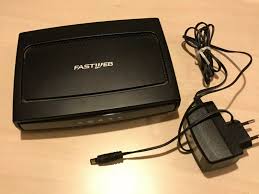
How to Configure Modem Fastweb: A Step-by-step Guide
Are you a new subscriber to Fastweb or have decided to upgrade your modem? Configuring the right settings can be a daunting task, but don’t worry, we’ve got you covered! In this article, we’ll walk you through a step-by-step guide on how to configure your modem Fastweb.
Table of Contents
- Preliminary Operations
- Configuring Modem Fastweb: Nexxt
- Configuring Modem Fastweb: Fastgate
- Configuring Modem Fastweb: Wifi
- Configuring Modem Fastweb: Alexa
- Configuring Modem Tp-link Fastweb
Preliminary Operations
Before you start configuring your modem, make sure you have:
- A subscription to Fastweb
- A modem provided by Fastweb (NeXXt or FASTGate)
- A device connected to the modem (computer, smartphone, tablet)
Configuring Modem Fastweb: Nexxt
If you have a modem NeXXt, follow these steps:
- Connect your device to the modem via Wi-Fi or Ethernet cable.
- Open a web browser and go to https://Recording.Fastweb.It.
- Enter your fiscal code or IVA split in the designated fields.
- Click on the “Confirm” button and wait for the recording process to complete.
- Use the connection to access the internet.
If you want to personalize the settings of the router, use the app MyFastweb available on Google Play, Apple App Store, or Microsoft Store.
Configuring Modem Fastweb: Fastgate
If you have a modem FASTGate, follow these steps:
- Connect your device to the modem via Wi-Fi or Ethernet cable.
- Open a web browser and go to https://Recording.Fastweb.It.
- Enter your fiscal code or IVA split in the designated fields.
- Click on the “Confirm” button and wait for the recording process to complete.
- Access the modem’s configuration panel by typing 192.168.1.254 In the browser’s address bar.
Configuring Modem Fastweb: Wifi
To configure your Wi-Fi settings:
- Connect your device to the modem via Wi-Fi or Ethernet cable.
- Open the app MyFastweb and go to Settings > Net > WiFi.
- Select the option “Active” or “Disable” to enable or disable the Wi-Fi network.
- To change the name or password of the Wi-Fi network, select the option “Net” and modify the settings accordingly.
Configuring Modem Fastweb: Alexa
To configure your modem with Alexa:
- Connect your device to the modem via Wi-Fi or Ethernet cable.
- Open the app MyFastweb and go to Settings > Assistente vocal > Amazon.
- Select the option “Access” and follow the instructions to set up your account.
- Use the command “Alexa, ask Fastweb” followed by the desired action (e.G., Speed test).
Configuring Modem Tp-link Fastweb
To configure a modem TP-Link with Fastweb:
- Contact Fastweb’s customer support and request authorization to use an alternative modem.
- Provide the MAC address of your proprietary modem and the TP-Link modem you wish to substitute it with.
- Configure the TP-Link modem by following the manufacturer’s instructions.
Conclusion
Configuring your modem Fastweb is a straightforward process that requires some basic knowledge of networking and internet settings. By following these steps, you should be able to configure your modem NeXXt or FASTGate for optimal performance. If you encounter any issues or have further questions, don’t hesitate to contact Fastweb’s customer support.
Frequently Asked Questions (FAQs)
- Q: What is the difference between NeXXt and FASTGate modems?
A: The NeXXt modem has a cylindrical shape with speakers and an Alexa support, while the FASTGate modem has a rectangular shape with a LED strip and touch buttons. - Q: How do I configure my Wi-Fi network settings on my Fastweb modem?
A: You can configure your Wi-Fi settings by opening the app MyFastweb and going to Settings > Net > WiFi. - Q: Can I use Alexa with my Fastweb modem?
A: Yes, you can use Alexa with your NeXXt or FASTGate modem by following the instructions in this article. - Q: What is the process for configuring a TP-Link modem with Fastweb?
A: Contact Fastweb’s customer support and request authorization to use an alternative modem, then configure the TP-Link modem according to the manufacturer’s instructions. - Q: How do I access my modem’s configuration panel on my Fastweb modem?
A: You can access your modem’s configuration panel by typing 192.168.1.254 In your browser’s address bar. - Q: What is the importance of configuring my modem settings correctly?
A: Configuring your modem settings correctly ensures optimal performance and reliable internet connectivity. - Q: Can I configure my modem settings using a smartphone or tablet?
A: Yes, you can use your smartphone or tablet to access and configure your modem settings. - Q: What should I do if I encounter issues with configuring my Fastweb modem?
A: Contact Fastweb’s customer support for assistance and guidance.
I hope this article has been helpful in guiding you through the process of configuring your modem Fastweb. If you have any further questions or concerns, please don’t hesitate to reach out!


