
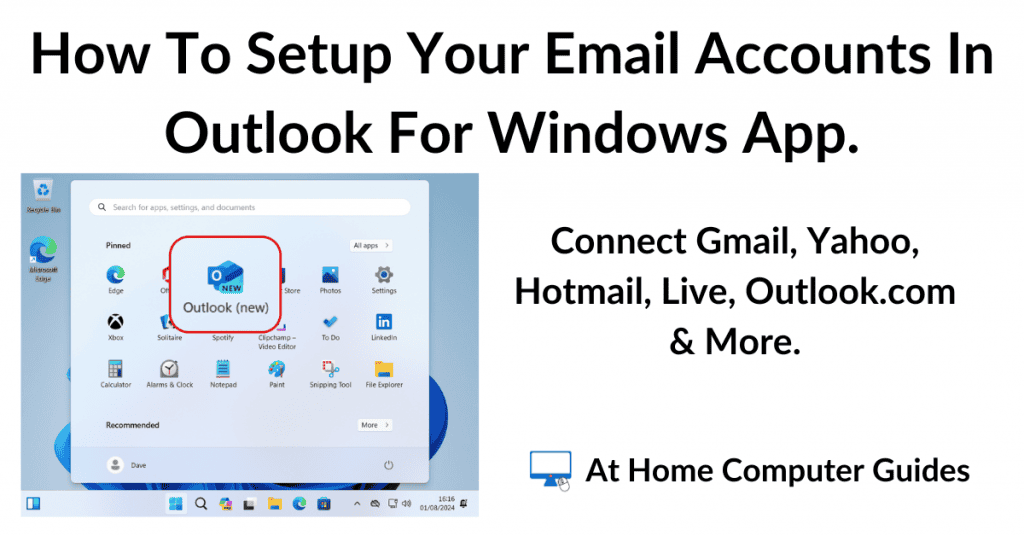
Configuring Hotmail on Outlook: A Step-by-step Guide
Are you tired of using the limited Webmail service and want to configure Hotmail on Outlook? Look no further! In this article, we will guide you through the process of setting up your Hotmail account on Outlook for Windows, Mac, Android, and iOS devices.
Understanding The Basics
Before we dive into the configuration process, it’s essential to understand the basics of configuring email accounts on different platforms. If you’re new to configuring email accounts, don’t worry; this guide will walk you through each step.
Configuring Hotmail on Outlook For Windows
To configure Hotmail on Outlook for Windows, follow these steps:
- Download And Install Outlook: First, download and install the latest version of Outlook from the Microsoft website.
- Launch Outlook: Once installed, launch Outlook and click on the “Add account” button.
- Enter Your Email Address: Enter your Hotmail email address in the required field.
- Click Next: Click next to proceed to the next step.
- Enter Password: Enter your Hotmail password in the required field.
- Click Connect: Click connect to complete the configuration process.
Configuring Hotmail on Outlook For Mac
To configure Hotmail on Outlook for Mac, follow these steps:
- Download And Install Outlook: First, download and install the latest version of Outlook from the Microsoft website.
- Launch Outlook: Once installed, launch Outlook and click on the “Add account” button.
- Enter Your Email Address: Enter your Hotmail email address in the required field.
- Click Next: Click next to proceed to the next step.
- Enter Password: Enter your Hotmail password in the required field.
- Click Add Account: Click add account to complete the configuration process.
Configuring Hotmail on Outlook 365
To configure Hotmail on Outlook 365, follow these steps:
- Launch Outlook: Launch Outlook and click on the “Add account” button.
- Enter Your Email Address: Enter your Hotmail email address in the required field.
- Click Next: Click next to proceed to the next step.
- Enter Password: Enter your Hotmail password in the required field.
- Click Connect: Click connect to complete the configuration process.
Configuring Hotmail on Outlook For Android And Ios
To configure Hotmail on Outlook for Android and iOS devices, follow these steps:
- Download And Install Outlook: First, download and install the latest version of Outlook from the Google Play Store or Apple App Store.
- Launch Outlook: Once installed, launch Outlook and click on the “Add account” button.
- Enter Your Email Address: Enter your Hotmail email address in the required field.
- Click Next: Click next to proceed to the next step.
- Enter Password: Enter your Hotmail password in the required field.
- Click Connect: Click connect to complete the configuration process.
Tips And Variations
- If you encounter any issues during the configuration process, try restarting Outlook or checking your internet connection.
- If you have multiple email accounts configured on Outlook, you can add a new account by clicking on the “Add account” button and following the prompts.
- To remove an email account from Outlook, click on the “File” menu and select “Account settings.” Then, click on the account you want to remove and select “Remove.”
Conclusion
Configuring Hotmail on Outlook is a straightforward process that requires minimal technical expertise. By following the steps outlined in this guide, you can set up your Hotmail account on Outlook for Windows, Mac, Android, and iOS devices. Remember to always enter your correct email address and password to avoid any issues during the configuration process.
Frequently Asked Questions (FAQs)
- Q: What is The Difference Between Hotmail And Outlook?
A: Hotmail is a free email service provided by Microsoft, while Outlook is an email client that can be used with various email services, including Hotmail. - Q: Can I Configure Multiple Email Accounts on Outlook?
A: Yes, you can configure multiple email accounts on Outlook by adding each account separately. - Q: What if I Encounter Issues During The Configuration Process?
A: Try restarting Outlook or checking your internet connection to resolve any issues that may occur during the configuration process. - Q: Can I Remove an Email Account From Outlook?
A: Yes, you can remove an email account from Outlook by clicking on the “File” menu and selecting “Account settings.” - Q: What Are The Benefits of Using Outlook Over Hotmail?
A: Outlook offers more features and flexibility compared to Hotmail, including customizable layouts, integrated calendar, and contact management. - Q: Can I Use Outlook on Multiple Devices?
A: Yes, you can use Outlook on multiple devices by syncing your email account across all devices.
Additional Resources
For more information on configuring Hotmail on Outlook or troubleshooting common issues, refer to the following resources:
- Microsoft Support Website
- Outlook User Guide
- Hotmail Help Center


