
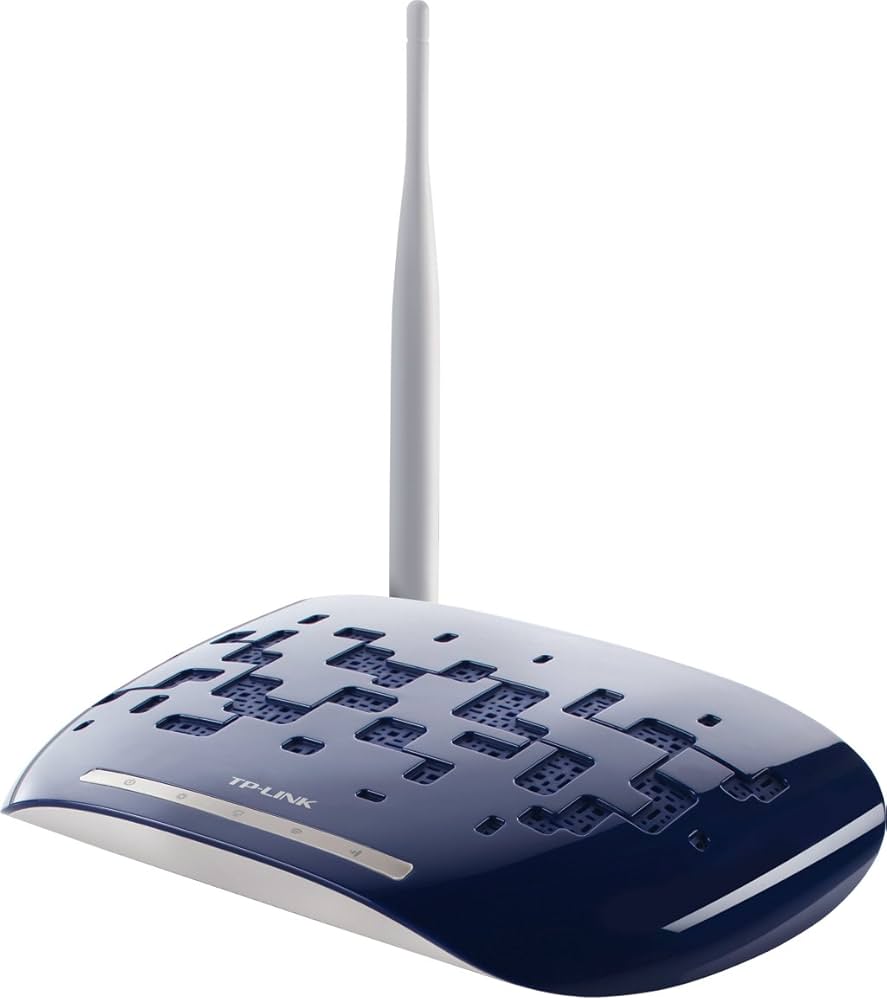
How to Configure Modem Infostrada: A Step-by-step Guide
Are you struggling to configure your modem Infostrada? Look no further! In this article, we will guide you through the process of setting up your modem, step by step.
Why is it Important to Configure Your Modem?
Before we dive into the configuration process, let’s quickly discuss why configuring your modem is essential. Configuring your modem ensures that you can access the internet without any issues or interruptions. It also helps prevent unauthorized access to your network and ensures that you have a stable and secure connection.
Step 1: Check Your Modem
Before we begin, make sure that your modem is properly connected to your computer and router. Ensure that the light on your modem is lit up in green color, indicating that it’s connected to the internet. Also, check that the Ethernet cable is securely plugged into one of the ports on your modem and the other end into your computer.
Step 2: Access Your Modem
To configure your modem, you need to access its control panel. You can do this by typing the IP address of your modem in your web browser’s address bar. The default IP address for most modems is either 192.168.1.1 Or 192.168.0.1. If you’re not sure what your modem’s IP address is, check the back of your device for a label with this information.
Step 3: Log In to Your Modem
Once you’ve accessed your modem’s control panel, log in using the default username and password, which is usually “admin” and “admin”. If you’re unsure about these credentials, check your modem’s manual or consult online resources for guidance.
Step 4: Configure Your Modem
After logging in, follow the on-screen instructions to configure your modem. You may be asked to select a connection type (e.G., PPPoE, LLC), set up your VPI and VCI values, and choose other settings specific to your internet service provider (ISP).
Step 5: Save Your Changes
Once you’ve completed the configuration process, save your changes by clicking on the “Save” or “Apply” button. This will ensure that your modem is configured correctly.
What Happens After Configuring My Modem?
After configuring your modem, make sure to register your internet line online. You can do this by visiting Infostrada’s website and following the guided process. Once you’ve completed registration, turn off and restart your modem to ensure a stable connection.
Additional Tips For Secure Internet Access
To ensure secure internet access, we recommend that you:
- Change your modem’s default username and password.
- Set up a strong Wi-Fi network with WPA2/AES encryption.
- Configure your firewall or virtual private server (VPS) settings as necessary.
Conclusion
Configuring your modem Infostrada is an essential step in ensuring stable and secure internet access. By following the steps outlined above, you’ll be able to configure your modem correctly and enjoy a seamless online experience. Remember to also update your password settings for added security.
Frequently Asked Questions (FAQs)
- What is The Default IP Address of my Modem?
The default IP address of most modems is either 192.168.1.1 Or 192.168.0.1.
- How do I Access my Modem’s Control Panel?
To access your modem’s control panel, type its IP address in your web browser’s address bar and log in using the default username and password (usually “admin” and “admin”).
- What Are Vpi And Vci Values?
VPI (Virtual Path Identifier) and VCI (Virtual Circuit Identifier) are settings specific to your ISP that need to be configured on your modem.
- Why do I Need to Register my Internet Line Online?
Registering your internet line ensures that you have a stable connection and allows for secure access to the internet.
- How Can I Ensure Secure Internet Access?
To ensure secure internet access, change your modem’s default username and password, set up a strong Wi-Fi network with WPA2/AES encryption, and configure your firewall or VPS settings as necessary.
- What if I’m Unsure About Configuring my Modem?
If you’re unsure about configuring your modem, consult online resources, check your modem’s manual, or contact the service clients department of your ISP for assistance.
- How do I Change my Modem’s Default Username And Password?
To change your modem’s default username and password, access its control panel and modify these settings in the “Maintenance” or “Administration” section.
- What is Wpa2/aes Encryption?
WPA2/AES (Advanced Encryption Standard) is a type of encryption that ensures secure internet access by protecting your data from unauthorized access.
- Why do I Need to Configure my Firewall or Vps Settings?
Configuring your firewall or VPS settings helps prevent unauthorized access to your network and ensures a stable connection.
- Where Can I Find More Information About Configuring my Modem?
You can consult online resources, check your modem’s manual, or contact the service clients department of your ISP for guidance.


