
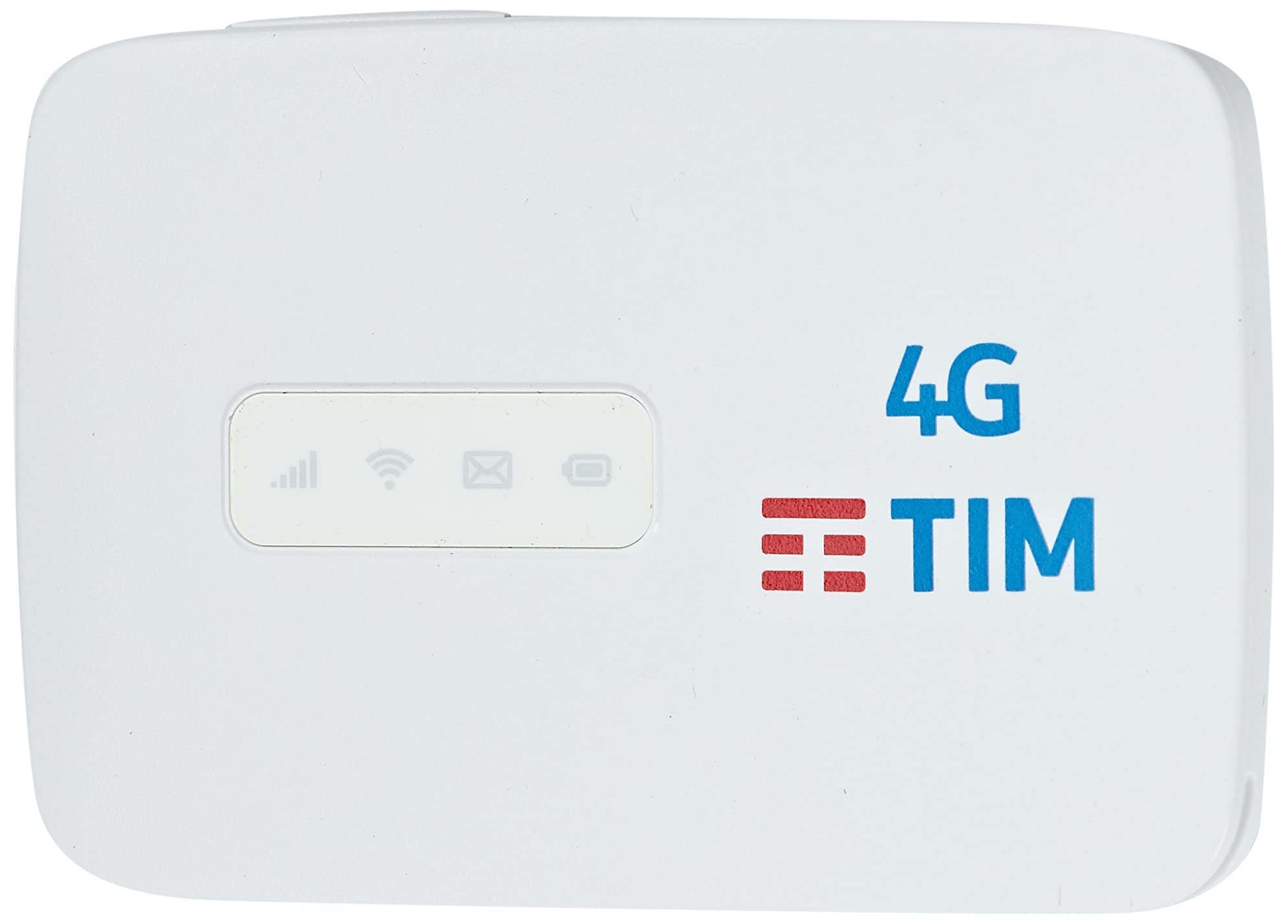
How to Configure Internet Tim: A Step-by-step Guide
Are you experiencing issues with your internet connection after resetting your smartphone or setting up a new line with TIM? Don’t worry, we’ve got you covered! In this article, we’ll guide you through the process of configuring your internet connection with TIM on both mobile and fixed-line networks.
Why Configure Internet Tim?
Configuring your internet connection with TIM is essential to ensure that you can access the internet smoothly. By following our step-by-step guide, you’ll be able to:
- Resolve connectivity issues with your smartphone or tablet
- Set up a new line with TIM for your fixed-line network
- Configure your router to work seamlessly with TIM’s internet services
Configuring Internet Tim on Mobile Devices
Configuring Internet Tim on Android Devices
If you’re using an Android device, configuring your internet connection with TIM is a straightforward process. Here’s how:
- Go to your phone’s settings and select “Cellular networks” or “Other networks.”
- Select the option for “Access Point Names (APNs)” and create a new APN.
- Fill in the following details:
- Name: WAP TIM
- APN: Wap.Tim.It
- Proxy: 212.34.249.150
- Server: 212.34.249.151
- MMSC: Http://Mms.Tim.It/servlets/mms
- MMS proxy: 213.230.130.89
- MMS port: 80
- MCC: 01
- MNC: 01
- Save the changes and restart your device.
Configuring Internet Tim on Iphone Devices
If you’re using an iPhone or iPad, configuring your internet connection with TIM is also relatively simple:
- Go to Settings > Cellular.
- Tap “Cellular Data” and select the option for “APN”.
- Fill in the following details:
- APN: Wap.Tim.It
- Save the changes and restart your device.
Configuring Internet Tim on Fixed-line Networks
If you’ve recently set up a new line with TIM for your fixed-line network, configuring your internet connection is also essential:
Configuring Internet Tim on Fritz!box Routers
To configure your FRITZ!Box router to work seamlessly with TIM’s internet services, follow these steps:
- Connect your PC to the router via Ethernet or Wi-Fi.
- Open a web browser and access the router’s settings page (usually at 192.168.1.1 Or http://Modemtelecom).
- Enter the administrator password (usually found on the back of the router) and log in.
- Select “Internet” from the menu and choose “Configure Internet”.
- Select the option for “Automatic configuration” and follow the on-screen instructions.
Configuring Internet Tim on Other Routers
If you’re using a different type of router, refer to the official guides provided by TIM or your router manufacturer for specific instructions on configuring your internet connection with TIM.
Troubleshooting Issues With Internet Configuration
In Case of Problems
If you encounter any issues while configuring your internet connection with TIM, don’t panic! Follow these steps:
- Check that all settings have been saved correctly.
- Restart your device or router to ensure that the changes take effect.
- Contact an operator at TIM for assistance. You can reach them on 119 (for mobile lines) or 187 (for fixed-line networks).
Conclusion
Configuring your internet connection with TIM is a straightforward process, and by following our step-by-step guide, you should be able to resolve any connectivity issues and enjoy seamless internet access on both mobile and fixed-line devices.
Faqs
- What is The Best Way to Configure my Internet Connection With Tim?
To ensure that your internet connection works seamlessly with TIM’s services, we recommend configuring it manually using the official guides provided by TIM or your router manufacturer. - How do I Contact an Operator at Tim For Assistance?
You can reach an operator at TIM on 119 (for mobile lines) or 187 (for fixed-line networks). You can also use their online chat service, available on their website. - Can I Configure my Internet Connection With Tim Using a Different Type of Router?
Yes, you can configure your internet connection with TIM using other types of routers. Refer to the official guides provided by TIM or your router manufacturer for specific instructions. - What Are The Benefits of Configuring my Internet Connection With Tim Manually?
Configuring your internet connection with TIM manually allows you to tailor your settings to your specific needs and ensure that your connection works seamlessly with TIM’s services. - How do I Troubleshoot Issues With my Internet Configuration?
If you encounter any issues while configuring your internet connection with TIM, check that all settings have been saved correctly, restart your device or router, and contact an operator at TIM for assistance. - Can I Use a Vpn With my Internet Connection Configured by Tim?
Yes, you can use a VPN (Virtual Private Network) with your internet connection configured by TIM. However, please note that using a VPN may affect the performance of your internet connection.
We hope this article has provided you with the information and guidance you need to configure your internet connection with TIM successfully!


