
How to Configure Outlook on Your Device
Are you tired of configuring your email accounts every time you switch devices? Look no further! In this article, we will guide you through the process of setting up Outlook on your computer, smartphone, or tablet.
Why Choose Outlook?
Outlook is one of the most popular email management programs available. It’s included in the Microsoft 365 suite (formerly Office) and supports all leading email providers. With Outlook, you can access your emails from anywhere, at any time, without needing an internet connection.
Configuring Outlook on PC Windows
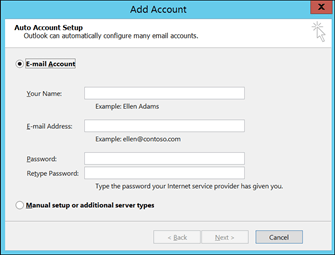
To configure Outlook on your PC Windows device:
- Initiate the software by clicking on the Outlook icon.
- Insert your email address in the designated field and click on “Connect” to attempt automatic configuration.
- If your provider is among the most used (e.G., Gmail, Outlook.Com), it will be configured automatically.
- If not, select the manual configuration option and follow the instructions.
Configuring Outlook on Mac
To configure Outlook on your Mac device:
- Initiate the software by clicking on the Outlook icon.
- Select “Add Account” from the menu bar.
- Choose your provider (e.G., Office 365, Outlook.Com) or select IMAP/POP for manual configuration.
- Insert the required data (username, password, server settings).
- Click on “Connect” to complete the configuration.
Configuring Outlook on Smartphone And Tablet
To configure Outlook on your smartphone or tablet:
- Download the Microsoft Outlook app from the App Store (for iOS) or Google Play Store (for Android).
- Initiate the app by clicking on the icon.
- Select “Add Account” and insert your email address.
- Outlook will attempt to automatically configure your account.
- If not, select the manual configuration option and follow the instructions.
Configuring Outlook With Other Services
To configure Outlook with other services (e.G., Gmail, Libero, Alice, Tiscali):
- Select “Add Account” from the menu bar.
- Choose the service you want to add (e.G., IMAP/POP).
- Insert the required data (username, password, server settings).
Server Settings For Different Services
Here are the server settings for different services:
- Gmail: IMAP Server: Imap.Gmail.Com Port: 993 Requires SSL: Yes Method of cryptography: TLS Username: Your email address Password: Your Gmail password
- Libero: IMAP Server: Imap.Mail.Libero.It Port: 143 Requires SSL: Yes Method of cryptography: STARTTLS Username: Your email address Password: Your Libero password
- Alice: IMAP Server: Imap.Alice.It Port: 143 Requires SSL: Yes Method of cryptography: STARTTLS Username: Your email address Password: Your Alice password
- Tiscali: IMAP Server: Imap.Tiscali.It Port: 993 Requires SSL: Yes Method of cryptography: SSL/TLS Username: Your email address Password: Your Tiscali password
Troubleshooting
If you encounter any issues during the configuration process, refer to our troubleshooting guide.
Conclusion
Configuring Outlook on your device is a straightforward process. By following these steps, you can easily set up your email accounts and access them from anywhere, at any time.
Frequently Asked Questions (FAQs)
Q: What are the system requirements for configuring Outlook?
A: Outlook requires Windows 10 or later, macOS High Sierra or later, or a mobile device with iOS 11 or later.
Q: Can I configure multiple email accounts on Outlook?
A: Yes, you can add multiple email accounts to Outlook by following the same configuration process.
Q: How do I reset my password if I forget it?
A: If you forget your password, refer to our guide on resetting passwords for different services.
Q: Can I access my emails without an internet connection?
A: Yes, with Outlook, you can access your emails even when offline.
Q: Is Outlook compatible with all email providers?
A: Outlook supports most leading email providers, but some may require manual configuration.
Q: How do I update my Outlook app to the latest version?
A: Refer to our guide on updating the Outlook app for different devices.
Conclusion
Configuring Outlook on your device is a simple process. By following these steps and troubleshooting guides, you can easily set up your email accounts and access them from anywhere, at any time.


