
How to Configure Postemobile on Android: A Step-by-step Guide
Are you tired of not being able to access the internet or send MMS messages using your PosteMobile SIM card? Do you know how to configure PosteMobile on your Android device? If not, don’t worry! This article will guide you through the process of configuring PosteMobile on your Android smartphone.
Understanding Apn And Its Importance
Before we dive into the configuration process, let’s understand what APN is. APN stands for Access Point Name, which is a set of coordinates that allows your device to connect to the internet via 3G/4G networks and send MMS messages. Without a correctly configured APN, you won’t be able to access the internet or send MMS messages using your PosteMobile SIM card.
Configuring Postemobile on Android
To configure PosteMobile on your Android device, follow these steps:
- Take Your Device: Take your Android smartphone and unblock it.
- Access Settings: Access the home screen and/or drawer, and tap on the icon of the Settings app (usually represented by a wheel of cog).
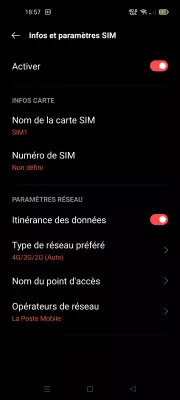
- Select Mobile Networks: In the new screen that appears, select “Mobile networks” or “Cellular networks”.
- Select Apn: Select “APN” or “Access Point Name”.
- Create a New Apn: If the PosteMobile APN is not present, create a new one by tapping on the “+” button or the three dots (⋯) at the top right corner of the screen.
- Fill in The Details: Fill in the details for the PosteMobile APN, including:
- Name: PosteMobile
- APN: Wap.Postemobile.It
- Proxy: Leave empty
- Port: Leave empty
- Save The Settings: Tap on the “Save” button to save the settings.
Configuring Mms For Postemobile on Android
To configure MMS for PosteMobile on your Android device, follow these steps:
- Access Settings: Access the home screen and/or drawer, and tap on the icon of the Settings app (usually represented by a wheel of cog).
- Select Mobile Networks: In the new screen that appears, select “Mobile networks” or “Cellular networks”.
- Select Apn: Select “APN” or “Access Point Name”.
- Create a New Mms Apn: If the PosteMobile MMS APN is not present, create a new one by tapping on the “+” button or the three dots (⋯) at the top right corner of the screen.
- Fill in The Details: Fill in the details for the PosteMobile MMS APN, including:
- Name: PosteMobile MMS
- APN: Mms.Postemobile.It
- MMSC: Http://Mms.Postemobile.It/servlets/mmsProxy
- MMSC Port: 80
- Save The Settings: Tap on the “Save” button to save the settings.
Configuring Postemobile on Iphone
To configure PosteMobile on your iPhone or iPad, follow these steps:
- Access Settings: Access the home screen and/or drawer, and tap on the icon of the Settings app (usually represented by a wheel of cog).
- Select Mobile/cellular: Select “Mobile” or “Cellular”.
- Select Cellular Network Options: Select “Cellular network options”.
- Fill in The Details: Fill in the details for the PosteMobile APN, including:
- APN: Wap.Postemobile.It
- Username and password: Leave empty
- Save The Settings: Tap on the “Save” button to save the settings.
Configuring Mms For Postemobile on Iphone or Ipad
To configure MMS for PosteMobile on your iPhone or iPad, follow these steps:
- Access Settings: Access the home screen and/or drawer, and tap on the icon of the Settings app (usually represented by a wheel of cog).
- Select Mobile/cellular: Select “Mobile” or “Cellular”.
- Select Cellular Network Options: Select “Cellular network options”.
- Fill in The Details: Fill in the details for the PosteMobile MMS APN, including:
- Name: PosteMobile MMS
- APN: Mms.Postemobile.It
- MMSC: Http://Mms.Postemobile.It/servlets/mmsProxy
- MMSC Port: 80
- Save The Settings: Tap on the “Save” button to save the settings.
Troubleshooting
If you’re having trouble configuring PosteMobile on your Android or iOS device, try the following:
- Restart Your Device: Restart your device and try again.
- Check Your Apn Configuration: Check that your APN configuration is correct.
- Contact Customer Support: Contact PosteMobile customer support for assistance.
Conclusion
Configuring PosteMobile on your Android or iOS device can be a bit tricky, but with this step-by-step guide, you should be able to do it easily. Remember to configure both the internet and MMS settings for PosteMobile to ensure that you can access the internet and send MMS messages using your PosteMobile SIM card.
Additional Resources
For more information on configuring PosteMobile on Android or iOS devices, visit the official PosteMobile website or contact their customer support team.
I hope this helps! Let me know if you have any further questions.


