
Configuring Safe Exam Browser (SEB) For Success
Are you a student or teacher looking to utilize the Safe Exam Browser (SEB) software? Look no further! In this comprehensive guide, we will walk you through the steps to configure SEB on various platforms, including Windows, Mac, smartphone, and tablet.
Why Use Seb?
SEB is a powerful tool designed to prevent cheating during online exams. By configuring SEB correctly, you can ensure a secure and fair testing environment for all participants.
Getting Started With Seb
Before we dive into the configuration process, make sure you have downloaded and installed the latest version of SEB on your device. If you haven’t done so, follow the instructions provided on the official SEB website to get started.
Configuring Seb on Windows
- Initiate The Software: Launch the SEB software on your Windows computer.
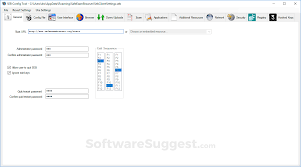
- Access Configuration Tool: Go to the Start menu and search for “SEB Configuration Tool.” Select the application, and you will be taken to a new window.
- Enter Course Information: In the General tab, enter the link of the course with which SEB will automatically initiate.
- Set Administrator Password: If you are an instructor, set an administrator password in the Administrator Password and Confirm Password fields. This password must be kept confidential.
- Set Quit/unlock Password: Set a quit/unlock password that students will use to exit the SEB browser after completing the exam.
- Configure Exam Settings: In the Config Rows section, select the “Starting an exam” option to initiate the exam without modifying local settings.
Configuring Seb on Mac
The configuration process for SEB on a Mac is similar to that on Windows:
- Launch Seb: Open the SEB software on your Mac.
- Access Settings: Go to the menu bar and select “SEB” > “Settings.”
- Enter Course Information: Enter the course link, just as you would on Windows.
- Set Administrator Password: Set an administrator password for instructors.
- Configure Exam Settings: Select the “Starting an exam” option to initiate the exam without modifying local settings.
Configuring Seb on Smartphone And Tablet
SEB is also available on smartphone and tablet devices, including iPhone and iPad:
- Download Seb App: Install the SEB app from the App Store.
- Access Configuration Tool: Launch the SEB app and go to the settings menu.
- Enter Course Information: Enter the course link provided by your instructor or test administrator.
- Configure Exam Settings: Select the “Starting an exam” option to initiate the exam without modifying local settings.
Configuring Seb For Students
As a student, configuring SEB is relatively straightforward:
- Access The Platform: Log in to the online platform with your university account.
- Click on The Exam Link: Click on the exam link provided by your instructor or test administrator.
- Seb Will Launch Automatically: SEB will initiate automatically, blocking access to other websites and applications.
Configuring Seb For Tolc
TOLC (Test OnLine CISIA) is a testing platform that utilizes SEB:
- Download The Seb File: Download the SEB file from the TOLC website.
- Launch Seb: Launch the SEB software and follow the instructions provided.
Configuring Seb For Exam
The configuration process for SEB on the Exam platform is similar to that on other platforms:
- Access The Website: Go to the Exam website and log in with your account.
- Click on The Exam Link: Click on the exam link provided by your instructor or test administrator.
- Seb Will Launch Automatically: SEB will initiate automatically, blocking access to other websites and applications.
Conclusion
Configuring Safe Exam Browser (SEB) is a crucial step in ensuring a secure and fair testing environment for all participants. By following these steps, you can ensure that your online exams run smoothly and without any issues. Remember to always keep your software up-to-date and follow the instructions provided by your instructor or test administrator.
Frequently Asked Questions (FAQs)
Q: What is Safe Exam Browser (SEB)?
A: SEB is a powerful tool designed to prevent cheating during online exams.
Q: How do I configure SEB on my device?
A: Follow the steps outlined in this guide for configuring SEB on Windows, Mac, smartphone, and tablet devices.
Q: Do I need to set an administrator password?
A: Yes, if you are an instructor or test administrator, it is essential to set an administrator password to ensure security.
Q: Can I use SEB on multiple devices?
A: Yes, SEB can be used on various devices, including Windows, Mac, smartphone, and tablet devices.
Q: How do I access the SEB configuration tool?
A: Go to the Start menu (Windows) or menu bar (Mac) and search for “SEB Configuration Tool” to access the application.


