
Configuring Smtp Fastweb: A Step-by-step Guide
Are you tired of struggling to configure your SMTP settings on various devices and applications? Look no further! In this comprehensive guide, we’ll walk you through the process of setting up SMTP Fastweb on your computer, smartphone, and tablet.
What is Smtp Fastweb?
SMTP (Simple Mail Transfer Protocol) is a protocol used for sending emails. Fastweb is a popular internet service provider in Italy that offers email services to its users. By configuring your SMTP settings with Fastweb, you’ll be able to send and receive emails using their servers.
Configuring Smtp Fastweb on Computer
To configure SMTP Fastweb on your computer, follow these steps:
- Open The Application: Open the email client or application of your choice (e.G., Microsoft Outlook, Mozilla Thunderbird).
- Add a New Account: Click on the “Add” button to add a new email account.
- Select Advanced Options: Choose the “Advanced Options” tab and select “Use this settings for POP and SMTP.”
- Enter Your Email Credentials: Enter your Fastweb email address, password, and other required details.
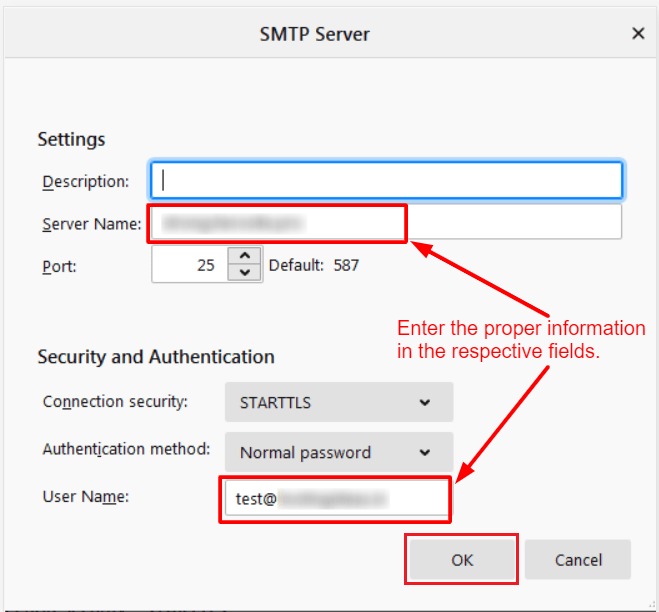
- Configure Smtp Server: Configure the SMTP server by entering the following details:
- Server: Smtp.Fastwebnet.It
- Port: 465 (For SSL) or 587 (for STARTTLS)
- Encryption: Use SSL/TLS
- Save Changes: Save your changes, and you’re done!
Configuring Smtp Fastweb on Smartphone And Tablet
To configure SMTP Fastweb on your smartphone or tablet, follow these steps:
- Open The Email App: Open the email application of your choice (e.G., Gmail, Mail).
- Add a New Account: Tap on the “Add” button to add a new email account.
- Select Manual Configuration: Choose the “Manual Configuration” option.
- Enter Your Email Credentials: Enter your Fastweb email address and password.
- Configure Smtp Server: Configure the SMTP server by entering the following details:
- Server: Smtp.Fastwebnet.It
- Port: 465 (For SSL) or 587 (for STARTTLS)
- Encryption: Use SSL/TLS
- Save Changes: Save your changes, and you’re done!
Configuring Smtp Fastweb on Other Applications
If you’re using a different email application, don’t worry! The steps are similar:
- Open The Application: Open the email client or application of your choice.
- Add a New Account: Click on the “Add” button to add a new email account.
- Select Manual Configuration: Choose the “Manual Configuration” option.
- Enter Your Email Credentials: Enter your Fastweb email address and password.
- Configure Smtp Server: Configure the SMTP server by entering the following details:
- Server: Smtp.Fastwebnet.It
- Port: 465 (For SSL) or 587 (for STARTTLS)
- Encryption: Use SSL/TLS
Troubleshooting Tips
If you encounter any issues during the configuration process, try these troubleshooting tips:
- Check Your Email Credentials: Make sure your email address and password are correct.
- Verify Smtp Server Settings: Double-check that you’ve entered the correct SMTP server details (server, port, encryption).
- Restart Your Device: Restart your computer or device to ensure all changes take effect.
Conclusion
Configuring SMTP Fastweb is a straightforward process that requires some basic knowledge of email client settings. By following these steps, you’ll be able to set up your SMTP settings with ease and start sending and receiving emails using the Fastweb servers.
Frequently Asked Questions (FAQs)
- What Are The Benefits of Configuring Smtp Fastweb?
Configuring SMTP Fastweb allows you to send and receive emails using the Fastweb servers, which can improve email delivery times and reliability. - What is The Difference Between Pop And Imap?
POP (Post Office Protocol) retrieves emails from the server and stores them on your device, while IMAP (Internet Message Access Protocol) leaves emails on the server and allows you to access them remotely. - How do I Configure Smtp Fastweb on Multiple Devices?
Follow the same steps as above for each device, using the correct email credentials and SMTP server settings. - What if I Encounter Issues During Configuration?
Try troubleshooting tips (check your email credentials, verify SMTP server settings, restart your device) to resolve any issues. - Can I Use a Different Email Client or Application?
Yes, you can configure SMTP Fastweb on most popular email clients and applications by following the same steps as above. - What if I Forget my Password?
Use the “Recover” feature provided by Fastweb to reset your password. - How do I Access my Email Account on Multiple Devices?
Use the same login credentials (email address and password) to access your email account on multiple devices. - Can I Configure Smtp Fastweb on a Mobile Device Only?
Yes, you can configure SMTP Fastweb on mobile devices using the settings provided above.
We hope this guide has been helpful in configuring SMTP Fastweb for your email needs!


