
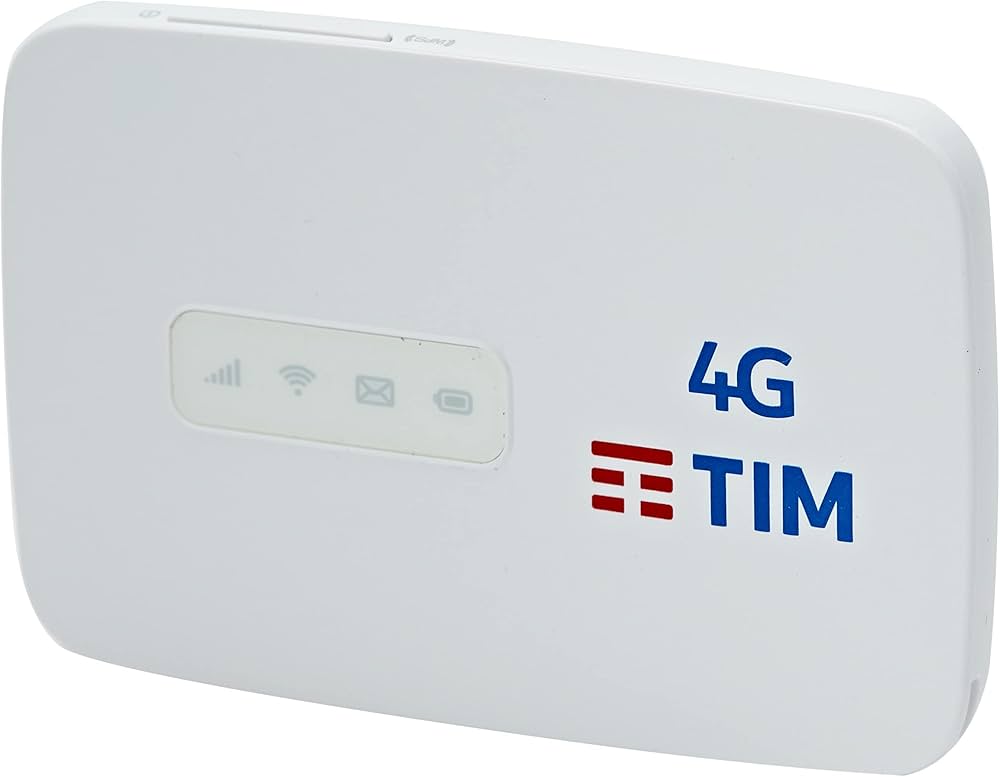
How to Configure Modem Tim: A Step-by-step Guide
Are you struggling to configure your modem TIM? Do not worry, this guide is here to help you navigate through the process with ease.
Preliminary Operations
Before configuring your modem TIM, make sure to extract the device from its packaging and note down the following details:
- IP address of the modem
- Password for the management panel
- Wi-Fi password
Next, connect the modem to a telephone or ONT (Optical Network Terminal) using the provided cables. Finally, plug in the power adapter and wait for the LED lights on the modem to stabilize.
Configure Modem Tim Hub
Once you have connected the modem to a telephone or ONT, it’s time to configure the modem TIM HUB.
- Log in to the management panel of your modem using the provided IP address.
- Click on the “Wireless” tab and select the network you want to modify (e.G., Guests-TIM-xy).
- Change the name and password of the Wi-Fi network by filling in the respective fields.
- Save the changes and apply them.
Activate Guest Network
To activate the guest network, follow these steps:
- Log in to the management panel of your modem.
- Click on the “Wireless” tab and select the network you want to modify (e.G., Guests-TIM-xy).
- Activate the guest network by clicking on the toggle switch beside the “Qualified” option.
Open Ports
To open ports, follow these steps:
- Log in to the management panel of your modem.
- Click on the “WAN Services” tab.
- Select the “Port Forwarding IPv4” section and click on the “Add a new port mapping IPv4” button.
- Fill in the required details (e.G., Protocol, address, etc.) And save the changes.
Configure Parental Control
To configure parental control, follow these steps:
- Log in to the management panel of your modem.
- Click on the “Parental Control” tab.
- Activate the parental control feature by clicking on the toggle switch beside the “Qualified” option.
- Add new websites to block or allow by filling in the respective fields and saving the changes.
Resettle Modem
If you have made any changes to the modem settings and now face issues with internet connectivity, try resettling the modem to its factory settings.
- Log in to the management panel of your modem.
- Click on the “Gateway” tab.
- Select the “Reset” option and confirm the action.
- Wait for the modem to reset itself.
Additional Useful Information
These are some additional features available in your modem TIM HUB:
- Firewall: Activate or deactivate the firewall feature to protect your network from external threats.
- IP Addresses: View and manage IP addresses assigned to devices connected to your network.
- Dhcp Server: Configure the DHCP server settings to assign IP addresses automatically.
Configure Other Modems With Tim
If you have chosen a different modem for your subscription, such as a Fritz!Box or ZTE HUB+, follow these steps:
- Connect the modem to a telephone or ONT using the provided cables.
- Log in to the management panel of your modem using the provided IP address.
- Configure the modem settings according to the instructions provided by TIM.
Configure Modem With Vodafone
If you have switched from TIM to Vodafone and want to use your old modem, follow these steps:
- Disconnect the router from the internet.
- Reset the modem to its factory settings using a paper clip or pin.
- Connect the modem to a telephone or ONT using the provided cables.
- Log in to the management panel of your modem using the provided IP address.
- Configure the modem settings according to the instructions provided by Vodafone.
Troubleshooting Common Issues
- Internet Connection Issues: Try resetting the modem, restarting your router, and checking for any physical connections problems.
- Wi-fi Network Issues: Check that you are connected to the correct Wi-Fi network, restart your device, and check for any physical connectivity issues.
Conclusion
Configuring your modem TIM is a straightforward process that requires attention to detail. By following this guide, you should be able to set up your modem and enjoy stable internet connectivity.
Frequently Asked Questions (FAQs)
- Q: How do I Reset my Modem?
A: You can reset your modem by logging in to the management panel, clicking on the “Gateway” tab, selecting the “Reset” option, and confirming the action. - Q: What is Parental Control?
A: Parental control allows you to block or allow access to specific websites, applications, or devices connected to your network. - Q: How do I Configure my Modem For Vodafone?
A: To configure your modem for Vodafone, follow the steps outlined in this guide, making sure to select the correct settings and parameters for your subscription. - Q: What is Port Forwarding?
A: Port forwarding allows you to open specific ports on your router to allow incoming connections from external devices. -
Q: How do I Troubleshoot Internet Connection Issues?
A: Try resetting the modem, restarting your router, and checking for any physical connections problems. -
Q: Can I use my old modem with Vodafone?
A: Yes, you can use your old modem with Vodafone by following the steps outlined in this guide to unblock and configure it for your new subscription. -
Q: What is the difference between a router and a modem?
A: A router connects devices within a local network, while a modem connects that network to the internet via a service provider. -
Q: Can I access my modem’s management panel remotely?
A: Yes, you can access your modem’s management panel remotely by logging in using a computer or mobile device connected to the same network.


