
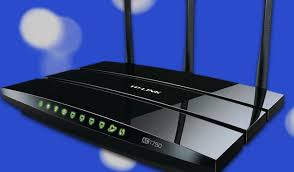
How to Configure a Tp-link Modem: A Step-by-step Guide
Are you struggling to set up your TP-Link modem? Look no further! In this article, we will guide you through the process of configuring your TP-Link modem step by step.
Understanding Your Tp-link Modem
Before we dive into the configuration process, let’s understand what a TP-Link modem is and how it works. A TP-Link modem is a device that connects your home network to the internet via a broadband connection (ADSL/Fiber). It allows multiple devices to connect to the internet at once.
Requirements For Configuration
To configure your TP-Link modem, you will need:
- Your TP-Link modem
- An Ethernet cable
- A computer or mobile device with a web browser
Step 1: Accessing The Modem’s Web Interface
To access the modem’s web interface, follow these steps:
- Connect your modem to your computer using an Ethernet cable.
- Open a web browser and type
192.168.1.1In the address bar. - Press Enter to access the modem’s web interface.
Step 2: Logging In
To log in to the modem’s web interface, follow these steps:
- The default username is
admin, and the password is alsoadmin. - Type in your credentials and click on the “Login” button.
- If you have changed your login credentials previously, use those instead.
Step 3: Initial Configuration
After logging in, you will be presented with the modem’s initial configuration page. Follow these steps:
- Click on the “Quick Setup” tab.
- Enter a personalized password for the access to the router (max 15 characters).
- Click on the “Start” button to confirm the modification.
Step 4: Configuring Wi-fi Settings
To configure your Wi-Fi settings, follow these steps:
- Click on the “Wi-Fi” tab.
- Choose whether you want to enable or disable the wireless radio.
- Specify a name for your network (SSID).
- Enter a password for your network.
- Click on the “Save” button to apply changes.
Step 5: Configuring Advanced Settings
To configure advanced settings, follow these steps:
- Click on the “Advanced” tab.
- Select the type of Wi-Fi network you want to use (2.4GHz or 5GHz).
- Configure your security settings:
- Choose a password for your network.
- Select an algorithm for encryption.
- Choose the version and cryptography.
- Save changes.
Step 6: Testing Your Internet Connection
After configuring your Wi-Fi settings, you should test your internet connection to ensure it is working properly.
- Connect your device to the modem using a wired Ethernet cable or Wi-Fi.
- Check if you can access online content such as websites and social media platforms.
Additional Features And Settings
In addition to the basic configuration steps outlined above, there are several other features and settings that you may need to configure depending on your specific requirements.
- Opening Ports: If you need to open ports for programs or services that require direct access to the internet, follow these steps:
- Go to the “Advanced” tab.
- Select the option to “NAT Forwarding”.
- Click on the “Add” button.
- Fill in the required information (interface, type of service, external and internal ports).
- Backup And Recovery: To create a backup of your settings or recover them from a previous backup:
- Go to the “Advanced” tab.
- Select the option to “System Tools”.
- Click on the “Backup & Recovery” tab.
- Follow the instructions provided.
Conclusion
Configuring your TP-Link modem is a straightforward process that can be completed in a few simple steps. By following this guide, you should now have a fully functional and configured TP-Link modem. Remember to test your internet connection regularly to ensure it remains stable and secure.
Frequently Asked Questions (FAQs)
- How do I Access my Tp-link Modem’s Web Interface?
You can access the modem’s web interface by typing192.168.1.1In the address bar of a web browser. - What is The Default Username And Password For The Modem?
The default username isadmin, and the password is alsoadmin. - How do I Configure my Wi-fi Settings on The Modem?
To configure your Wi-Fi settings, go to the “Wi-Fi” tab in the modem’s web interface and follow the instructions provided. - Can I Change The Password For my Network?
Yes, you can change the password for your network by going to the “Wi-Fi” tab in the modem’s web interface. - How do I Test my Internet Connection on The Modem?
To test your internet connection, connect your device to the modem using a wired Ethernet cable or Wi-Fi and check if you can access online content such as websites and social media platforms.
Frequently Asked Questions (FAQs)
- How Often Should I Restart my Tp-link Modem?
You should restart your modem periodically to ensure it remains stable and secure. - Can I Configure Multiple Wi-fi Networks on The Modem?
Yes, you can configure multiple Wi-Fi networks on the modem by going to the “Wi-Fi” tab in the web interface. - How do I Open Ports For Programs or Services That Require Direct Access to The Internet?
To open ports, go to the “Advanced” tab in the modem’s web interface and select the option to “NAT Forwarding”. - Can I Create a Backup of my Settings on The Modem?
Yes, you can create a backup of your settings by going to the “Advanced” tab in the web interface and selecting the option to “Backup & Recovery”.


