
Configuring Utorrent: A Step-by-step Guide
Are you tired of experiencing slow downloads on uTorrent? Do you want to optimize your download speed and avoid repetitive situations? You’re in the right place! In this article, we’ll walk you through a step-by-step guide on how to configure uTorrent for maximum performance.
What’s Wrong With My Utorrent Configuration?
The reason behind slow downloads is often due to a misconfiguration of the program or your router. This can lead to obstacles in communication between peer-to-peer programs like uTorrent, causing downloads to stall. In this article, we’ll show you how to resolve this issue and get the most out of your uTorrent experience.
Step 1: Accessing Your Router
The first step is to access your router’s configuration panel. This will allow you to make changes to the settings that affect uTorrent’s performance.
Step 2: Finding The Correct Port
Once in the router’s configuration panel, find the TCP port used by uTorrent. If you’re using Windows, go to Options > Settings and select Connections from the left-hand menu. Look for the Bring Used For field and note down the port number.
Step 3: Opening The Router’s Door
If you’re using a Mac, initiate the software (selecting the relative link in the Start menu) and then navigate to Preferences. Select Network and find the incoming TCP port used by uTorrent.
Step 4: Accessing Your Modem
Next, access your modem’s configuration panel using a web browser (e.G., Chrome). Enter your modem’s IP address (usually 192.168.1.1 Or 192.168.0.1) And log in with the default username and password (admin/admin or admin/password).
Step 5: Creating a New Rule
In the modem’s configuration panel, create a new rule or virtual server that allows uTorrent to communicate externally. Set up the rule to allow public and local ports, as well as initial and final ports.
Configuring Utorrent on Different Devices
This guide is applicable to Windows, macOS, Android, and other devices. However, some steps may vary depending on your device’s operating system or router configuration.
How to Configure Utorrent on Windows
To configure uTorrent on Windows:
- Access the program’s settings by clicking on Options > Settings.
- Select Connections from the left-hand menu.
- Look for the Bring Used For field and note down the port number.
- In your modem’s configuration panel, create a new rule or virtual server to allow uTorrent to communicate externally.
How to Configure Utorrent on Macos
To configure uTorrent on macOS:
- Access the program’s settings by clicking on Preferences.
- Select Network from the top menu bar.
- Find the incoming TCP port used by uTorrent.
- In your modem’s configuration panel, create a new rule or virtual server to allow uTorrent to communicate externally.
How to Configure Utorrent on Android
To configure uTorrent on Android:
- Open the app and tap on the three horizontal lines in the top-right corner.
- Select Settings from the menu.
- Look for the Incoming Port field and note down the port number.
- In your router’s configuration panel, create a new rule or virtual server to allow uTorrent to communicate externally.
How to Configure Utorrent in Italian
If you want to configure uTorrent in Italian:
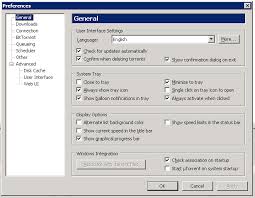
- On Windows, navigate to Options > Preferences and select General from the left-hand menu.
- Look for the Language field and choose Italian from the dropdown menu.
- Click Apply and OK to save changes.
Conclusion
Configuring uTorrent requires a few simple steps that can greatly improve your download experience. By following this guide, you’ll be able to optimize your uTorrent settings and avoid slow downloads.
Frequently Asked Questions (FAQs)
- Q: What’s The Best Way to Configure Utorrent For Maximum Performance?
A: The best way is to access your router’s configuration panel and create a new rule or virtual server that allows uTorrent to communicate externally. - Q: How do I Find The Correct Port Used by Utorrent?
A: On Windows, navigate to Options > Settings and select Connections from the left-hand menu. Look for the Bring Used For field and note down the port number. - Q: Can I Configure Utorrent on Different Devices?
A: Yes, this guide is applicable to Windows, macOS, Android, and other devices. - Q: How do I Resolve Slow Downloads Caused by Misconfiguration?
A: To resolve slow downloads, access your router’s configuration panel, create a new rule or virtual server, and configure uTorrent accordingly. - Q: What Are The Benefits of Using a Vpn With Utorrent?
A: Using a VPN can improve security and anonymity while downloading on uTorrent. - Q: How do I Configure Utorrent in Italian?
A: On Windows, navigate to Options > Preferences and select General from the left-hand menu. Look for the Language field and choose Italian from the dropdown menu. - Q: Can I Use a Vpn With my Router’s Configuration Panel?
A: Yes, using a VPN can enhance security while accessing your router’s configuration panel. - Q: How do I Troubleshoot Slow Downloads Caused by Misconfiguration?
A: Check your router’s configuration panel and create a new rule or virtual server to allow uTorrent to communicate externally.
We hope this guide has been helpful in configuring uTorrent for maximum performance! If you have any further questions, feel free to ask.


