
How to Configure Internet Vodafone on Your Smartphone or Tablet
Are you tired of not being able to access the internet on your smartphone or tablet despite having a Vodafone SIM? Don’t worry, it’s often just a simple configuration error that can be easily fixed. In this article, we will guide you through the steps to configure internet Vodafone on your Android or iPhone device.
Configuring Internet Vodafone on Android
If you want to configure internet Vodafone on your Android device, follow these steps:
- Access The Settings App: Go to the settings app on your Android device.
- Select “Another” or “Other Networks”: Choose the option that says “Another” or “Other Networks”.
- Select “Cellular Networks” or “Mobile Networks”: Select the option that says “Cellular Networks” or “Mobile Networks”.
- Create a New Apn: Tap on the “+” icon to create a new APN.
- Fill in The Details: Fill in the details as follows:
- Name: Access Internet of Cell (on smartphone); Internet (on tablet)
- APN: Vodafone.It
- MMCC: 222
- MNC: 10
- Tipo APN: Default, supl
- Protocollo APN: IPv4
- Save The Changes: Tap on the “Menu” button and select “Save”.
- Activate The Apn: Go back to the cellular networks menu and activate the APN by putting a tick mark next to it.
Configuring Internet Vodafone on Iphone
If you want to configure internet Vodafone on your iPhone or iPad, follow these steps:
- Access The Settings App: Go to the settings app on your iPhone or iPad.
- Select “Cellular”: Choose the option that says “Cellular”.
- Select “Cellular Data Network”: Select the option that says “Cellular Data Network”.
- Fill in The Details: Fill in the details as follows:
- APN: Iphone.Vodafone.It (on iPhone); web.Omnitel.It (on iPad)
- Hotspot Personal: Internet
- Save The Changes: Tap on the “Home” button to save the changes.
- Activate The Apn: Go back to the cellular data network menu and activate the APN by putting a tick mark next to it.
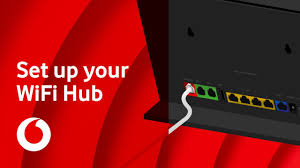
Configuring Internet Vodafone on Router
If you want to configure internet Vodafone on your router, follow these steps:
- Access The Router’s Panel: Access the router’s panel using a web browser.
- Fill in The Details: Fill in the details as follows:
- Fibre FTTC: 200 Mbps
- Standard Physical: VDSL2
- Encapsulation: PTM VLAN: 1036
- Username: Vodafoneadsl
- Password: Vodafoneadsl
- NAT: Active
- Fibra FTTH SIP Domain: Ims.Vodafone.It
- SIP Protocol: UDP Port 5060
- Save The Changes: Save the changes and restart the router.
Conclusion
Configuring internet Vodafone on your smartphone or tablet is a simple process that can be completed in just a few minutes. By following these steps, you should be able to access the internet without any issues. If you have any further questions or need help with configuring your internet connection, feel free to contact us.
Frequently Asked Questions
- What if I’m Unable to Configure my Internet Vodafone?
- Don’t worry! Contact our customer support team for assistance.
- How do I Know if my Router is Configured Correctly?
- Check the router’s panel and ensure that all details are filled in correctly.
- Can I Configure my Internet Vodafone on my Iphone or Ipad?
- Yes, follow the steps outlined above to configure your internet Vodafone on your iPhone or iPad.
- How do I Troubleshoot Common Issues With my Internet Connection?
- Check our troubleshooting guide for common issues and solutions.
- Can I Use my Vodafone Sim Card in a Different Device?
- Yes, but ensure that the device is compatible with your Vodafone SIM card.
- How do I Configure my Mms on my Smartphone or Tablet?
- Follow the steps outlined above to configure your MMS.
- Can I Use my Internet Connection For Video Streaming And Online Gaming?
- Yes, but ensure that you have a stable internet connection with sufficient bandwidth.
- What if I’m Experiencing Slow Speeds With my Internet Connection?
- Check our troubleshooting guide for common issues and solutions.
Note
This article is intended to provide general guidance on configuring your internet Vodafone connection. However, specific instructions may vary depending on the device or router you are using. If you need further assistance, please contact us.


