
How to Configure Your Vodafone Station: A Step-by-step Guide
Are you struggling to configure your Vodafone Station? Look no further! In this article, we will provide a comprehensive guide on how to set up and customize your Vodafone Station.
Installing The Vodafone Station
Before configuring your Vodafone Station, it’s essential to install it correctly. To do so:
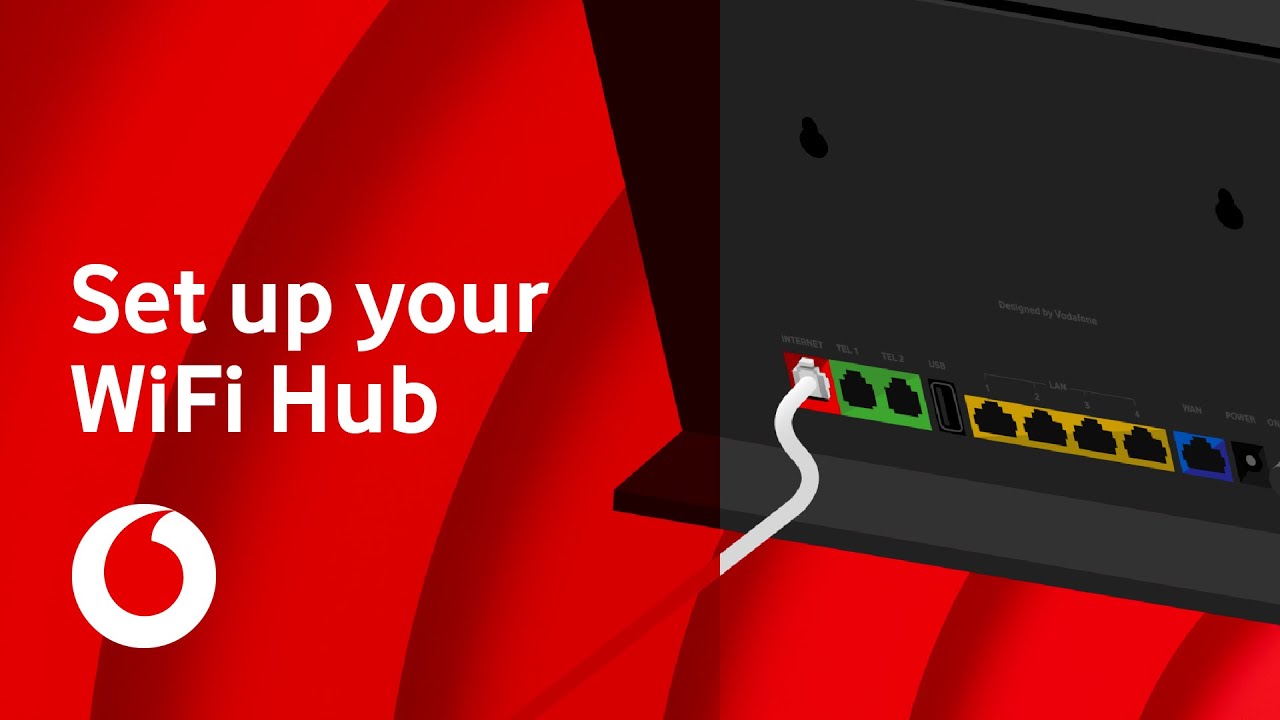
- Connect the modem to the electrical power source using the provided cable.
- Connect the modem to your internet service provider (ISP) using the DSL cable.
- Connect your phone to the TEL1 port on the modem.
- If you want to connect other devices, such as computers or laptops, use an Ethernet cable.
Lighting Up Your Vodafone Station
Now that your Vodafone Station is installed, it’s time to light it up!
- Press the power button located on the back of the modem (on the Power Station and Revolution models) or side (on the 6 model).
- Wait for the device to boot up.
- Check if all the LED lights are green or white; if they’re, your Vodafone Station is ready to go.
Configuring Your Vodafone Station
With your Vodafone Station up and running, it’s time to configure it!
Configuring Your Pc
To configure your Vodafone Station from a PC:
- Connect your PC to the modem using an Ethernet cable.
- Open a web browser and navigate to
http://Vodafone.Station. - Log in with the default username (vodafone) and password (found on the label attached to the modem).
- Change the password by clicking on “Settings” > “Password.”
Configuring Wi-fi
To configure your Vodafone Station’s Wi-Fi:
- Open a web browser and navigate to
http://Vodafone.Station. - Log in with your new password.
- Click on “Wi-Fi” > “Configuration.”
- Change the Wi-Fi password by typing in the new password in the “New text password” field.
Opening Doors
If you want to configure your Vodafone Station for eMule or other applications, follow these steps:
- Open a web browser and navigate to
http://Vodafone.Station. - Log in with your username and password.
- Click on “Internet” > “Association doors.”
- Click on the “+” button and fill out the form with the required information.
Configuring Vpn
If you want to configure a VPN on your Vodafone Station:
- Open a web browser and navigate to
http://Vodafone.Station. - Log in with your username and password.
- Click on “VPN” > “Settings.”
- Select the type of VPN server (L2TP or PPTP).
- Create a shared secret by clicking on the “Enforced” button and typing in a password.
Restarting And Resetting
If you’re experiencing connection issues, try restarting your Vodafone Station:
- Open a web browser and navigate to
http://Vodafone.Station. - Click on “Settings” > “Configuration.”
- Click on the “Execute” button next to “Soft reset.”
Alternatively, if none of these steps resolve the issue, you can reset your Vodafone Station to its factory settings:
- Press and hold the reset button located on the back of the modem for 30 seconds.
- Release the button and wait for the device to reboot.
Configuring With Another Operator
If you want to configure your Vodafone Station with another operator (such as TIM, Wind, or other), follow these steps:
- Access the panel of configuration of the modem.
- Select “Modality expert user” from the menu.
- Click on “Settings” > “WAN.”
- Select the type of WAN connection (ADSL, VDSL, or FIBER).
Configuring as an Access Point
If you want to configure your Vodafone Station as an access point:
- Access the panel of configuration of the modem.
- Select “Modality expert user” from the menu.
- Click on “Settings” > “IPv4.”
- Change the IP address of the VS by typing in a new address (e.G., 192.168.10.1).
- Save your changes and restart the device.
Configuring With Smartphone And Tablet
If you want to configure your Vodafone Station with a smartphone or tablet:
- Download and install the Vodafone Station app.
- Open the app and follow the on-screen instructions.
- Log in with your username and password.
- Configure your Wi-Fi settings, phone settings, and other preferences.
Conclusion
Configuring your Vodafone Station can seem daunting, but with this guide, you should be able to set it up and customize it to meet your needs. Remember to always follow the manufacturer’s instructions and take necessary precautions when configuring sensitive settings.
Frequently Asked Questions (FAQs)
- Q: How do I configure my Vodafone Station for eMule?
A: To configure your Vodafone Station for eMule, follow the steps outlined in the “Opening Doors” section. - Q: How do I configure a VPN on my Vodafone Station?
A: To configure a VPN on your Vodafone Station, follow the steps outlined in the “Configuring VPN” section. - Q: How do I restart and reset my Vodafone Station?
A: To restart and reset your Vodafone Station, follow the steps outlined in the “Restarting and Resetting” section. - Q: How do I configure my Vodafone Station with another operator (such as TIM or Wind)?
A: To configure your Vodafone Station with another operator, follow the steps outlined in the “Configuring with Another Operator” section. - Q: How do I configure my Vodafone Station as an access point?
A: To configure your Vodafone Station as an access point, follow the steps outlined in the “Configuring as an Access Point” section. - Q: Can I configure my Vodafone Station with a smartphone or tablet?
A: Yes! You can configure your Vodafone Station with a smartphone or tablet by following the steps outlined in the “Configuring with Smartphone and Tablet” section.
Note: This article is for informational purposes only, and it’s recommended to consult the manufacturer’s instructions for specific guidance on configuring your Vodafone Station.


