
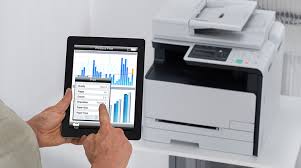
How to Connect a Printer: A Step-by-step Guide
Are you struggling to connect your printer to your computer or smartphone? Look no further! In this article, we will walk you through the process of connecting a printer, covering various types of connections and devices.
Understanding Your Printer’s Connection Options
Before we dive into the step-by-step guide, it’s essential to understand the connection options available for your printer. Modern printers often support Wi-Fi connectivity, while older models may use USB or parallel ports. The type of connection you need will determine the steps you take to connect your printer.
Connecting a Printer to Your PC
Connecting a Printer to Your Windows 10 PC
To connect a printer to your Windows 10 PC, follow these steps:
- Install The Driver: Download and install the printer driver from the manufacturer’s website.
- Connect The Printer: Connect the printer to your PC using a USB cable or Wi-Fi connection.
- Add a Printer: Go to Settings > Devices > Printers & scanners > Add a printer or scanner.
- Select The Printer: Select the printer you want to add and click Next.
Connecting a Printer to Your Macos
To connect a printer to your macOS, follow these steps:
- Access System Preferences: Click on the Apple menu and select System Preferences.
- Click on Printers & Scanners: Select Printers & scanners from the list of available preferences.
- Add a Printer: Click the + button at the bottom left corner of the window.
- Select The Printer: Select the printer you want to add and click Add.
Connecting a Printer to Your Smartphone
Connecting a Printer to Your Android Device
To connect a printer to your Android device, follow these steps:
- Connect The Printer to Your Router: Connect the printer to your router using Wi-Fi or an Ethernet cable.
- Open The Print Menu: Open the print menu on your smartphone by tapping the share button and selecting Print.
- Select The Printer: Select the printer you want to use from the list of available printers.
Connecting a Printer to Your Iphone
To connect a printer to your iPhone, follow these steps:
- Connect The Printer to Your Router: Connect the printer to your router using Wi-Fi or an Ethernet cable.
- Open The Print Menu: Open the print menu on your iPhone by tapping the share button and selecting Print.
- Select The Printer: Select the printer you want to use from the list of available printers.
Connecting a Printer to Your Local Network
Connecting a Printer to Your Windows PC
To connect a printer to your local network using your Windows PC, follow these steps:
- Open Settings: Click on the Start menu and select Settings.
- Click on Network & Internet: Select Network & internet from the list of available settings.
- Click on Wi-fi: Click on Wi-Fi from the left-hand menu.
- Toggle Off Wi-fi: Toggle off Wi-Fi to make your connection private.
- Open Devices: Open the Settings app and click on Devices.
- Click on Printers & Scanners: Select Printers & scanners from the list of available devices.
- Select The Printer: Select the printer you want to share and click Manage.
- Share The Printer: Share the printer with other devices on your network.
Connecting a Printer to Your Mac
To connect a printer to your local network using your Mac, follow these steps:
- Open System Preferences: Click on the Apple menu and select System Preferences.
- Click on Sharing: Select Sharing from the list of available preferences.
- Select Printers & Scanners: Select Printers & scanners from the left-hand menu.
- Share The Printer: Share the printer with other devices on your network.
Conclusion
Connecting a printer to your computer or smartphone can seem like a daunting task, but it’s actually quite straightforward. By following these step-by-step guides, you should be able to connect your printer and start printing in no time. Remember to always check the manufacturer’s instructions for specific guidance on connecting your printer.
Frequently Asked Questions
- What is The Difference Between Wi-fi And Usb Connections?
- Wi-Fi connections use wireless technology to connect devices, while USB connections use a physical cable.
- Can I Connect Multiple Printers to my Local Network?
- Yes, you can connect multiple printers to your local network by following the steps outlined in this article.
- How do I Troubleshoot Printing Issues?
- If you’re experiencing printing issues, try restarting your printer and computer, checking for software updates, or resetting your printer’s settings.
- Can I Print Wirelessly From my Smartphone?
- Yes, you can print wirelessly from your smartphone by connecting to a Wi-Fi network and selecting the printer you want to use from the list of available printers.
- How do I Connect my Printer to Multiple Devices at Once?
- You can connect your printer to multiple devices at once by following the steps outlined in this article or consulting the manufacturer’s instructions for specific guidance.
- Can I Print Wirelessly From an Ipad or Iphone?
- Yes, you can print wirelessly from an iPad or iPhone by connecting to a Wi-Fi network and selecting the printer you want to use from the list of available printers.
- How do I Reset my Printer’s Settings?
- To reset your printer’s settings, refer to the manufacturer’s instructions for specific guidance on how to perform a factory reset.
- Can I Print Wirelessly Using an Ethernet Cable?
- Yes, you can print wirelessly using an Ethernet cable by connecting the printer to a router and selecting the printer you want to use from the list of available printers.
References
- [1] Anker Adapter USB-C to USB 3.1
- [2] Syntech Adapter of #USB #C to #USB [2 pieces], Conversion of *Thunderbolt…


