
Connecting a Usb Flash Drive to Your Phone: A Step-by-step Guide
Are you tired of running out of storage space on your phone? Do you want to transfer files from your computer to your phone easily? Look no further! Connecting a USB flash drive to your phone is a simple and convenient way to expand your device’s storage capacity. In this article, we will guide you through the process of connecting a USB flash drive to both Android and iPhone devices.
Understanding The Basics
Before we dive into the step-by-step instructions, it’s essential to understand the basics of how phones connect to USB drives. Unlike computers, which have standard USB ports (Type-A), phones have USB-C or micro-USB ports that are designed for charging and data transfer only. However, there are adapters available that can convert a USB-C or micro-USB port into a full-fledged USB port.
What You Need
To connect a USB flash drive to your phone, you’ll need the following:
- A USB flash drive with an OTG (On-The-Go) cable
- An adapter for Android devices (Type-C to USB-A)
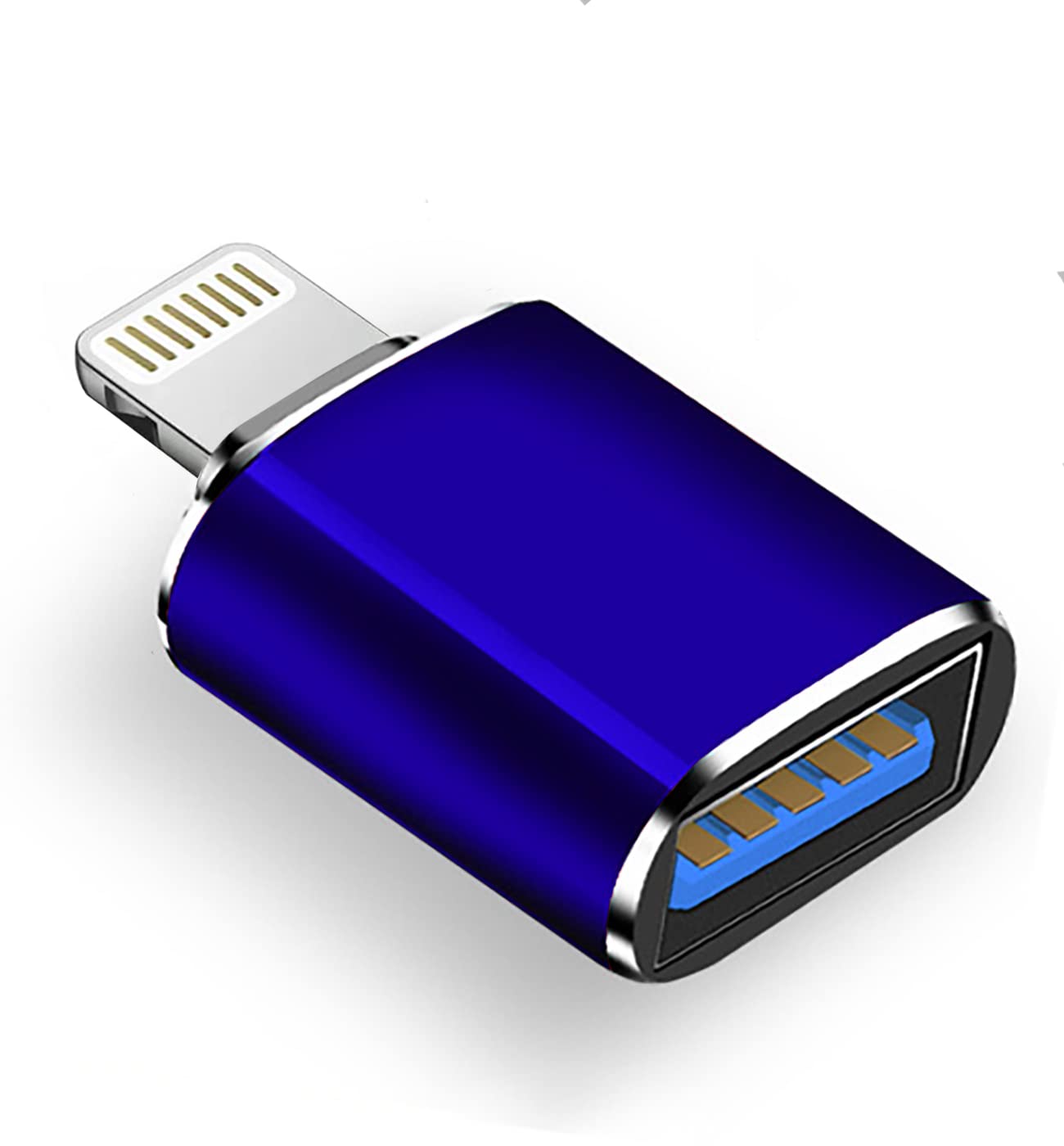
- An adapter for iPhone devices (Lightning to USB-A)
Connecting a Usb Flash Drive to an Android Device
If you have an Android device, you can easily connect a USB flash drive using an OTG cable and an adapter. Here’s how:
Step 1: Download The Usb Otg Checker App
Before purchasing an adapter, download the USB OTG Checker app from the Google Play Store or your preferred alternative store. This app will help you determine if your device supports OTG technology.
Step 2: Purchase an Otg Adapter
If your device is compatible with OTG technology, purchase an OTG adapter specifically designed for Android devices. You can find these adapters online or at a local electronics store.
Step 3: Connect The Usb Flash Drive to Your Phone
Once you have the adapter and the USB flash drive, follow these steps:
- Plug the OTG cable into the micro-USB port on your phone.
- Insert the other end of the OTG cable into the USB-A port on the adapter.
- Attach the USB flash drive to the adapter.
Step 4: Access Your Files
After connecting the USB flash drive, access your files by following these steps:
- Go to Settings > Storage > Devices (or similar option).
- Select the name of the USB flash drive from the list of available devices.
- You can now transfer files between your phone and the USB flash drive.
Connecting a Usb Flash Drive to an Iphone
If you have an iPhone, connecting a USB flash drive is slightly more complicated due to the different port requirements. Here’s how:
Step 1: Purchase an Otg Adapter For Iphone Devices
To connect a USB flash drive to your iPhone, purchase an adapter that converts the Lightning port into a full-fledged USB port.
Step 2: Connect The Usb Flash Drive to Your Phone
Once you have the adapter and the USB flash drive, follow these steps:
- Plug the OTG cable into the micro-USB port on the adapter.
- Attach the other end of the OTG cable to the Lightning port on your iPhone.
- Insert the USB flash drive into the adapter.
Step 3: Access Your Files
After connecting the USB flash drive, access your files by following these steps:
- Open the Files app on your iPhone.
- Tap on the name of the USB flash drive from the list of available devices.
- You can now transfer files between your phone and the USB flash drive.
Important Considerations
When using an OTG adapter with your phone, ensure that you choose a device that is compatible with the type of port required (Type-C or micro-USB). Additionally, always use a high-quality adapter to avoid potential problems during data transfer.
Conclusion
Connecting a USB flash drive to your phone is a simple and convenient way to expand your device’s storage capacity. By following these step-by-step instructions, you can easily connect a USB flash drive to both Android and iPhone devices. Remember to choose compatible adapters for each device type and enjoy the benefits of expanded storage space!
Frequently Asked Questions (FAQs)
Q: What is Otg Technology?
A: OTG stands for On-The-Go, a technology that allows Android devices to read data from USB drives.
Q: Do I Need an Adapter For Iphone Devices?
A: Yes, you’ll need an adapter specifically designed for iPhone devices to connect a USB flash drive.
Q: What Kind of Adapter do I Need For my Phone?
A: You can find adapters online or at local electronics stores. Ensure that the adapter is compatible with your device type (Type-C or micro-USB).
Q: Can I Use Any Usb Flash Drive With my Phone?
A: Make sure to choose a USB flash drive that is compatible with your phone’s operating system and OTG technology.
Q: How do I Transfer Files Between my Phone And The Usb Flash Drive?
A: Access your files by following the instructions provided in this article or on your device’s user manual.


