
Connecting Airpods to Mac: A Step-by-step Guide
Are you one of those Apple enthusiasts who’s finally acquired a pair of AirPods? Congratulations! You’re about to experience the world of wireless audio freedom like never before. But, if you’ve just unboxed your AirPods and wondering how to connect them to your trusty Mac, don’t worry; we’ve got you covered.
Prerequisites: A Brief Introduction
Before diving into the tutorial, let’s cover some essential information. You can connect AirPods to your Mac just like you would to an iPhone or iPad – using Bluetooth technology. Make sure your Mac is running macOS 10.15.1 Or later for seamless connectivity with AirPods Pro, or macOS 10.14.4 Or later for AirPods (2nd generation), and macOS Sierra or later for the original AirPods.
Why Do I Need to Update My Mac?
If you’re wondering why you need to update your Mac’s operating system, it’s because Apple regularly releases software updates that fix bugs, improve performance, and add new features. Updating your Mac ensures compatibility with the latest AirPods models and their advanced technologies.
How to Connect Airpods to Mac: A Step-by-step Guide
- Ensure Your Airpods Are Charged: The first step is to charge your AirPods. Place them in their charging case, plug it into a power source, and let the magic begin.
- Open System Preferences on Your Mac: Click the Apple logo in the top-left corner of the screen and select System Preferences.
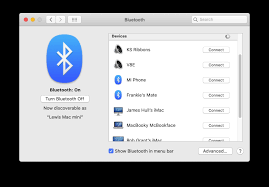
- Click Bluetooth: In the System Preferences window, click the Bluetooth icon.
- Make Sure Bluetooth Is Turned On: If you don’t see the Bluetooth icon, click the padlock icon to unlock preferences, then select “Show Bluetooth status in menu bar.”
- Select Your Airpods: Look for your AirPods in the list of available devices and click on them.
- Click Connect: Once selected, click the “Connect” button.
Troubleshooting: What If It Doesn’t Work?
Don’t worry if it doesn’t work at first; just try again! Make sure your AirPods are fully charged, check for any software updates, and ensure Bluetooth is turned on.
How to Manage Your Airpods Settings on Mac
Now that you’ve connected your AirPods to your Mac, let’s take a look at how to manage their settings:
- Click The Apple Logo: Click the Apple logo in the top-left corner of the screen.
- Select System Preferences: Select System Preferences from the drop-down menu.
- Click Bluetooth: In the System Preferences window, click the Bluetooth icon.
- Manage Your Airpods Settings: From here, you can adjust settings like microphone sensitivity, double-tap action, and more.
How to Control Volume on Mac With Airpods
To control volume using your AirPods, you can either use the controls on your earphones or the volume buttons on your keyboard. You can also open System Preferences > Sound and select your AirPods as the output device.
What If I Still Have Issues Connecting My Airpods to Mac?
If you’re still having trouble connecting your AirPods to your Mac, try restarting both devices, ensuring Bluetooth is turned on, and checking for software updates. If that doesn’t help, feel free to contact Apple support or visit their website for more assistance.
How to Check The Battery Level of Your Airpods
To check the battery level of your AirPods:
- Open System Preferences: Open System Preferences > Bluetooth.
- Look For Your Airpods: Find your AirPods in the list of available devices.
- Check The Battery Level: The battery level will be displayed next to your AirPods name.
Conclusion
Connecting AirPods to Mac is a straightforward process that requires minimal effort. By following these steps, you’ll be enjoying wireless audio freedom on your trusty Mac in no time. Remember to update your operating system regularly and keep an eye out for any issues with Bluetooth connectivity. Happy listening!
Faqs:
-
Q: How do I Reset my Airpods?
A: You can find detailed instructions on how to reset your AirPods in our article dedicated specifically to this topic. -
Q: Why Won’t my Airpods Connect to my Mac?
A: If you’re experiencing issues connecting your AirPods, try restarting both devices and checking for software updates. -
Q: How do I Control The Volume on my Mac Using Airpods?
A: You can use the volume controls on your earphones or adjust settings in System Preferences > Sound to manage audio output. -
Q: Can I Charge my Airpods on a Mac?
A: Yes, you can charge your AirPods by placing them in their charging case and plugging it into a power source. -
Q: What Should I do if my Airpods Won’t Connect to my Mac Despite Following The Steps Above?
A: If you’re still experiencing issues, try consulting Apple support resources for further assistance.


