
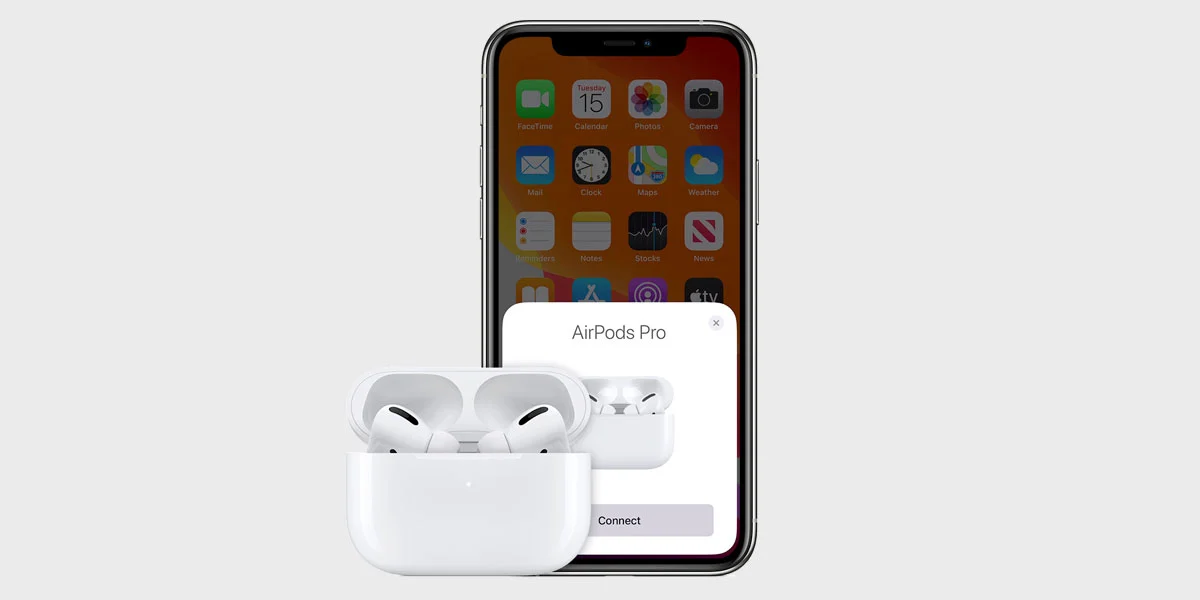
Connecting Airpods to Your Phone: A Step-by-step Guide
Are you new to the world of wireless earphones? Do you want to know how to connect your AirPods to your phone? You’re in luck! In this article, we’ll guide you through the process of connecting your AirPods to both an iPhone and an Android device.
Table: Airpods Connection Process
| Device | Steps to Connect |
|---|---|
| IPhone | 1. Activate Bluetooth on your iPhone, 2. Put your AirPods in pairing mode, 3. Select your AirPods from the list of available devices, and 4. Follow the prompts to complete the connection process. |
| Android Device | 1. Activate Bluetooth on your Android device, 2. Put your AirPods in pairing mode, 3. Select your AirPods from the list of available devices, and 4. Follow the prompts to complete the connection process. |
What Are Airpods?
AirPods are wireless earphones developed by Apple. They offer a convenient and hassle-free way to enjoy music, podcasts, and phone calls without the need for cables or wires. AirPods are designed to work seamlessly with iPhone and iPad devices, but they can also be used with other smartphones and tablets.
Why Can’t I Connect My Airpods to My Android Device?
While AirPods were originally designed for use with Apple devices, they can still be connected to Android phones and tablets. However, the process is slightly different than connecting them to an iPhone. We’ll guide you through the steps in the next section.
Connecting Airpods to Your Iphone
If you have an iPhone, connecting your AirPods is a straightforward process:
- Activate Bluetooth: Go to Settings > Bluetooth on your iPhone and turn it on.
- Put Your Airpods in Pairing Mode: Open the charging case of your AirPods and put them in pairing mode by pressing and holding the small button at the back until you see the lights flashing.
- Select Your Airpods: Go to Settings > Bluetooth and select your AirPods from the list of available devices.
- Follow The Prompts: Follow the on-screen instructions to complete the connection process.
Connecting Airpods to Your Android Device
If you have an Android device, here’s how to connect your AirPods:
- Activate Bluetooth: Go to Settings > Connections > Bluetooth on your Android device and turn it on.
- Put Your Airpods in Pairing Mode: Open the charging case of your AirPods and put them in pairing mode by pressing and holding the small button at the back until you see the lights flashing.
- Select Your Airpods: Go to Settings > Connections > Bluetooth and select your AirPods from the list of available devices.
- Follow The Prompts: Follow the on-screen instructions to complete the connection process.
What Are The Limitations of Using Airpods With Android Devices?
While you can connect AirPods to Android devices, there are some limitations compared to using them with iPhone and iPad devices:
- You won’t be able to use features like Siri or Google Assistant directly from your AirPods.
- The battery life may vary depending on usage patterns.
- Some advanced features, such as automatic pause when removing an earphone, might not work.
Conclusion
Connecting AirPods to your phone is a relatively simple process that can enhance your listening experience. We hope this guide has been helpful in walking you through the steps of connecting your AirPods to both iPhone and Android devices.
Frequently Asked Questions (FAQs)
- Can I Connect my Airpods to Any Device?
Yes, AirPods are designed to work with multiple devices, including iPhones, iPads, Android phones, and tablets. - How do I Know if my Airpods Are Connected to my Phone?
You’ll see a notification on your phone when your AirPods are connected. - Can I Use my Airpods Without The Charging Case?
Yes, you can use your AirPods without the charging case, but they will need to be charged occasionally. - How do I Disconnect my Airpods From my Phone?
To disconnect your AirPods, simply put them back in their charging case or select “Disconnect” on your phone. - Can I Use my Airpods With Other Wireless Earphones?
Yes, you can use multiple sets of AirPods at the same time, but they must be connected to different devices. - How do I Reset my Airpods?
To reset your AirPods, press and hold the small button at the back until you see the lights flashing.


