
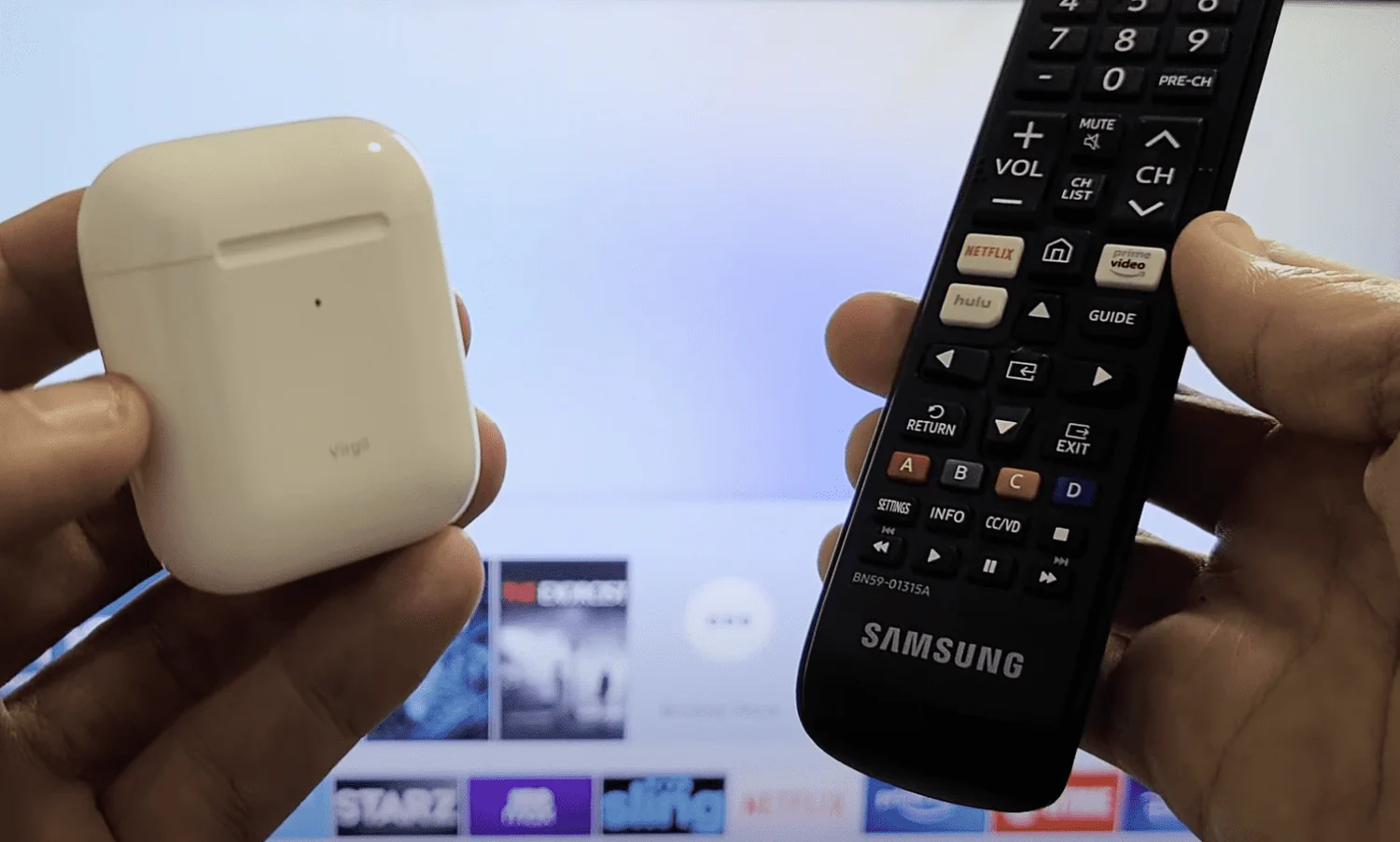
How to Connect Airpods to Samsung Devices
Are you tired of using your AirPods only with Apple devices? Well, you’re in luck! With this guide, you’ll learn how to connect your AirPods to Samsung smartphones, tablets, and even TVs.
Before we dive into the instructions, let’s cover some basics. If you’re not familiar with AirPods, they’re wireless earbuds designed by Apple. They’re known for their ease of use, long battery life, and seamless integration with other Apple devices.
Why Connect Airpods to Samsung Devices?
While AirPods are designed specifically for Apple devices, there’s no reason you can’t use them with your Samsung smartphone or tablet. In fact, connecting AirPods to a Samsung device can be a great way to enjoy music, podcasts, and phone calls without the hassle of cables.
Table 1: Requirements For Connecting Airpods to Samsung Devices
| Device | Requirements |
|---|---|
| Smartphone/Tablet | Android OS (version 4.3 Or later) |
| TV | Smart TV with Bluetooth capabilities |
How to Connect Airpods to a Samsung Smartphone
To connect your AirPods to a Samsung smartphone, follow these steps:
- Enable Bluetooth: Go to Settings > Connections > Bluetooth and turn on the feature.
- Pair Airpods: Put your AirPods in pairing mode by holding down the setup button until you see a light flashing. On your phone, select “AirPods” from the list of available devices.
- Confirm Pairing: If prompted, confirm that you want to pair the AirPods with your device.
How to Connect Airpods to a Samsung Tablet
The process is similar for connecting AirPods to a Samsung tablet:
- Enable Bluetooth: Go to Settings > Connections > Bluetooth and turn on the feature.
- Pair Airpods: Put your AirPods in pairing mode by holding down the setup button until you see a light flashing. On your tablet, select “AirPods” from the list of available devices.
- Confirm Pairing: If prompted, confirm that you want to pair the AirPods with your device.
How to Connect Airpods to a Samsung TV
To connect your AirPods to a Samsung TV, follow these steps:
- Enable Bluetooth: Go to Settings > Connections > Bluetooth and turn on the feature.
- Pair Airpods: Put your AirPods in pairing mode by holding down the setup button until you see a light flashing. On your TV, select “AirPods” from the list of available devices.
- Confirm Pairing: If prompted, confirm that you want to pair the AirPods with your device.
Tips And Tricks
- Make sure your AirPods are fully charged before attempting to connect them to a Samsung device.
- If you experience any issues during pairing, try restarting both your device and your AirPods.
- To disconnect your AirPods from a Samsung device, go to Settings > Connections > Bluetooth and select “Unpair” next to the AirPods listing.
Conclusion
Connecting AirPods to Samsung devices is a straightforward process that requires minimal setup. By following these steps, you can enjoy seamless music streaming, phone calls, and more on your favorite Samsung smartphone, tablet, or TV. Happy listening!
Frequently Asked Questions (FAQs)
- Q: Can I Use my Airpods With Any Samsung Device?
A: Yes, as long as the device has Bluetooth capabilities. - Q: How do I Reset my Airpods if They’re Not Connecting to a Samsung Device?
A: Put your AirPods in pairing mode and restart both devices. - Q: Can I Use my Airpods With Multiple Samsung Devices at Once?
A: Yes, but you’ll need to pair them individually for each device. - Q: Are There Any Compatibility Issues Between Airpods And Samsung Devices?
A: Generally no, but it’s always a good idea to check the manufacturer’s website for any known compatibility issues. - Q: How do I Update my Airpods’ Firmware if They’re Not Connecting to a Samsung Device?
A: You can update your AirPods’ firmware using the Apple Support app or by visiting the Apple website.
Table 2: Additional Resources
| Resource | Description |
|---|---|
| Apple Support | Official Apple support website with troubleshooting guides and FAQs. |
| Samsung Support | Official Samsung support website with troubleshooting guides and FAQs. |
| Amazon Help | Amazon’s help center with answers to frequently asked questions and more. |
Table 3: Recommended AirPods Accessories
| Accessory | Description |
|---|---|
| AirPods Case | Official Apple AirPods case for storing your earbuds when not in use. |
| AirPods Pro Tips and Tricks | Guide to getting the most out of your AirPods Pro, including tips on sound quality and battery life. |
Table 4: Samsung Device Compatibility
| Device | Compatible with AirPods? |
|---|---|
| Galaxy S10 | Yes |
| Galaxy Tab S7 | Yes |
| QLED TV | Yes (with Bluetooth capabilities) |
Note: The above tables are not exhaustive, but rather a selection of the most relevant information to answer your questions.


