
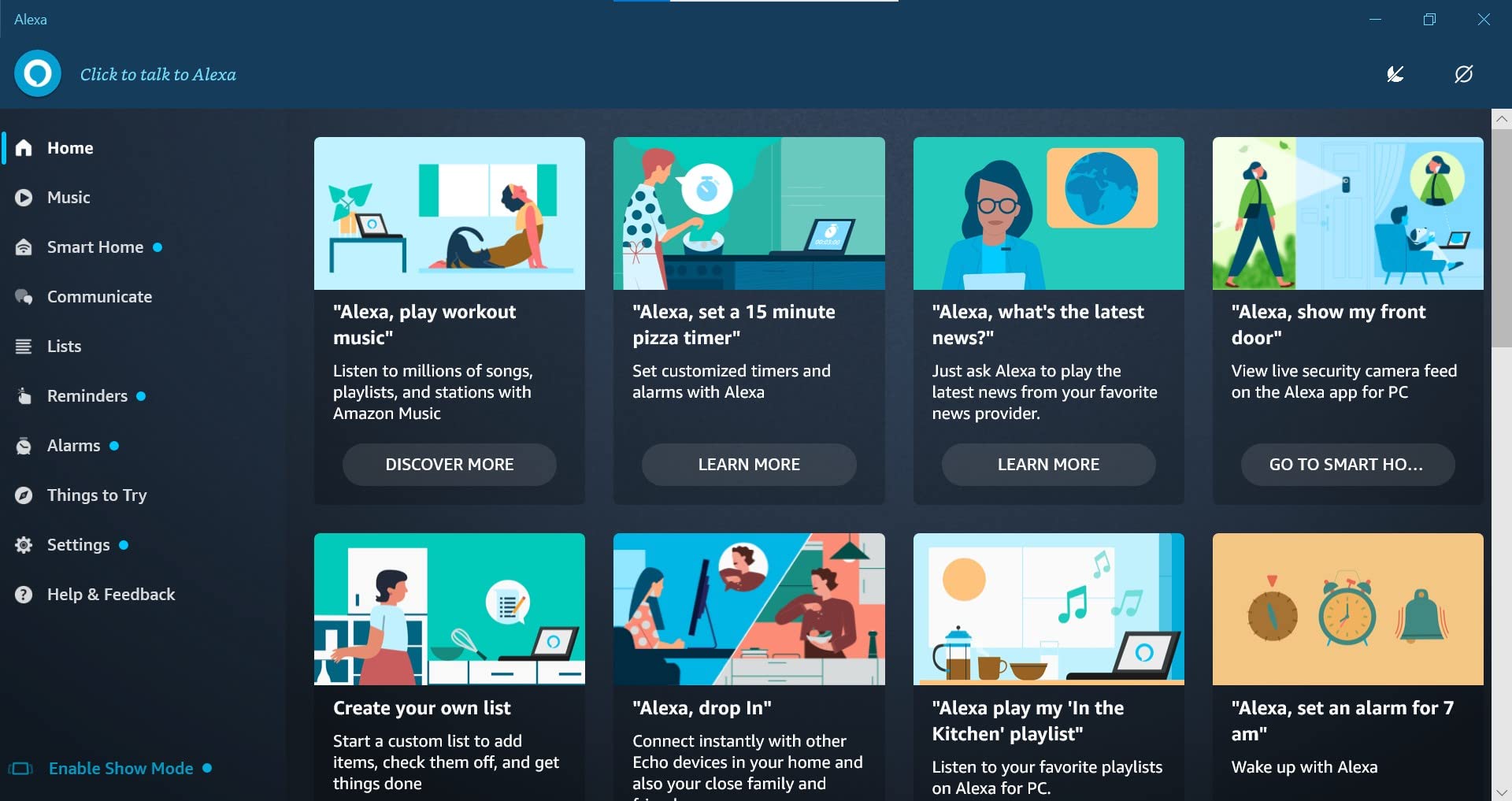
Connecting Alexa to Your Pc: A Step-by-step Guide
Are you ready to take your smart home experience to the next level? Connecting Alexa to your PC is a game-changer, allowing you to control your multimedia experience with ease. In this article, we’ll show you how to connect Alexa to your PC using Bluetooth, cable AUX, and more.
The Benefits of Connecting Alexa to Your PC
Before we dive into the step-by-step guide, let’s talk about the benefits of connecting Alexa to your PC:
- Control your multimedia experience with ease: With Alexa connected to your PC, you can play music, videos, and more using just your voice.
- Access a wide range of skills: Alexa has thousands of skills that can be accessed on your PC, making it easier than ever to get the information you need.
Connecting Alexa to Your PC Using Bluetooth
Connecting Alexa to your PC using Bluetooth is the easiest method. Here’s how:
- Configure Your Echo: Make sure your Echo is configured in the Amazon Alexa app for Android or iOS.
- Check Bluetooth Activation: Ensure that Bluetooth is activated on your PC. If you’re using Windows 10, go to Settings > Devices > Bluetooth and other devices to check.
- Link Your Echo: Open the Amazon Alexa app on your smartphone or tablet, go to Devices > Echo & Alexa > [your Echo’s name] > Devices > Bluetooth, and select your PC’s name to link it.
Connecting Alexa to Your PC Using Cable Aux
If you prefer a wired connection, connecting Alexa to your PC using cable AUX is still an option. Here’s how:
- Check Your Echo: Ensure that your Echo has an auxiliary audio jack (AUX). Most Echo models have this feature.
- Connect The Cable: Use a 3.5Mm stereo cable to connect your Echo’s AUX port to your PC’s audio input.
Using Alexa on Your PC
Now that you’ve connected Alexa to your PC, here’s how to use it:
- Launch The Amazon Alexa App: Open the Amazon Alexa app on your PC and sign in with your Amazon account.
- Use Voice Commands: Use voice commands like “play,” “pause,” “next track,” and more to control your multimedia experience.
Installing The Amazon Alexa App For Windows 10
If you want to use Alexa directly from your PC, you can install the Amazon Alexa app for Windows 10:
- Change Your Region Settings: Before installing, change your region settings to the United States in Settings > Date & time > Geographic area.
- Install The App: Open the Microsoft Store and search for “Alexa” to download and install the app.
Using The Amazon Alexa App on Your PC
Here’s how to use the Amazon Alexa app on your PC:
- Launch The App: Launch the Amazon Alexa app on your PC and sign in with your Amazon account.
- Use Voice Commands: Use voice commands like “Alexa, play music” or “Alexa, turn on the lights” to control your smart home devices.
Frequently Asked Questions
Q: Can I use Alexa on my Mac?
A: Yes, you can connect Alexa to your Mac using Bluetooth.
Q: Do I need a separate Echo device for each PC?
A: No, you can connect multiple PCs to one Echo device.
Q: How do I update the Amazon Alexa app on my PC?
A: Open the Microsoft Store and check for updates.
Q: Can I use Alexa without a separate Echo device?
A: Yes, you can use the Amazon Alexa app directly from your PC.
Q: What skills are available on the Amazon Alexa app for Windows 10?
A: Thousands of skills are available on the Amazon Alexa app for Windows 10.
Q: Can I control my smart home devices using Alexa on my PC?
A: Yes, you can control your smart home devices using Alexa on your PC.
Q: How do I connect multiple Echo devices to one PC?
A: Connect each Echo device separately to your PC using Bluetooth or cable AUX.
Conclusion
Connecting Alexa to your PC is a simple process that opens up a world of possibilities for controlling your multimedia experience with ease. Whether you choose to use Bluetooth, cable AUX, or the Amazon Alexa app directly from your PC, we’ve got you covered. Follow these steps and enjoy the benefits of a smart home experience like never before!


