
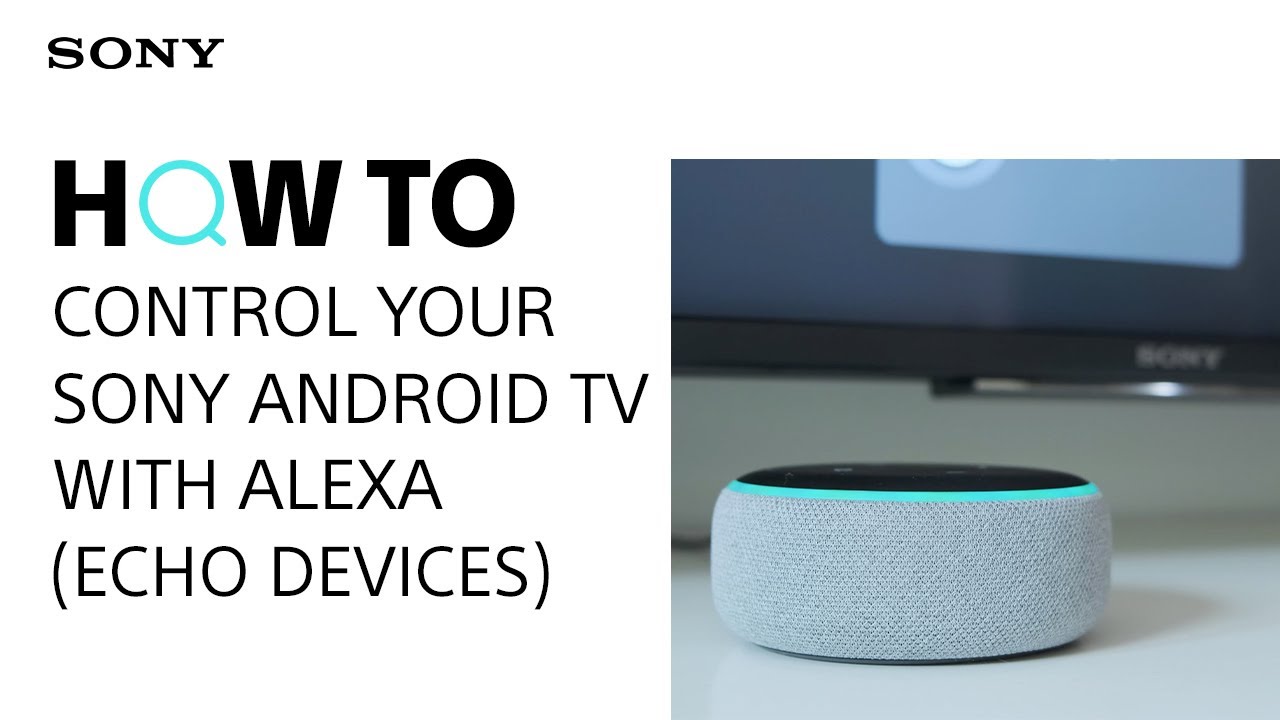
Connecting Alexa to Your Tv: A Step-by-step Guide
Are you tired of juggling multiple remotes while watching your favorite shows? Do you want to experience the ultimate in smart home convenience? Look no further! In this article, we’ll show you how to connect Alexa to your TV, making it easy to control your entertainment experience with just your voice.
Understanding Compatibility Issues
Before we dive into the nitty-gritty of connecting Alexa to your TV, it’s essential to understand that not all TVs are created equal. While many modern smart TVs from brands like LG, Sony, and Samsung come with built-in compatibility with Alexa, others may not be as fortunate. Don’t worry; we’ve got you covered.
LG Tvs: A Straightforward Process
If you own an LG TV produced in 2019 or later, which runs on webOS 4.5 Or higher, connecting it to Alexa is a breeze. Here’s what you need to do:
- Get The Echo Remote: First, purchase the Echo Remote, specifically designed for LG TVs.
- Configure The TV: Connect your TV to the internet, and then access the Settings menu on the remote control. Select “App” and choose the Alexa app.
- Authorize The Account: Use your Amazon account credentials to log in and authorize the device.
- Assign a Name: Choose a name for your TV that’s easy to pronounce and remember (you’ll be using it to give voice commands).
- Start Enjoying: Once you’ve completed these steps, you can start controlling your LG TV with Alexa by saying phrases like “Alexa, turn on the TV” or “Alexa, change the channel.”
Sony Tvs: A Similar Process
If you have a Sony Bravia TV, the process is similar to connecting an LG TV. Here’s what you need to do:
- Get The Remote Control: First, access the Settings menu on your remote control.
- Select Alexa Compatibility: Choose the option for Amazon Alexa compatibility and follow the prompts.
- Authorize Your Account: Use your Amazon account credentials to log in and authorize the device.
- Assign a Name: Pick a name that’s easy to pronounce and remember (you’ll be using it to give voice commands).
- Start Enjoying: Once you’ve completed these steps, you can start controlling your Sony TV with Alexa by saying phrases like “Alexa, turn on the TV” or “Alexa, change the channel.”
Samsung Tvs: A Few More Steps
If you have a Samsung SmartThings-enabled TV, connecting it to Alexa is slightly more involved. Here’s what you need to do:
- Download The App: Download and install the Samsung SmartThings app on your smartphone or tablet.
- Add Your Device: Follow the prompts to add your TV to the app.
- Link Your Account: Use your Amazon account credentials to log in and link it with your Samsung account.
- Assign a Name: Choose a name that’s easy to pronounce and remember (you’ll be using it to give voice commands).
- Start Enjoying: Once you’ve completed these steps, you can start controlling your Samsung TV with Alexa by saying phrases like “Alexa, turn on the TV” or “Alexa, change the channel.”
Philips Tvs: A Different Approach
While Philips TVs are compatible with Alexa in some countries (such as the UK), the process is slightly different. Here’s what you need to do:
- Download The App: Download and install the Amazon app on your smartphone or tablet.
- Select Your TV: Choose the Philips TV skill from the list of available options.
- Configure The TV: Follow the prompts to configure your TV for Alexa compatibility.
- Assign a Name: Pick a name that’s easy to pronounce and remember (you’ll be using it to give voice commands).
- Start Enjoying: Once you’ve completed these steps, you can start controlling your Philips TV with Alexa by saying phrases like “Alexa, turn on the TV” or “Alexa, change the channel.”
No Smart Tv? No Problem!
Don’t worry if you don’t have a smart TV – there are still ways to connect Alexa to your TV. One option is to use an IR/Wi-Fi universal remote control, which can be programmed to work with your specific TV brand. You’ll need to associate the remote with your TV using its native app and download the Alexa skill for that brand.
Using Your Echo as a Case
Did you know you can even use your Echo speaker as a case for your TV? Yes, it’s possible! Simply connect your TV to your Echo via Bluetooth, and you’ll be able to control it with voice commands. Check out our separate guide on using Alexa as a case for more information.
Conclusion
Connecting Alexa to your TV is an exciting way to experience the ultimate in smart home convenience. While not all TVs are compatible, we’ve shown you how to connect various brands like LG, Sony, Samsung, and Philips. Don’t forget about the universal remote control option or using your Echo as a case for even more flexibility.
Frequently Asked Questions (FAQs)
- Q: Can I Use Alexa With Any TV Brand?
A: Unfortunately not all TVs are compatible with Alexa, but many modern smart TVs from brands like LG, Sony, and Samsung come with built-in compatibility. - Q: How do I Configure my TV For Alexa Compatibility?
A: The process varies depending on your TV brand, so be sure to check our specific guides for each brand. - Q: Can I Use a Universal Remote Control if my TV Isn’t Smart?
A: Yes! You can use an IR/Wi-Fi universal remote control to connect your non-smart TV to Alexa using its native app and the Alexa skill. - Q: How do I Link my Echo to my Tv?
A: You’ll need to connect your TV to your Echo via Bluetooth, then access the Alexa app on your smartphone or tablet to configure the connection. - Q: Can I Use Multiple Voice Commands With Alexa And my Tv?
A: Absolutely! Just remember that each time you give a new command, it will be processed as a separate action.
We hope this guide has been helpful in connecting you (pun intended!) with your TV using Alexa. Happy streaming!


