
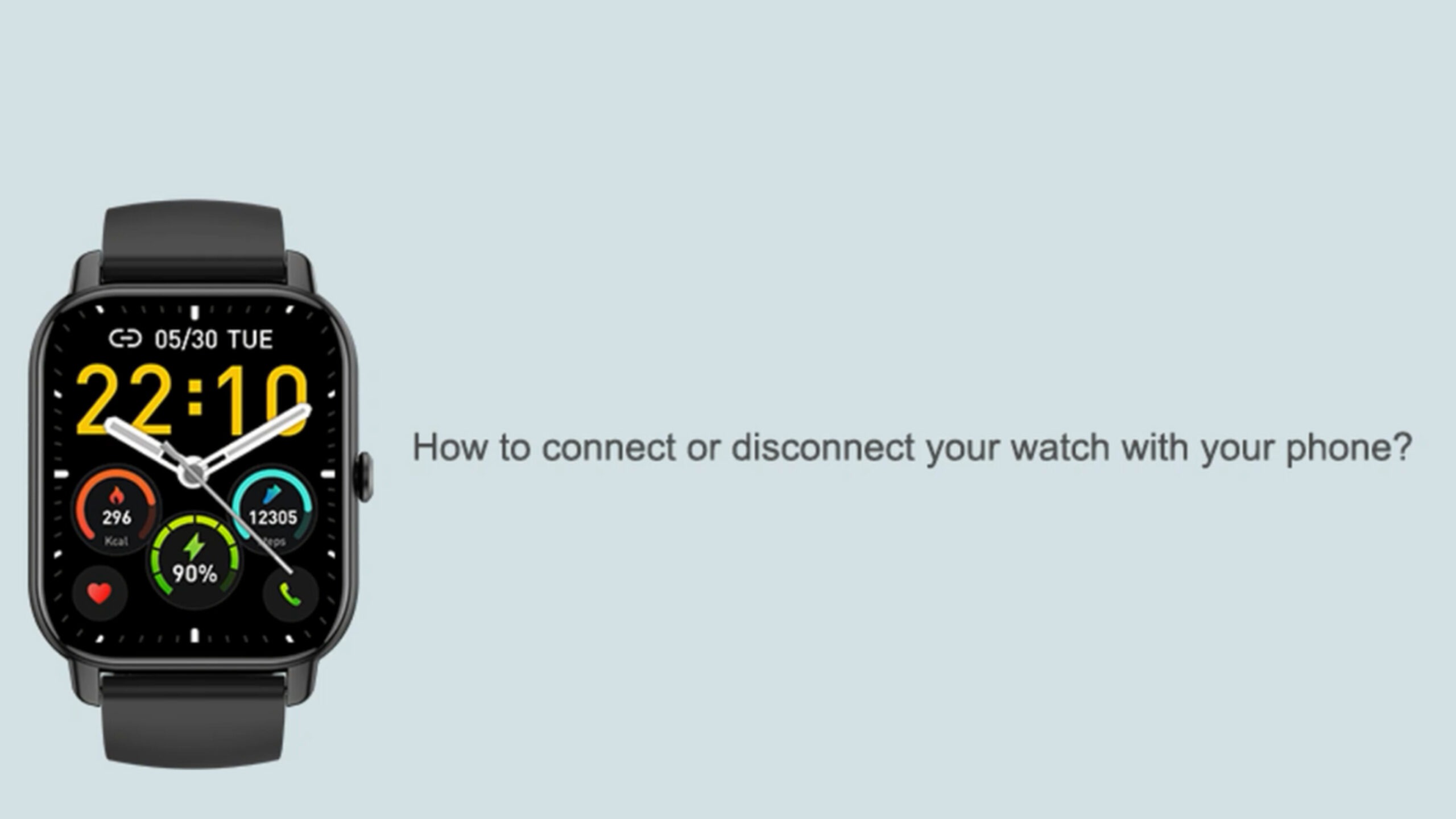
How to Connect Amazfit Smartwatch/band to Phone: A Step-by-step Guide
Are you a proud owner of an Amazfit smartwatch or band? Do you want to unlock its full potential by connecting it to your phone? Look no further! In this article, we will guide you through the process of connecting your Amazfit device to your phone, step by step.
Benefits of Connecting Amazfit Device to Phone
Connecting your Amazfit smartwatch or band to your phone offers a wide range of benefits. Some of these include:
- Simplified Data Transfer: With your Amazfit device connected to your phone, you can easily transfer data such as steps taken, distance covered, and calories burned.
- Enhanced User Experience: Connection to your phone allows for seamless integration with various features and functions, making it easier to use and navigate your Amazfit device.
- Access to Advanced Features: By connecting your Amazfit device to your phone, you can unlock advanced features such as notification control, music control, and more.
Step 1: Install The Zepp App
To connect your Amazfit device to your phone, the first step is to install the Zepp app. This app is specifically designed for Amazfit devices and provides a seamless connection experience.
- Open Your Phone’s App Store: Go to your phone’s app store (Google Play Store or Apple App Store).
- Search For Zepp App: Search for the Zepp app in the app store.
- Install The App: Install the Zepp app on your phone.
- Launch The App: Launch the Zepp app and follow the prompts to set it up.
Step 2: Enable Bluetooth
To connect your Amazfit device to your phone, you need to enable Bluetooth. This is a crucial step that ensures both devices can communicate with each other.
- Go to Your Phone’s Settings: Go to your phone’s settings menu.
- Search For Bluetooth Option: Search for the Bluetooth option in the settings menu.
- Enable Bluetooth: Enable Bluetooth on your phone.
Step 3: Pair Amazfit Device With Phone
Now that you have installed the Zepp app and enabled Bluetooth, it’s time to pair your Amazfit device with your phone. This process is straightforward and can be completed within minutes.
- Launch The Zepp App: Launch the Zepp app on your phone.
- Tap on Profile Icon: Tap on the profile icon in the top-right corner of the Zepp app.
- Select Add Device: Select the option to add a device from the menu.
- Choose Clock or Bracelet: Choose whether you want to pair your Amazfit smartwatch (clock) or band (bracelet).
Step 4: Authenticate And Authorize
To complete the pairing process, you need to authenticate and authorize the Zepp app on your phone.
- Authenticate With Your Account: Authenticate with your account using your email address and password.
- Authorize Zepp App: Authorize the Zepp app to access certain features on your phone.
Step 5: Confirm Pairing
Once the pairing process is complete, you will receive a confirmation notification on your phone. This confirms that your Amazfit device has successfully paired with your phone.
Conclusion
Connecting your Amazfit smartwatch or band to your phone is a straightforward process that can be completed within minutes. By following these steps, you can unlock the full potential of your device and enjoy seamless integration with various features and functions.


