
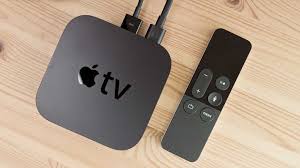
How to Connect Apple Tv: A Step-by-step Guide
Are you struggling to connect your Apple TV to your TV, internet, or other devices? Look no further! In this article, we will guide you through the process of connecting your Apple TV to various devices and networks.
Connecting Apple TV to Your TV
To start, let’s focus on connecting your Apple TV to your TV. This is a straightforward process that requires a few simple steps:
- Connect The Apple TV to Your TV: Use an HDMI cable to connect the Apple TV to your TV. Make sure to use a high-quality HDMI 2.1 Or HDMI 2.0 Cable, especially if you have an Apple TV 4K.
- Select The Correct Hdmi Input: On your TV, select the correct HDMI input that corresponds to the Apple TV’s port. You may need to do this on some TVs.
- Establish a Connection: Once connected, the Apple TV will automatically turn on and display its settings menu. Select the correct source (usually labeled as “HDMI 1” or similar) on your TV.
Connecting Apple TV to Internet
Next, let’s move on to connecting your Apple TV to the internet:
- Connect Your Apple TV to Wifi: Go to Settings > Network on your Apple TV and select the desired WiFi network.
- Enter Your Password: Enter the password for your chosen WiFi network.
- Confirm The Connection: Once connected, you’ll see a confirmation message indicating that your Apple TV is now online.
Connecting Apple TV to Ethernet
If you prefer to connect your Apple TV using an Ethernet cable:
- Connect The Apple TV to Your Router: Use an Ethernet cable to connect the Apple TV directly to your router.
- Configure Your Apple Tv’s Network Settings: Go to Settings > Network on your Apple TV and select “Ethernet” as the network type.
Connecting Apple TV to Computer
Now, let’s explore how to connect your Apple TV to a computer:
- Connect Your Mac to Apple TV: On your Mac, click on the AirPlay icon in the menu bar and select your Apple TV from the list.
- Select What You Want to Share: Choose what you want to share with your Apple TV (e.G., Video or audio).
- Start Sharing: Click “Share” to begin sharing content between your Mac and Apple TV.
Connecting Apple TV to PC
If you’re using a Windows PC:
- Download And Install Airparrot: Download and install AirParrot, a third-party software that allows Windows PCs to connect to Apple TV.
- Configure Your Pc’s Network Settings: Go to Control Panel > Network and Sharing Center on your PC and select “Ethernet” as the network type.
- Connect Your Apple TV to Your Router: Use an Ethernet cable to connect the Apple TV directly to your router.
Connecting Apple TV to Iphone
To connect your Apple TV to your iPhone:
- Ensure Both Devices Are Connected to The Same Wifi Network: Make sure both devices are connected to the same WiFi network.
- Open Control Center on Your Iphone: On your iPhone, open Control Center by swiping down from the top-right corner of the screen.
- Select Apple TV: Select “Apple TV” from the list of available devices.
Connecting Apple TV to Android
If you’re using an Android device:
- Download And Install Castify: Download and install Castify, a third-party app that allows Android devices to connect to Apple TV.
- Configure Your Device’s Network Settings: Go to Settings > Network on your Android device and select “Wi-Fi” as the network type.
Connecting Apple TV to Chromecast
Unfortunately, it is not possible to connect Apple TV directly to Chromecast. However, you can use apps like iWeb TV for iOS/iPadOS and AllCast for Android to cast content from your smartphone or tablet to Apple TV.
In conclusion, connecting your Apple TV to various devices and networks may seem daunting at first, but with these step-by-step guides, you should be able to set up your Apple TV without any issues.


