
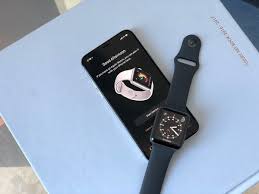
Connecting Your Apple Watch to Iphone: A Step-by-step Guide
Are you excited about your new Apple Watch, but unsure how to connect it to your iPhone? You’re not alone! In this article, we’ll walk you through the simple process of pairing your Apple Watch with your iPhone, as well as other devices.
Why Connect Your Apple Watch to Iphone?
Connecting your Apple Watch to your iPhone is essential for enjoying many of its features. With a connected watch, you can:
- Receive notifications on your wrist
- Control music playback and podcasts
- Use Siri to control various aspects of your phone
- Track fitness goals and activities
- And much more!
Step 1: Initial Configuration
To connect your Apple Watch to your iPhone, follow these steps:
- Activate Bluetooth And Wi-fi: Make sure both Bluetooth and Wi-Fi are enabled on your iPhone.
- Put on Your Apple Watch: Place the watch on your wrist and turn it on.
- Light up The Screen: Press and hold the side button until the screen lights up, then release.
- Select Your Language And Region: Choose your preferred language and region from the list.
- Set up Wi-fi: Select a nearby Wi-Fi network to connect to.
Step 2: Pairing Your Apple Watch With Iphone
Now that your watch is set up, it’s time to pair it with your iPhone:
- Open The Apple Watch App: On your iPhone, go to the Apple Watch app.
- Select “Start”: Tap on the “Start” button and follow the prompts.
- Match Your Apple Watch: Match your watch by scanning the code on your watch screen.
How to Connect Apple Watch to Other Devices
While connecting your Apple Watch to iPhone is straightforward, connecting it to other devices can be a bit more involved. Here’s how:
- Connect Apple Watch to Mac: To connect your Apple Watch to Mac, go to System Preferences > Security & Privacy > General. Select the box next to “Use Apple Watch to unlock your Mac.” Then, enter your Apple ID password and select “OK.”
- Connect Apple Watch to Ipad: Unfortunately, it’s not possible to connect an Apple Watch directly to an iPad.
Can I Connect My Apple Watch to Android?
Sorry, but connecting your Apple Watch to an Android device is not feasible. However, there are some workarounds available on the web that might allow you to use some features with your watch and phone connected via Bluetooth or Wi-Fi.
Connecting Your Apple Watch to Internet
To connect your Apple Watch to the internet directly without relying on your iPhone, follow these steps:
- Activate Wi-fi: Ensure that Wi-Fi is enabled on your Apple Watch.
- Select a Nearby Network: Choose a nearby Wi-Fi network from the list.
- Enter Password (if Required): If prompted, enter the password for the selected network.
Tips And Tricks
Here are some additional tips to keep in mind:
- Backup Your Watch Data: Regularly back up your Apple Watch data to ensure that you don’t lose any progress or settings.
- Update Your Software: Keep both your iPhone and Apple Watch updated with the latest software versions for optimal performance.
Conclusion
Connecting your Apple Watch to your iPhone is a straightforward process. With these steps, you should be able to pair your watch with your phone and start enjoying its many features. Remember to also connect your watch to other devices, like Mac or iPad, for an enhanced experience. Happy pairing!
Frequently Asked Questions (FAQs)
- Q: How do I Reset my Apple Watch?
A: To reset your Apple Watch, press and hold the Digital Crown until you see the reset option. - Q: Can I Use my Apple Watch With a Different Iphone Model?
A: Yes, you can pair your Apple Watch with any iPhone model that supports watchOS 6 or later. - Q: How do I Troubleshoot Connectivity Issues Between my Apple Watch And Iphone?
A: Check your Wi-Fi network settings on both devices and ensure that they’re enabled. Restarting both devices might also resolve the issue. - Q: Can I Connect Multiple Apple Watches to a Single Iphone?
A: Unfortunately, it’s not possible to pair more than one Apple Watch with a single iPhone at a time. - Q: How do I Enable Wi-fi on my Apple Watch?
A: To activate Wi-Fi on your Apple Watch, go to Settings > Wi-Fi and select a nearby network. - Q: Can I Use Siri on my Apple Watch Without an Iphone Connected?
A: Yes, you can use Siri on your Apple Watch even when it’s not connected to an iPhone. - Q: How do I Reset my Apple Watch to Its Factory Settings?
A: To reset your Apple Watch to its default settings, go to Settings > General > Reset and select the “Erase All Content and Settings” option.
I hope this article has been helpful in explaining how to connect your Apple Watch to iPhone and other devices. If you have any further questions or concerns, feel free to ask!


