
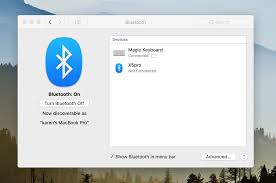
How to Connect Bluetooth Devices to Your Mac: A Step-by-step Guide
Are you looking to connect your favorite Bluetooth devices, such as headphones or speakers, to your Mac? Look no further! In this article, we will guide you through the process of connecting Bluetooth devices to your Mac, step by step.
Table 1: Preliminary Operations
| Operation | Description |
|---|---|
| Check Bluetooth on Mac | Ensure that Bluetooth is enabled on your Mac. |
| Update Bluetooth Driver | Make sure that the Bluetooth driver is up-to-date. |
Connecting Bluetooth Devices to Your Mac
To connect a Bluetooth device to your Mac, follow these steps:
- Activate Bluetooth: Make sure that Bluetooth is activated on both the device and your Mac.
- Put The Device in Pairing Mode: Put the Bluetooth device you want to connect in pairing mode.
- Select Bluetooth: Select the “Bluetooth” option from the Apple menu.
- Search For Devices: Search for devices in range of your Mac.
- Connect The Device: Once the device is found, select it and click “Connect”.
- Verify Connection: Verify that the device is connected by checking the icon on the taskbar.
Connecting Multiple Bluetooth Devices
If you want to connect multiple Bluetooth devices at once, follow these steps:
- Select Bluetooth: Select the “Bluetooth” option from the Apple menu.
- Search For Devices: Search for devices in range of your Mac.
- Connect Multiple Devices: Select all the devices you want to connect and click “Connect”.
- Verify Connection: Verify that all devices are connected by checking the icon on the taskbar.
Troubleshooting Common Issues
If you encounter any issues while connecting Bluetooth devices, try these troubleshooting steps:
- Reset Bluetooth Settings: Reset the Bluetooth settings on your Mac.
- Update Bluetooth Driver: Update the Bluetooth driver to ensure it is compatible with your device.
- Contact Apple Support: Contact Apple support for further assistance.
Connecting Earphones And Speakers
To connect earphones or speakers to your Mac, follow these steps:
- Activate Bluetooth: Make sure that Bluetooth is activated on both the device and your Mac.
- Put The Device in Pairing Mode: Put the earphones or speaker you want to connect in pairing mode.
- Select Bluetooth: Select the “Bluetooth” option from the Apple menu.
- Search For Devices: Search for devices in range of your Mac.
- Connect The Device: Once the device is found, select it and click “Connect”.
- Verify Connection: Verify that the device is connected by checking the icon on the taskbar.
Connecting Multiple Earphones or Speakers
If you want to connect multiple earphones or speakers at once, follow these steps:
- Select Bluetooth: Select the “Bluetooth” option from the Apple menu.
- Search For Devices: Search for devices in range of your Mac.
- Connect Multiple Devices: Select all the devices you want to connect and click “Connect”.
- Verify Connection: Verify that all devices are connected by checking the icon on the taskbar.
Connecting Airpods or Beats
To connect AirPods or Beats to your Mac, follow these steps:
- Activate Bluetooth: Make sure that Bluetooth is activated on both the device and your Mac.
- Put The Device in Pairing Mode: Put the AirPods or Beats you want to connect in pairing mode.
- Select Bluetooth: Select the “Bluetooth” option from the Apple menu.
- Search For Devices: Search for devices in range of your Mac.
- Connect The Device: Once the device is found, select it and click “Connect”.
- Verify Connection: Verify that the device is connected by checking the icon on the taskbar.
Conclusion
Connecting Bluetooth devices to your Mac is a straightforward process. By following these steps, you should be able to connect your favorite devices with ease. Remember to troubleshoot any common issues that may arise and don’t hesitate to contact Apple support if needed.
Frequently Asked Questions (FAQs)
- Q: How do I Reset Bluetooth Settings on my Mac?
A: To reset Bluetooth settings, select the “Bluetooth” option from the Apple menu, then click on “Reset Bluetooth Settings”. - Q: What Should I do if I Encounter Issues Connecting my Device?
A: Try resetting Bluetooth settings or updating the Bluetooth driver. - Q: Can I Connect Multiple Earphones or Speakers at Once?
A: Yes, you can connect multiple devices at once by following the steps outlined above. - Q: How do I Connect Airpods or Beats to my Mac?
A: Follow the steps outlined above for connecting earphones and speakers. - Q: What Should I do if I’m Still Having Issues?
A: Contact Apple support for further assistance.
Table 2: Troubleshooting Steps
| Issue | Solution |
|---|---|
| Bluetooth not activated | Activate Bluetooth on your Mac and device |
| Device not found | Restart the device or Mac and try again |
| Connection issue | Reset Bluetooth settings or update driver |
I hope this article has been helpful in connecting your favorite Bluetooth devices to your Mac. If you have any further questions or need additional assistance, please don’t hesitate to ask!


