
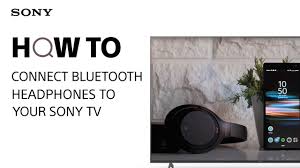
How to Connect Bluetooth Cases to Your Tv: A Step-by-step Guide
Are you tired of watching your favorite movies or shows on a small screen? Do you want to enhance your viewing experience with better sound quality? If yes, then connecting Bluetooth cases to your TV is the perfect solution. In this article, we will guide you through the process of connecting Bluetooth cases to different TV brands such as Samsung, Sony, and LG.
Why Connect Bluetooth Cases to Your Tv?
Before we dive into the step-by-step guide, let’s understand why connecting Bluetooth cases to your TV is a good idea. Here are some benefits:
- Improved Sound Quality: Bluetooth cases can connect to multiple devices, allowing you to enjoy better sound quality without any distortion.
- Convenience: With Bluetooth cases, you don’t need any cables or wires, making it easy to move them around while enjoying your favorite shows or movies.
- Easy Setup: The setup process is straightforward and doesn’t require any technical expertise.
Connecting Bluetooth Cases to Samsung TV
To connect Bluetooth cases to your Samsung TV, follow these steps:
- Go to Settings: Use your remote control to navigate to the settings menu on your Samsung TV.
- Select Sound: Choose the sound option from the menu and select “Gone out audio”.
- Choose Bluetooth List Speakers: Select the Bluetooth list speakers option and wait for your Bluetooth cases to appear in the list of devices.
- Select Your Cases: Once you see your Bluetooth cases in the list, select them and press OK to finalize the connection.
Connecting Bluetooth Cases to Sony TV
To connect Bluetooth cases to your Sony TV with Android TV operating system, follow these steps:
- Go to Settings: Use your remote control to navigate to the settings menu on your Sony TV.
- Select Sound: Choose the sound option from the menu and select “Gone out audio”.
- Choose Bluetooth List Speakers: Select the Bluetooth list speakers option and wait for your Bluetooth cases to appear in the list of devices.
- Select Your Cases: Once you see your Bluetooth cases in the list, select them and press OK to finalize the connection.
Connecting Bluetooth Cases to LG TV
To connect Bluetooth cases to your LG TV with WebOS operating system, follow these steps:
- Go to Settings: Use your remote control to navigate to the settings menu on your LG TV.
- Select Audio: Choose the audio option from the menu and select “Gone out audio”.
- Choose LG Sound Sync/bluetooth: Select the LG sound sync Bluetooth option and wait for your Bluetooth cases to appear in the list of devices.
- Select Your Cases: Once you see your Bluetooth cases in the list, select them and press OK to finalize the connection.
Troubleshooting Tips
If you’re having trouble connecting your Bluetooth cases to your TV, here are some troubleshooting tips:
- Check The Manual: Make sure you’ve read the manual for your TV and Bluetooth cases to ensure you’re following the correct setup procedure.
- Restart Your Devices: Sometimes, simply restarting your TV and Bluetooth cases can resolve connectivity issues.
- Check For Updates: Ensure that your TV and Bluetooth cases are running the latest software updates.
Conclusion
Connecting Bluetooth cases to your TV is a simple process that can enhance your viewing experience. By following these step-by-step guides, you’ll be able to connect your Bluetooth cases to Samsung, Sony, and LG TVs with ease. Remember to troubleshoot any issues that may arise during the setup process.
Frequently Asked Questions
Here are some frequently asked questions about connecting Bluetooth cases to your TV:
- Q: How do I Know if my TV Supports Bluetooth?
A: Check your TV manual or manufacturer’s website for information on supported Bluetooth versions. - Q: Can I Connect Multiple Bluetooth Devices to my Tv?
A: Yes, but ensure that each device is connected separately and not simultaneously. - Q: How do I Troubleshoot Connectivity Issues Between my TV And Bluetooth Cases?
A: Refer to the troubleshooting tips provided earlier.
Final Tips
Connecting Bluetooth cases to your TV can be a bit tricky, but with patience and persistence, you’ll be able to enjoy better sound quality without any hassle.


