
How to Connect Your Mobile to Tv: A Comprehensive Guide
Are you tired of using cables to connect your mobile device to your TV? Do you want to experience the convenience of wireless connectivity? Look no further! In this article, we will guide you through various ways to connect your mobile to TV without the need for cables.
Introduction
Connecting your mobile device to your TV has become a common practice in today’s digital age. Whether you want to stream videos, play games, or watch live TV, having a wireless connection between your devices is essential. In this article, we will explore different technologies that allow you to connect your mobile to TV without using cables.
1. Connect Your Mobile to TV With Chromecast
Chromecast is a popular streaming device developed by Google that allows you to cast content from your mobile device or computer to your TV. This technology supports up to 1080p resolution and is compatible with various devices, including Android smartphones and tablets, iPhones, iPads, and computers.
To use Chromecast, you need to:
- Connect the Chromecast device to your TV’s HDMI port
- Connect your mobile device or computer to the same Wi-Fi network as your Chromecast device
- Open the Google Home app on your mobile device or computer and select the Chromecast device
- Choose the content you want to cast from your mobile device or computer
Benefits of Using Chromecast
Chromecast offers several benefits, including:
- Wireless connectivity between devices
- Easy setup and use
- Support for up to 1080p resolution
- Compatibility with various devices
2. Connect Your Mobile to TV With Miracast
Miracast is a wireless display technology developed by the Wi-Fi Alliance that allows you to mirror content from your mobile device or computer to your TV without using cables. This technology supports up to 4K resolution and is compatible with Android smartphones and tablets, as well as some smart TVs.
To use Miracast, you need to:
- Connect your mobile device or computer to the same Wi-Fi network as your TV
- Open the Settings app on your mobile device or computer and select the Display option
- Select the “Cast” or “Screen mirroring” option and choose your TV from the list of available devices
Benefits of Using Miracast
Miracast offers several benefits, including:
- Wireless connectivity between devices
- Support for up to 4K resolution
- Compatibility with Android smartphones and tablets
3. Connect Your Mobile to TV With Airplay
AirPlay is a wireless streaming technology developed by Apple that allows you to stream content from your iPhone or iPad to your TV without using cables. This technology supports up to 4K resolution and is compatible with various devices, including iPhones, iPads, Macs, and Apple TVs.
To use AirPlay, you need to:
- Connect your iPhone or iPad to the same Wi-Fi network as your TV
- Open the Control Center on your iPhone or iPad and select the Screen Mirroring option
- Choose your TV from the list of available devices
Benefits of Using Airplay
AirPlay offers several benefits, including:
- Wireless connectivity between devices
- Support for up to 4K resolution
- Compatibility with various Apple devices
4. Connect Your Mobile to TV With Dlna
DLNA is a wireless streaming technology that allows you to stream content from your mobile device or computer to your TV without using cables. This technology supports up to 1080p resolution and is compatible with various devices, including smartphones and smart TVs.
To use DLNA, you need to:
- Connect your mobile device or computer to the same Wi-Fi network as your TV
- Open the Settings app on your mobile device or computer and select the Display option
- Select the “Cast” or “Screen mirroring” option and choose your TV from the list of available devices
Benefits of Using Dlna
DLNA offers several benefits, including:
- Wireless connectivity between devices
- Support for up to 1080p resolution
5. Connect Your Mobile to TV With Hdmi Cable
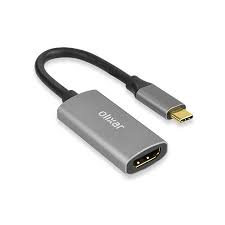
If you prefer using cables to connect your mobile device to your TV, you can use an HDMI cable. This method supports up to 4K resolution and is compatible with various devices.
To use an HDMI cable, you need to:
- Purchase an HDMI cable that matches the type of mobile device you have
- Connect one end of the HDMI cable to your mobile device’s HDMI port
- Connect the other end of the HDMI cable to your TV’s HDMI port
Conclusion
Connecting your mobile device to your TV has become a breeze with the latest wireless technologies. Chromecast, Miracast, AirPlay, and DLNA offer various benefits and compatibility with different devices. If you prefer using cables, an HDMI cable is also a viable option.
Whether you’re streaming videos, playing games, or watching live TV, having a reliable connection between your mobile device and TV is essential. Choose the method that suits your needs, and enjoy seamless connectivity!
Frequently Asked Questions
Q: What is the best technology to use for connecting my mobile device to my TV?
A: Chromecast offers the best balance of performance and compatibility with various devices.
Q: Can I connect my mobile device to my TV without using cables?
A: Yes, you can use wireless technologies like Chromecast, Miracast, AirPlay, and DLNA to connect your mobile device to your TV.
Q: What is the maximum resolution supported by Chromecast?
A: Chromecast supports up to 1080p resolution.
Q: Can I mirror my mobile device’s screen on my TV using Miracast?
A: Yes, you can mirror your mobile device’s screen on your TV using Miracast.
Q: Is AirPlay compatible with non-Apple devices?
A: No, AirPlay is only compatible with Apple devices.
Q: What is the maximum resolution supported by DLNA?
A: DLNA supports up to 1080p resolution.


