
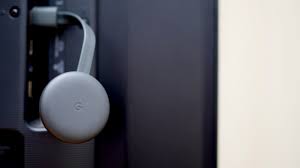
Setting Up Your Google Chromecast: A Step-by-step Guide
Are you ready to experience the world of streaming on your TV? Look no further than the Google Chromecast! This tiny device is packed with features that will make your entertainment experience a breeze. In this article, we’ll guide you through the process of setting up your Chromecast, from installing it on your TV to configuring it for use.
What You Need to Know Before Starting
Before we dive into the setup process, here are a few things to keep in mind:
- Your TV must have an HDMI port to connect the Chromecast.
- You’ll need a Wi-Fi network to set up and configure the device.
- Make sure you’ve downloaded the Google Home app on your smartphone or tablet.
Configuring Initial Settings
To begin, follow these steps:
- Connect The Chromecast to Your TV: Insert the Chromecast into an available HDMI port on your TV. Use the dedicated connector to avoid damaging either the device or the TV.
- Power On And Configure: Plug in the power adapter and connect it to the Chromecast using the USB cable provided. If you have a classic Chromecast (without Google TV), you can also feed it via USB directly from the TV.
- Select The Source: Use the remote control or menu on your TV to select the correct HDMI input.
Connecting Your Device
Next, follow these steps:
- Open The Google Home App: Download and install the Google Home app on your smartphone or tablet.
- Set Up The Chromecast: Open the app and follow the instructions to set up the Chromecast device.
- Configure Your Network: Choose the Wi-Fi network you want to connect the Chromecast to, enter the password if required, and select a room for the device.
Connecting Your PC
If you’d like to stream content from your computer to your TV using the Chromecast, follow these steps:
- Download Google Chrome: Ensure you have the latest version of Google Chrome installed on your computer.
- Connect to The Same Wi-fi Network: Make sure both the computer and Chromecast are connected to the same Wi-Fi network.
- Stream Content: Open a tab in Chrome, navigate to the content you’d like to stream (e.G., YouTube or Netflix), click the cast icon, and select the Chromecast device.
Connecting Your Smartphone
To connect your smartphone to the Chromecast:
- Open The Google Home App: Ensure the app is installed and configured.
- Select The Chromecast Device: Tap on the name of the Chromecast device you’d like to connect to.
- Stream Content: Select the content you’d like to stream (e.G., A video or music), tap the cast icon, and choose the Chromecast device.
Tips For Using Your Chromecast
Here are some additional tips to keep in mind:
- Make sure your phone and Chromecast are connected to the same Wi-Fi network.
- Use the Google Home app to configure and manage your Chromecast.
- Experiment with different streaming apps and services to find what works best for you.
Troubleshooting Common Issues
If you encounter any issues during setup or use, refer to our troubleshooting guide.


