
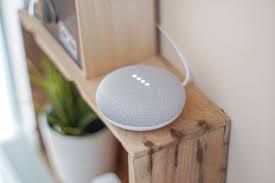
Setting Up Your Google Home: A Step-by-step Guide
Are you excited to get started with your Google Home? This comprehensive guide will walk you through the process of setting up your device, connecting it to your phone, and configuring its various settings.
Understanding Your Google Home
Before we dive into the setup process, let’s take a moment to understand what your Google Home can do. This smart speaker is designed to make your life easier by allowing you to control various devices in your home with just your voice. You can use it to play music, get news updates, set reminders, and even control your lights and thermostats.
Connecting Your Google Home to Your Phone
To connect your Google Home to your phone, you’ll need to download the Google Home app on either an Android or iOS device. Once you’ve installed the app, follow these steps:
- Open the Google Home app and sign in with your Google account.
- Tap on the “Devices” tab and select “Add new device.”
- Choose “Google Home” from the list of available devices.
- Follow the prompts to complete the setup process.
Configuring Your Google Home
Now that you’ve connected your Google Home to your phone, it’s time to configure its various settings. Here are some key things to keep in mind:
- Wi-fi Connection: Make sure your Google Home is connected to a stable Wi-Fi network.
- Device Name: Give your Google Home a unique name so you can easily identify it.
- Location: Specify the location of your Google Home, such as a living room or kitchen.
- Audio Output: Choose whether you want your Google Home to play audio through its built-in speaker or connect to an external speaker.
Connecting Your Google Home to Other Devices
One of the most exciting features of your Google Home is its ability to integrate with other devices in your home. Here’s how to connect it to some popular devices:
Connecting Your Google Home to Youtube
Your Google Home comes pre-configured to work with YouTube, so you don’t need to do anything extra. Simply say “OK Google, play video on YouTube” or “Hey Google, play on YouTube” to start playing your favorite videos.
Connecting Your Google Home to Your Tv
To connect your Google Home to your TV, you’ll need a Chromecast device. This will allow you to cast content from your phone to your TV using just your voice. Here’s how:
- Open the Google Home app and select “Devices” from the menu.
- Tap on the “+” icon to add a new device.
- Choose “Chromecast” from the list of available devices.
- Follow the prompts to complete the setup process.
Connecting Your Google Home to Bluetooth Devices
Your Google Home can also connect to Bluetooth devices, such as speakers or headphones. Here’s how:
- Open the Google Home app and select “Devices” from the menu.
- Tap on the name of your Google Home device.
- Select the “Audio” option and choose “Bluetooth.”
- Follow the prompts to complete the setup process.
Troubleshooting Common Issues
As with any smart device, you may encounter some issues when setting up or using your Google Home. Here are some common problems and their solutions:
- Wi-fi Connection Issues: Make sure your Google Home is connected to a stable Wi-Fi network.
- Device Not Recognizing Voice Commands: Check that your Google Home is properly configured and that you’re using the correct voice commands.
- Audio Output Issues: Try switching between different audio output options, such as built-in speaker or external speaker.
Conclusion
Setting up and configuring your Google Home can seem daunting at first, but with this guide, you should be able to get started quickly. Remember to take your time, follow the prompts carefully, and don’t hesitate to reach out for help if you need it. With your Google Home up and running, you’ll be able to control various devices in your home with just your voice.
Frequently Asked Questions
Here are some frequently asked questions about setting up and using your Google Home:
- Q: How do I Connect my Google Home to my Phone?
A: Download the Google Home app on either an Android or iOS device and follow the prompts to complete the setup process. - Q: Can I Connect my Google Home to Other Devices?
A: Yes, your Google Home can integrate with various devices, such as TVs, speakers, and Bluetooth devices. - Q: How do I Troubleshoot Common Issues With my Google Home?
A: Check for Wi-Fi connection issues, ensure proper device configuration, and try switching between different audio output options. - Q: Can I Use my Google Home to Control Other Smart Devices in my Home?
A: Yes, your Google Home can be integrated with various smart devices, such as lights, thermostats, and security cameras. - Q: How do I Connect my Google Home to Youtube?
A: Your Google Home comes pre-configured to work with YouTube, so you don’t need to do anything extra. - Q: Can I Use my Google Home to Control Multiple Devices at Once?
A: Yes, your Google Home allows you to control multiple devices using voice commands. - Q: How do I Update The Software on my Google Home?
A: Check for updates in the Google Home app and follow the prompts to complete the process. - Q: Can I Use my Google Home With Other Voice Assistants, Such as Alexa?
A: No, your Google Home is designed to work exclusively with Google Assistant.


