
How to Connect Headphones to a PC
Are you tired of using your computer’s built-in speakers? Do you want to enjoy high-quality audio while working or playing games on your PC? Look no further! Connecting headphones to a PC is a straightforward process that can enhance your overall computing experience. In this article, we will guide you through the steps to connect headphones to a PC running Windows.
Why Connect Headphones to a Pc?
Connecting headphones to a PC offers several benefits:
- Improved Audio Quality: Headphones provide better sound quality compared to built-in speakers.
- Increased Comfort: Using headphones allows you to focus on your work or gaming without disturbing others nearby.
- Convenience: You can easily connect and disconnect headphones as needed.
Types of Headphone Connections
There are three common types of headphone connections:
- Cable Connection (3.5Mm): This is the most widely used method, where you plug a 3.5Mm audio cable into your PC’s audio jack.
- Bluetooth Connection: Many modern PCs come with Bluetooth capabilities, allowing you to connect headphones wirelessly.
- Wireless Connection (RF): Some high-end headphones use RF technology for wireless connectivity.
Connecting Headphones to a PC
Connecting Headphones With Cable
To connect headphones with a cable, follow these steps:
- Identify the audio jack on your PC’s front panel or back panel.
- Insert the 3.5Mm plug from your headphones into the audio jack.
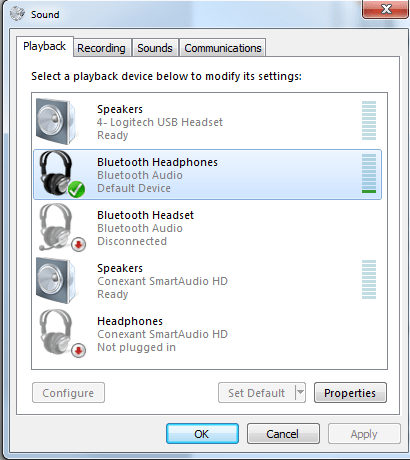
- Ensure the audio settings in Windows are set to the correct output device (headphones).
- Test your headphones by playing a song or video.
Connecting Headphones With Bluetooth
To connect headphones with Bluetooth, follow these steps:
- Activate Bluetooth on your PC (Windows 10: Settings > Devices > Bluetooth)
- Put your headphones in pairing mode.
- Select the headphones from the list of available devices.
- Follow any additional instructions to complete the pairing process.
Connecting Headphones With Wireless Connection (RF)
To connect headphones with wireless connection, follow these steps:
- Insert the battery into your headphones.
- Connect the RF transmitter to your PC’s audio jack.
- Ensure the settings in Windows are set to the correct output device (headphones).
- Test your headphones by playing a song or video.
Connecting Multiple Headsets
Want to connect multiple headsets at once? You can use an audio splitter or a Bluetooth adapter to achieve this.
Using an Audio Splitter
To use an audio splitter, follow these steps:
- Connect the audio splitter to your PC’s audio jack.
- Insert the 3.5Mm plug from each headset into the splitter.
- Ensure the settings in Windows are set to the correct output device (headsets).
Using a Bluetooth Adapter
To use a Bluetooth adapter, follow these steps:
- Connect the Bluetooth adapter to your PC’s audio jack.
- Put both headsets in pairing mode.
- Select both headsets from the list of available devices.
Connecting Headphones to a Mac
The process of connecting headphones to a Mac is similar to that of a PC. Here are the steps:
- Connect headphones with cable:
- Insert the 3.5Mm plug from your headphones into the audio jack on your Mac.
- Ensure the settings in System Preferences > Sound are set to the correct output device (headphones).
- Connect headphones with Bluetooth:
- Activate Bluetooth on your Mac (System Preferences > Bluetooth)
- Put your headphones in pairing mode.
- Select the headphones from the list of available devices.
Conclusion
Connecting headphones to a PC or Mac is a simple process that can enhance your computing experience. Whether you prefer cable, Bluetooth, or wireless connections, we’ve got you covered. Remember to adjust your audio settings accordingly and test your headphones for optimal performance. Happy listening!


