
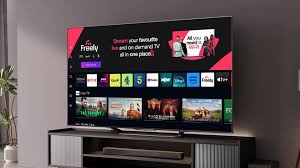
How to Connect Your Hisense Smart TV to Internet
Are you looking to connect your Hisense smart TV to the internet? If so, this article is for you! In this guide, we will walk you through the step-by-step process of connecting your Hisense TV to the internet using either Wi-Fi or Ethernet.
Understanding The Basics
Before we dive into the instructions, let’s understand the basics. Your Hisense smart TV comes with a built-in web browser and internet connectivity features. To connect it to the internet, you need to configure its settings to use either Wi-Fi or Ethernet.
Connecting Via Wi-fi
To connect your Hisense TV to the internet using Wi-Fi:
- Ensure Your Router is Nearby: Make sure that your router is placed in a spot where the signal can reach your TV.
- Check The Strength of The Wi-fi Signal: Ensure that the Wi-Fi signal is strong and stable. If it’s weak, you may need to acquire a Wi-Fi amplifier or repeater.
- Access The Settings Menu: Press the Menu button on your remote control and navigate to Settings.
- Select Network Settings: Choose Network Settings from the options available.
- Choose Wi-fi as The Connection Type: Select Wi-Fi as the preferred method of connecting to the internet.
- Search For Available Networks: The TV will scan for nearby Wi-Fi networks. Select your network name (SSID) from the list of available networks.
- Enter Your Password: Enter your Wi-Fi network password (also known as WEP, WPA, or WPA2).
- Save Changes And Restart: Save the changes and restart the TV to ensure that the connection is stable.
Connecting Via Ethernet
To connect your Hisense TV to the internet using Ethernet:
- Ensure You Have an Ethernet Cable: Get an Ethernet cable long enough to reach from your router to the TV.
- Connect The Ethernet Cable: Connect one end of the Ethernet cable to the Ethernet port on the back of the TV, and the other end to a free Ethernet port on your router or switch.
- Access The Settings Menu: Press the Menu button on your remote control and navigate to Settings.
- Select Network Settings: Choose Network Settings from the options available.
- Choose Ethernet as The Connection Type: Select Ethernet as the preferred method of connecting to the internet.
- Configure IP Address And Dns: Configure the TV’s IP address and DNS settings according to your network setup.
- Save Changes And Restart: Save the changes and restart the TV to ensure that the connection is stable.
Troubleshooting Tips
If you encounter any issues while trying to connect your Hisense TV to the internet, here are some troubleshooting tips:
- Check that the Wi-Fi signal is strong and stable.
- Ensure that the Ethernet cable is securely connected to both the TV and router.
- Restart the TV, router, or switch if there’s an issue with connectivity.
- Try using a different network source (e.G., From another device) to isolate the problem.
Additional Options
If you don’t have a smart TV but want to access internet content on your regular TV, there are other options available. You can consider:
- Chromecast: A digital media player developed by Google that allows you to stream content from your smartphone or tablet to your TV.
- Amazon Fire TV Stick: A device that connects to your TV’s HDMI port and provides instant access to a wide range of streaming services.
- Apple TV: A digital media player developed by Apple that offers a range of entertainment options, including music, movies, and TV shows.
Conclusion
Connecting your Hisense smart TV to the internet is a straightforward process. By following these instructions, you should be able to configure its settings to use either Wi-Fi or Ethernet. Remember to troubleshoot any issues that may arise and consider alternative options if you don’t have a smart TV. Happy streaming!
Frequently Asked Questions
- Q: Why Can’t I Connect my Hisense TV to The Internet?
A: There could be several reasons, including weak Wi-Fi signal strength, incorrect network settings, or issues with your router. - Q: Can I Use Both Wi-fi And Ethernet at The Same Time?
A: Yes, you can use both methods simultaneously if your TV is equipped with multiple network ports. - Q: What Are Some Troubleshooting Tips For Connecting my Hisense TV to The Internet?
A: Restarting the TV, router, or switch can resolve connectivity issues. Also, try using a different network source to isolate the problem. - Q: Can I Use Third-party Devices Like Chromecast or Amazon Fire TV Stick With my Hisense Tv?
A: Yes, you can use these devices in conjunction with your Hisense TV to access additional streaming services and content.
Recommended Devices For Non-smart Tvs
If you don’t have a smart TV but still want to enjoy internet content on your regular TV:
- Chromecast
- Amazon Fire TV Stick
- Apple TV
These devices can be connected to your TV’s HDMI port, allowing you to access a wide range of entertainment options.


