
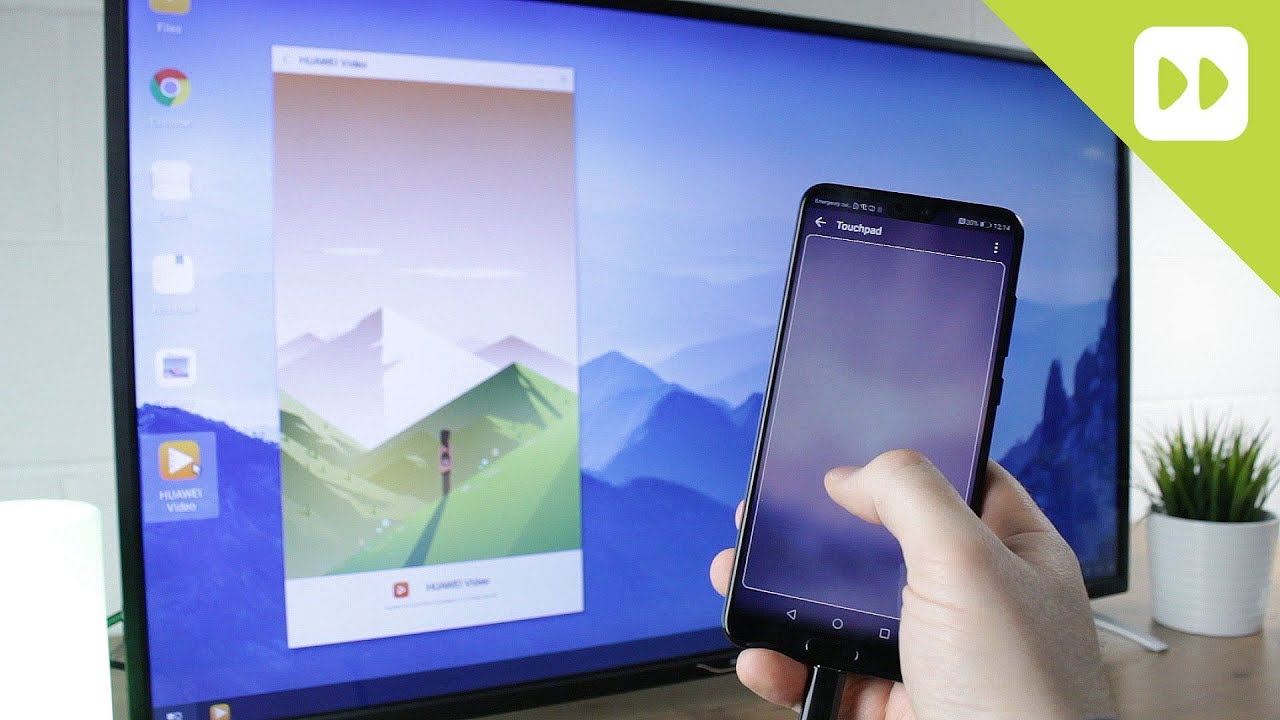
How to Connect Huawei Smartphone to PC
Are you tired of using your Huawei smartphone’s built-in camera or transferring files between your device and computer? Look no further! In this article, we will guide you through the process of connecting your Huawei smartphone to your PC.
Why Connect Your Huawei Smartphone to Pc?
There are several reasons why you might want to connect your Huawei smartphone to your PC. Some of these include:
- Transferring Files: You can transfer files from your smartphone to your computer or vice versa.
- Using Camera Apps: If you have a high-quality camera on your smartphone, you can use it to capture images and videos that are then transferred to your computer for editing or sharing.
- Accessing Notifications: You can receive notifications on your PC instead of your smartphone.
How to Connect Your Huawei Smartphone to PC
There are several ways to connect your Huawei smartphone to your PC. Here are some methods:
- Using Hisuite Software: The first method is by using the proprietary software provided by Huawei called HiSuite. This software allows you to transfer files, backup data, and update your device’s software.
- Without Using Hisuite: If you don’t want to use HiSuite or if it’s not available for your PC, you can still connect your smartphone to your computer using other methods.
Method 1: Connecting Your Huawei Smartphone to PC With Usb
To connect your Huawei smartphone to your PC using a USB cable:
- Download And Install Hisuite: First, download the HiSuite software from the official website of Huawei.
- Enable Hdb Mode: On your smartphone, go to Settings > Safety > Other settings, then toggle on “Consent the connection by means of HDB.”
- Scan QR Code: Open the HiSuite app on your PC and scan the QR code displayed on your smartphone.
- Connect Smartphone to PC: Once you’ve scanned the code, your smartphone will be connected to your PC.
Method 2: Connecting Your Huawei Smartphone to PC Without Usb
If you don’t have a USB cable or prefer not to use one:
- Download Link to Windows App: Download the “Link to Windows” app from the Play Store on your smartphone.
- Open Settings on PC: On your PC, open Settings and go to Bluetooth & devices > Link to phone.
- Scan QR Code: Open the Link to Windows app on your PC and scan the QR code displayed on your smartphone.
- Connect Smartphone to PC: Once you’ve scanned the code, your smartphone will be connected to your PC.
Method 3: Using Huawei PC Manager
If you have a Huawei laptop, you can use the HUAWEI PC Manager software to connect your smartphone to your PC:
- Open Huawei PC Manager: Open the HUAWEI PC Manager app on your laptop.
- Select My Phone: Select “My phone” from the menu and then click on “Connect.”
- Authorize Connection: On your smartphone, authorize the connection by selecting “Connect” in the pop-up window.
Alternative Solutions
If you’re unable to connect your Huawei smartphone to your PC using these methods, there are alternative solutions available:
- Nearby Share: You can use Nearby Share to transfer files between devices.
- AirDroid: This app allows you to access your smartphone’s camera and notifications on your PC.
By following the steps outlined in this article, you should be able to connect your Huawei smartphone to your PC using one of these methods.
Conclusion
In conclusion, connecting your Huawei smartphone to your PC can be a convenient way to transfer files, use camera apps, or access notifications. There are several methods to do so, including using HiSuite software, without USB cables, or using HUAWEI PC Manager on a laptop. If you encounter any issues during the connection process, consider alternative solutions like Nearby Share or AirDroid.
Frequently Asked Questions
Here are some frequently asked questions related to this topic:
Q: What is HiSuite software?
A: HiSuite software is proprietary software provided by Huawei for transferring files, backing up data, and updating device software.
Q: How do I connect my smartphone to PC without using HiSuite?
A: You can use the Link to Windows app or HUAWEI PC Manager on a laptop to connect your smartphone to your PC.
Q: Can I use Nearby Share to transfer files between devices?
A: Yes, you can use Nearby Share to transfer files between devices.
Q: How do I access notifications from my smartphone on my PC?
A: You can use AirDroid to access notifications and other features of your smartphone on your PC.


