
How to Connect Ipad to TV
Are you tired of watching movies or videos on your small iPad screen? Do you want to share them with friends and family gathered in the living room? Well, you’re not alone! Many people face this issue, but don’t worry; we’ve got a solution for you. In this article, we’ll show you how to connect your iPad to TV without using cables.
Benefits of Connecting Ipad to TV
Connecting your iPad to TV offers several benefits:
- Larger Screen: Enjoy watching movies and videos on a larger screen.
- Sharing With Others: Share your favorite content with friends and family gathered in the living room.
- Wireless Convenience: No need for cables or clutter; it’s all about convenience and ease.
Methods to Connect Ipad to TV
There are several methods to connect your iPad to TV without using cables. Let’s explore them:
Airplay
AirPlay is a technology developed by Apple that allows wireless transmission of content from an Apple device (e.G., IPad, iPhone) to another Apple device (e.G., Apple TV). This method ensures seamless connectivity and high-quality video streaming.
To use AirPlay, follow these steps:
- Ensure your Apple TV is connected to the same Wi-Fi network as your iPad.
- Open the app you want to share on your iPad (e.G., YouTube, Netflix).
- Tap the “AirPlay” icon, which resembles a small triangle with a line under it.
- Select your Apple TV from the list of available devices.
- Start playing the content on your iPad; it will automatically be shared on your Apple TV.
Chromecast
Another popular option is Chromecast, a device developed by Google that allows wireless streaming of content from any device (not just Android) to a TV with a Chromecast adapter. This method also ensures seamless connectivity and high-quality video streaming.
To use Chromecast, follow these steps:
- Ensure your Chromecast device is connected to the same Wi-Fi network as your iPad.
- Open the app you want to share on your iPad (e.G., YouTube, Netflix).
- Tap the “Cast” icon, which resembles a small TV or video screen with an arrow pointing out of it.
- Select your Chromecast device from the list of available devices.
- Start playing the content on your iPad; it will automatically be shared on your Chromecast-enabled TV.
Other Methods
There are other methods to connect your iPad to TV without using cables, such as:
- Dlna: This method allows streaming of content from your iPad (or iPhone) to a TV connected to the same network. DLNA is available for both iOS and Android devices.
- Smart Tvs: Many modern Smart TVs have built-in streaming capabilities, allowing you to connect your iPad directly to the TV without using cables.
Connecting Ipad to TV With Cable
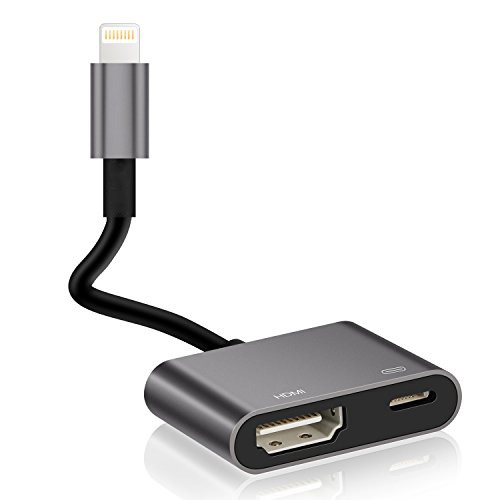
If you prefer not to use wireless methods or if your device does not support them, you can always connect your iPad to TV using a cable. This method requires an adapter (e.G., Lightning-to-HDMI) and an HDMI cable.
To connect your iPad to TV with a cable, follow these steps:
- Acquire the necessary adapters and cables for your specific iPad model.
- Connect the adapter to your iPad’s Lightning port or USB-C port (depending on your device).
- Connect the other end of the cable to your TV’s HDMI input.
- Turn on your TV and select the correct HDMI input.
Choosing The Right Adapter
When selecting an adapter, ensure it is compatible with your specific iPad model. Some popular adapters include:
- Lightning-to-hdmi: This adapter allows direct connection between your iPad (or iPhone) and a TV via an HDMI cable.
- Usb-c to Hdmi: This adapter allows connection between your iPad or iPhone and a TV via an HDMI cable, using the USB-C port instead of Lightning.
Conclusion
Connecting your iPad to TV without using cables is easier than you think. With AirPlay, Chromecast, DLNA, Smart TVs, and cable connections, there are multiple options available for seamless streaming of content from your device to your TV. Choose the method that best suits your needs and enjoy watching movies and videos with friends and family in comfort.
Frequently Asked Questions (FAQs)
-
Q: What is Airplay?
A: AirPlay is a technology developed by Apple for wireless transmission of content from an Apple device to another Apple device or Apple TV.
2. Q: How do I Connect my Ipad to TV Using Airplay?A: Ensure your Apple TV is connected to the same Wi-Fi network as your iPad, open the app you want to share, tap the “AirPlay” icon, select your Apple TV from the list of available devices, and start playing the content on your iPad.
3. Q: What is Chromecast?A: Chromecast is a device developed by Google that allows wireless streaming of content from any device to a TV with a Chromecast adapter.
4. Q: How do I Connect my Ipad to TV Using Chromecast?A: Ensure your Chromecast device is connected to the same Wi-Fi network as your iPad, open the app you want to share, tap the “Cast” icon, select your Chromecast device from the list of available devices, and start playing the content on your iPad.
5. Q: What Other Methods Can I Use to Connect my Ipad to Tv?A: Other methods include DLNA, Smart TVs, and cable connections using adapters (e.G., Lightning-to-HDMI).
6. Q: Which Adapter Should I Choose For Connecting my Ipad to Tv?A: Choose an adapter compatible with your specific iPad model (e.G., Lightning-to-HDMI or USB-C to HDMI).


