
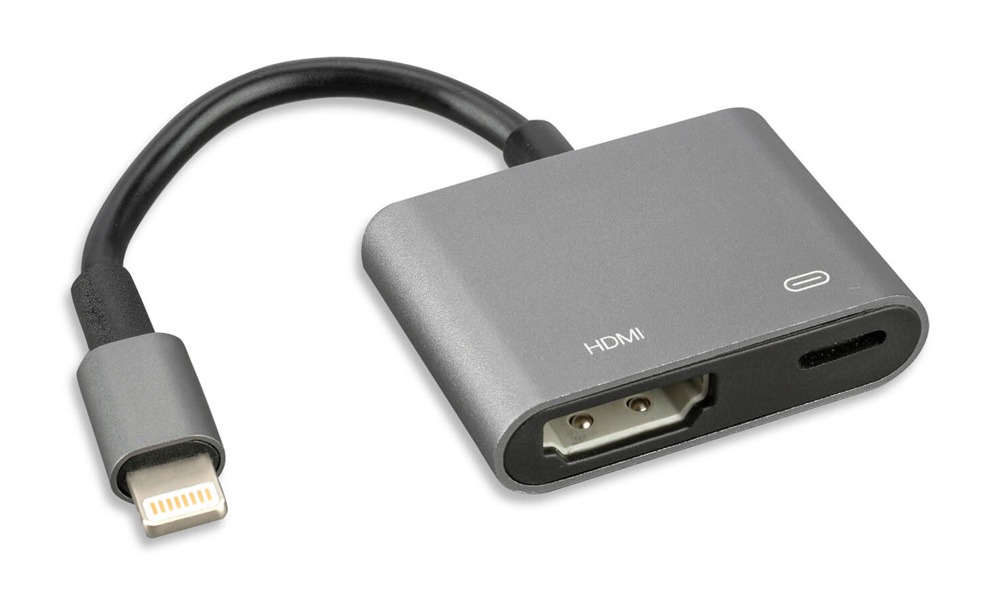
How to Connect Your Iphone to TV Without Cables: A Comprehensive Guide
Are you tired of dealing with cables and adapters in your living room? Do you want to stream your favorite content from your iPhone to your TV without the hassle of cords? Look no further! In this article, we will show you how to connect your iPhone to your TV without cables using various methods.
Why Use Airplay?
AirPlay is a proprietary technology developed by Apple that allows you to stream audio and video content from your iOS device (such as an iPhone or iPad) to your Apple TV, smart TV, or other compatible devices. It’s a convenient way to share your favorite music, movies, and photos with others without the need for cables.
Method 1: Using Airplay With Your Smart TV
If you have a smart TV that supports AirPlay 2, you can easily connect your iPhone to it using this technology. Here’s how:
- Ensure both your TV and iPhone are connected to the same Wi-Fi network.
- Access the settings menu on your TV and select “AirPlay” or “Apple AirPlay”.
- Choose whether you want to share content with all devices or just specific ones.
- Open the app you want to stream from on your iPhone, such as Netflix or YouTube.
- Select the “Share” option and choose “AirPlay” from the menu.
- Choose your TV from the list of available devices.
Method 2: Using Airplay With Apple TV
If you have an Apple TV, connecting your iPhone to it is a breeze using AirPlay. Here’s how:
- Ensure both your Apple TV and iPhone are connected to the same Wi-Fi network.
- Open the Settings app on your iPhone and select “AirPlay & Handoff”.
- Choose your Apple TV from the list of available devices.
- Select the content you want to stream from on your iPhone.
Method 3: Using Airplay With Mac
If you have a Mac, you can use AirPlay to connect your iPhone to it without cables. Here’s how:
- Ensure both your Mac and iPhone are connected to the same Wi-Fi network.
- Open the System Preferences app on your Mac and select “Sharing”.
- Select “AirPlay” from the menu and choose whether you want to share content with all devices or just specific ones.
- Open the app you want to stream from on your iPhone.
Method 4: Using Chromecast
If you have a Google Chromecast, connecting your iPhone to it is easy using the Google Home app. Here’s how:
- Ensure both your Chromecast and iPhone are connected to the same Wi-Fi network.
- Download the Google Home app on your iPhone.
- Open the app and select “Cast screen” or “Mirror device”.
- Choose your Chromecast from the list of available devices.
Tips And Tricks
Before you start, here are some tips and tricks to keep in mind:
- Ensure both your TV and iPhone are connected to the same Wi-Fi network for seamless streaming.
- Use a stable internet connection for smooth playback.
- Experiment with different apps and settings to find the best way to connect your iPhone to your TV without cables.
Frequently Asked Questions (FAQs)
Here are some frequently asked questions about connecting your iPhone to your TV without cables:
- What Devices Support Airplay?
AirPlay is supported by Apple devices, including iPhones, iPads, and Macs, as well as select smart TVs from brands like Samsung, LG, and Sony.
- Do I Need a Cable to Connect my Iphone to my Tv?
No, you don’t need a cable to connect your iPhone to your TV using AirPlay or Chromecast. Just ensure both devices are connected to the same Wi-Fi network.
- Can I Use Airplay With Multiple Devices at Once?
Yes, you can share content from your iPhone to multiple devices simultaneously using AirPlay.
- What Apps Support Chromecast Streaming?
Many popular apps, including Netflix and YouTube, support Chromecast streaming.
- How do I Troubleshoot Issues With Connecting my Iphone to my TV Without Cables?
If you experience any issues while trying to connect your iPhone to your TV without cables, restart both devices, check the Wi-Fi network connection, and ensure all necessary software updates are installed.
Conclusion
Connecting your iPhone to your TV without cables is easier than ever with AirPlay and Chromecast. By following these simple steps, you can enjoy seamless streaming of your favorite content from your iPhone to your TV. Whether you prefer Apple’s proprietary technology or Google’s innovative solution, there’s an option for everyone. Happy streaming!


