
How to Connect Your Iphone to Tv: A Step-by-step Guide
Are you tired of watching your favorite videos and photos on your small iPhone screen? Do you want to see them on the big television screen in your living room? Well, you’re in luck! With a few simple steps, you can connect your iPhone to your TV and enjoy a bigger and better viewing experience. In this article, we’ll show you how to do it.
What You Need
Before we begin, make sure you have the following:
- An iPhone (any model)
- A TV with an HDMI port
- An HDMI cable (you can buy one separately or use an adapter if your TV doesn’t have an HDMI port)
- Optional: Apple TV, Chromecast, or a Smart TV
Connecting Your Iphone to TV Using Hdmi
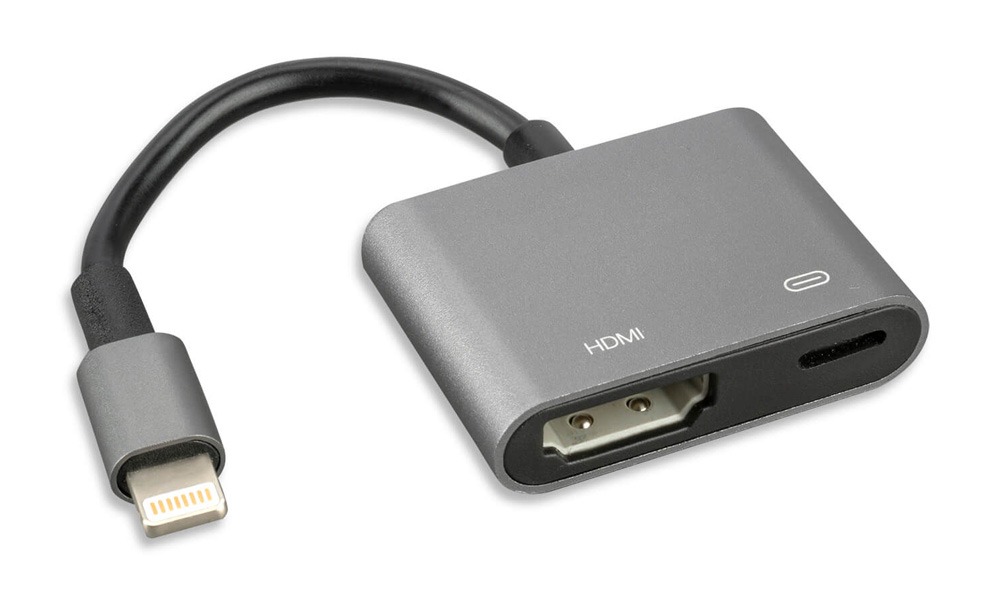
This is the most straightforward method. You’ll need an HDMI cable and an adapter if your TV doesn’t have an HDMI port.
- Connect The Hdmi Cable: Plug one end of the HDMI cable into your iPhone’s Lightning port (using an adapter if necessary) and the other end into your TV’s HDMI port.
- Turn on Both Devices: Make sure both your iPhone and TV are turned on.
- Select The Input Source: On your TV, select the correct HDMI input source to display the image from your iPhone.
Alternative Methods: Apple Tv, Chromecast, or Smart TV
If you have an Apple TV, Chromecast, or a Smart TV, you can use their built-in features to connect your iPhone to your TV. Here’s how:
Apple Tv
- Get an Apple TV: Purchase and set up an Apple TV device.
- Connect The Apple TV: Connect the Apple TV to your TV using an HDMI cable.
- Configure Airplay: On your iPhone, go to Settings > AirPlay & Handoff, and select the Apple TV from the list of available devices.
Chromecast
- Get a Chromecast Device: Purchase and set up a Chromecast device.
- Connect The Chromecast: Connect the Chromecast to your TV using an HDMI cable.
- Configure Google Cast: On your iPhone, download and install the Google Home app, and follow the on-screen instructions to connect your iPhone to the Chromecast.
Smart Tv
- Check if Your Smart TV Supports Airplay 2: Make sure your Smart TV is compatible with Apple’s AirPlay 2 technology.
- Configure Airplay 2: On your iPhone, go to Settings > AirPlay & Handoff, and select the Smart TV from the list of available devices.
Troubleshooting Tips
If you encounter any issues during the connection process, try the following:
- Ensure both your iPhone and TV are turned on.
- Check that the HDMI cable is securely connected to both devices.
- Restart both devices if necessary.
- Consult the user manual for your TV or Apple TV device for specific instructions.
Conclusion
Connecting your iPhone to your TV has never been easier! With these simple steps, you can enjoy a bigger and better viewing experience. Whether you choose to use an HDMI cable, Apple TV, Chromecast, or a Smart TV, we hope this guide has helped you navigate the process with confidence. Happy watching!
Frequently Asked Questions (FAQs)
Q: What if my TV doesn’t have an HDMI port?
A: You can purchase an adapter that converts your iPhone’s Lightning port to an HDMI connection.
Q: Can I connect my iPhone to a non-Smart TV?
A: Yes, you can use an HDMI cable or an Apple TV device to connect your iPhone to a non-Smart TV.
Q: What if I have multiple devices connected to my TV?
A: Use the source selector on your TV to switch between different input sources.
Q: Can I stream content from other apps on my iPhone?
A: Yes, you can use AirPlay or Chromecast to stream content from other apps on your iPhone.
Q: Is there a limit to how many devices I can connect to my TV using AirPlay 2?
A: Yes, Apple has set a limit of two connected devices per room for AirPlay 2.
Q: Can I use my iPhone’s built-in speakers as an external speaker for my TV?
A: No, the iPhone’s built-in speakers are not designed for external use.
Q: What if I have issues with video quality or audio sync when streaming content from my iPhone?
A: Try restarting both devices, checking the HDMI cable connection, and ensuring that your TV is set to the correct input source.


