
How to Connect Your Ps4 to a Lan Cable: A Step-by-step Guide
Are you tired of lagging online sessions on your PlayStation 4? Do you want to enjoy seamless gaming experiences with your friends? Look no further! In this article, we’ll guide you through the process of connecting your PS4 to a LAN cable, ensuring stable and fast internet connections for all your online needs.
Why Choose a Lan Cable Over Wi-fi?
Before we dive into the instructions, let’s quickly discuss why choosing a LAN cable over Wi-Fi is a better option. A LAN cable provides a more stable and secure connection compared to Wi-Fi. It reduces lag, minimizes disconnections, and ensures that you can play online games without interruptions.
Choosing The Right Lan Cable
Before connecting your PS4 to a LAN cable, it’s essential to choose the right one. Here are some factors to consider:
- Length: Select a cable that’s long enough to reach from your router to your PS4. If you have a very long distance between the two devices, consider using Powerline adapters.
- Category: Look for cables with a high category rating (e.G., CAT-6 or higher). These will provide faster speeds and better performance.
- Ftp/stp Shielding: Choose a cable with FTP (Four Twisted Pairs) or STP (Shielded Twisted Pair) shielding. This will help protect against electromagnetic interference.
Connecting The Lan Cable to Your Ps4
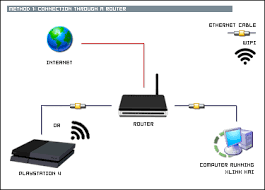
Now that you’ve chosen the right LAN cable, it’s time to connect it to your PS4. Here are the step-by-step instructions:
- Locate The Ethernet Port: Find the Ethernet port on your PS4, which is usually located at the back or top of the console.
- Identify The Cable End: Take the end of the LAN cable with the RJ-45 connector and align it with the Ethernet port on your PS4.
- Insert The Cable: Carefully insert the cable into the port until you hear a click, indicating that it’s securely connected.
- Check The Connection: Verify that the connection is stable by checking for any signs of disconnection or lag.
Checking The Connection
To ensure that your PS4 is properly connected to the internet via LAN cable, follow these steps:
- Access The Settings Menu: Go to the settings menu on your PS4 and select “Network.”
- Configure Internet Connection: Choose the option to configure an internet connection using a LAN cable.
- Select The Cable Option: Select the option to use a LAN cable (Ethernet) as your internet connection method.
- Check The Connection Status: The system will check your connection status, and you’ll see if it’s stable or not.
Troubleshooting Common Issues
If you’re experiencing issues with your connection, here are some common problems and their solutions:
- Connection Drops: Try restarting your PS4, router, and modem to resolve the issue.
- Laggy Performance: Check your cable for any signs of damage or interference. Replace it if necessary.
- Difficulty Connecting: Ensure that your PS4 is properly configured to use a LAN cable as its internet connection method.
Conclusion
Connecting your PS4 to a LAN cable is a straightforward process that requires the right equipment and some basic setup. By following these steps, you’ll be able to enjoy seamless online gaming experiences with your friends. Remember to choose the right LAN cable for your needs, and don’t hesitate to troubleshoot any issues that may arise.
Faqs
- Q: What Are The Benefits of Using a Lan Cable Over Wi-fi?
A: A LAN cable provides a more stable and secure connection compared to Wi-Fi, reducing lag and minimizing disconnections. - Q: How do I Choose The Right Lan Cable For my Ps4?
A: Select a cable that’s long enough to reach from your router to your PS4, with a high category rating (e.G., CAT-6 or higher), and FTP/STP shielding for better performance. - Q: What if I Experience Issues With my Connection?
A: Try restarting your PS4, router, and modem to resolve the issue. Check your cable for any signs of damage or interference, and replace it if necessary.
We hope this guide has been helpful in connecting your PS4 to a LAN cable!


