
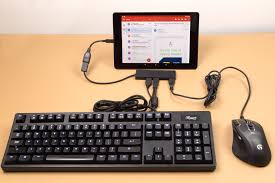
Connecting Your Mouse And Keyboard to Your Phone: A Step-by-step Guide
Are you tired of using your phone’s touchscreen interface? Do you wish you could use a mouse and keyboard to make typing and navigation easier? Look no further! In this article, we’ll show you how to connect your mouse and keyboard to your Android or iPhone smartphone.
Preliminary Operations
Before we dive into the instructions, there are a few preliminary operations you need to perform:
- Update Your Operating System: Make sure your phone’s operating system is up-to-date. For Android devices, go to Settings > System > About Phone > Advanced > Update System. For iPhone users, navigate to General > Settings > Update Software.
- Check Compatibility: Ensure that your phone is compatible with the USB OTG (On-The-Go) technology.
Connecting Your Mouse And Keyboard
Now that you’ve performed the preliminary operations, it’s time to connect your mouse and keyboard:
For Android Devices
- Choose a Connection Method: You have two options: Bluetooth or OTG cable.
- If you prefer a wireless connection, use a mini-keyboard with a built-in touchpad or a compact Bluetooth keyboard that integrates a touchpad.
- If you prefer a wired connection, acquire an OTG adapter and connect your mouse and keyboard via a USB cable.
- Set Up Your Keyboard And Mouse: Follow the manufacturer’s instructions to pair your keyboard and mouse with your phone.
For Iphone Devices
- Choose a Connection Method: You have two options: Bluetooth or Lightning cable.
- If you prefer a wireless connection, use a keyboard and mouse that support Bluetooth 5.0.
- If you prefer a wired connection, acquire an adapter to connect your keyboard and mouse via a Lightning cable.
- Set Up Your Keyboard And Mouse: Follow the manufacturer’s instructions to pair your keyboard and mouse with your phone.
Tips And Recommendations
When choosing a keyboard and mouse for your smartphone, consider the following tips:
- Opt For Bluetooth 5.0: This ensures compatibility with both Android and iPhone devices.
- Choose a Keyboard With a Touchpad: This will allow you to use the touchpad as a mouse substitute.
- Consider a Mini-keyboard: These compact keyboards are perfect for smartphone users.
Conclusion
Connecting your mouse and keyboard to your phone is easier than you think! By following these step-by-step instructions, you can enjoy a more comfortable typing experience and improved navigation on your Android or iPhone device.
Faqs
- Q: Can I use my existing mouse and keyboard with my smartphone?
A: Yes, but you’ll need an OTG adapter for Android devices and an Apple adapter for iPhone devices. - Q: What is the difference between Bluetooth and OTG cable connections?
A: Bluetooth provides a wireless connection, while OTG cables require a physical connection to your phone’s USB port. - Q: Can I use my mouse and keyboard simultaneously with my smartphone?
A: Yes, but you may need a hub to power both devices. - Q: Are there any specific recommendations for iPhone users?
A: Yes, consider using a Bluetooth keyboard and mouse that support iOS 13 or later. - Q: What is the best way to connect my mouse and keyboard to my Android device?
A: Use a wireless connection via Bluetooth or acquire an OTG adapter for a wired connection. - Q: Can I use my mouse and keyboard with other devices, such as tablets or laptops?
A: Yes, but you may need to adjust settings and configurations accordingly. - Q: Are there any specific adapters required for iPhone users?
A: Yes, consider using an Apple adapter to connect your mouse and keyboard via a Lightning cable. - Q: Can I use my phone’s touchscreen interface while using a mouse and keyboard?
A: Yes, but you may need to adjust settings and configurations accordingly.
I hope this article has helped you understand how to connect your mouse and keyboard to your smartphone!


